





Summary
A complete guide to the Custom per assignment library access mode in KnowledgeCity LMS, what it is, how to enable it, how individual assignment access is configured, and how the system behaves when users have multiple assignments with mixed access rules.
Introduction
The Custom per assignment setting gives administrators granular control over library access at the individual assignment level, rather than applying a single rule to all users or all content. Instead of either fully opening or fully closing the library for everyone, this mode lets you decide, per assignment, whether learners must complete it before they can freely browse the course library.
This is especially useful for compliance-driven environments where certain mandatory trainings must be completed before open learning is permitted, while other assignments carry no such restriction.
How It Works
When Custom per assignment is selected as the Library Access mode, each assignment in your LMS gains its own access rule. Assignments can be set to one of two states:
| Assignment State | What It Means |
|---|---|
| Open | No library restriction. Users with only Open assignments can browse the full library freely. |
| Closed (Mandatory) | Library access is blocked for the assigned user until this assignment is completed. |
A user's overall library access is determined by the combination of all assignments they currently have:
- If a user has any Closed (mandatory) assignment that is not yet complete, their library access is blocked
- Library access is only restored once all of their Closed assignments are completed
- Users with no Closed assignments (or only Open assignments) retain full library access at all times
Enabling Custom per Assignment Mode
- Sign in to your KnowledgeCity LMS with an administrator account that has Full Access
- Go to Settings → Account Settings
- Click the Learning Process tab
- Under the Library access section, open the dropdown and select Custom per assignment
- Click Save at the bottom of the page
Important: When you switch to Custom per assignment mode, all existing user-level library access overrides are reset to Default. Any assignment-level access rules that were previously configured will be applied automatically. Review your active assignments after switching to confirm the expected behavior.
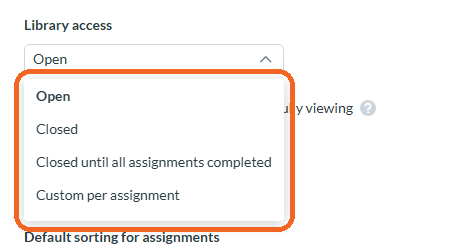
Caption: Under the Library access section, open the dropdown and select Custom per assignment
Configuring Library Access on an Individual Assignment
Once Custom per assignment mode is active, each assignment you create or edit will include a Library Access option:
- Navigate to Assignments in your LMS admin panel
- Create a new assignment or open an existing one
- Locate the Library Access field within the assignment settings
- Select either:
- Open: this assignment does not restrict the library
- Closed: this assignment is mandatory; the learner's library access is blocked until it is completed
- Save the assignment
Logic for Users with Multiple Assignments
When a learner has more than one active assignment, the following rules apply:
| Scenario | Library Access |
|---|---|
| All assignments are Open | ✅ Accessible |
| Mix of Open and Closed: Closed not yet completed | ❌ Blocked |
| All Closed: all completed | ✅ Accessible |
| All Closed: one or more incomplete | ❌ Blocked |
In short: one incomplete mandatory (Closed) assignment is enough to lock the library, regardless of how many Open assignments the user also has.
Switching Away from Custom per Assignment Mode
If you change the Library Access setting from Custom per assignment to another mode (Open, Closed, or Closed until all assignments completed), the account-wide rule takes over immediately for all users. Individual per-assignment settings are preserved in the system but are not active while a different mode is selected. If you switch back to Custom per assignment later, those per-assignment settings will resume.
When to Use This Mode
Use Custom per assignment when:
- Some trainings are mandatory (e.g. compliance, onboarding) and must be completed before free browsing is allowed
- Other trainings are optional or developmental and should not restrict library access
- You need different rules for different user groups or assignment batches without creating separate portals
Use Closed until all assignments completed instead when every assignment in your portal is mandatory and you want a simpler, uniform rule across the board.