





Summary
A comprehensive guide on generating OAuth API keys within the KnowledgeCity LMS, including how to name tokens, view Client IDs, and manage existing credentials securely.
Introduction
The API Tokens section within KnowledgeCity LMS allows administrators with Full Access to generate OAuth credentials for secure API access. These tokens (Client ID and Client Secret) enable external applications or custom integrations to retrieve and manage data from your LMS according to the permissions granted. This guide walks you through creating your API token, understanding the security implications, and managing existing tokens.
Requirements
- KnowledgeCity LMS administrator with Full Access, or a custom role that grants the Integrations section: Required to access the Integrations and API Tokens settings.
- API Integration: A clear understanding of which external tool or service will use the generated credentials.
- API Documentation: All details regarding our API are documented here: https://integration.knowledgecity.com/#page=getting-started/about
Steps to Follow
Step 1. Access the API Tokens Section
- Sign in to your KnowledgeCity LMS with an administrator account that has Full Access.
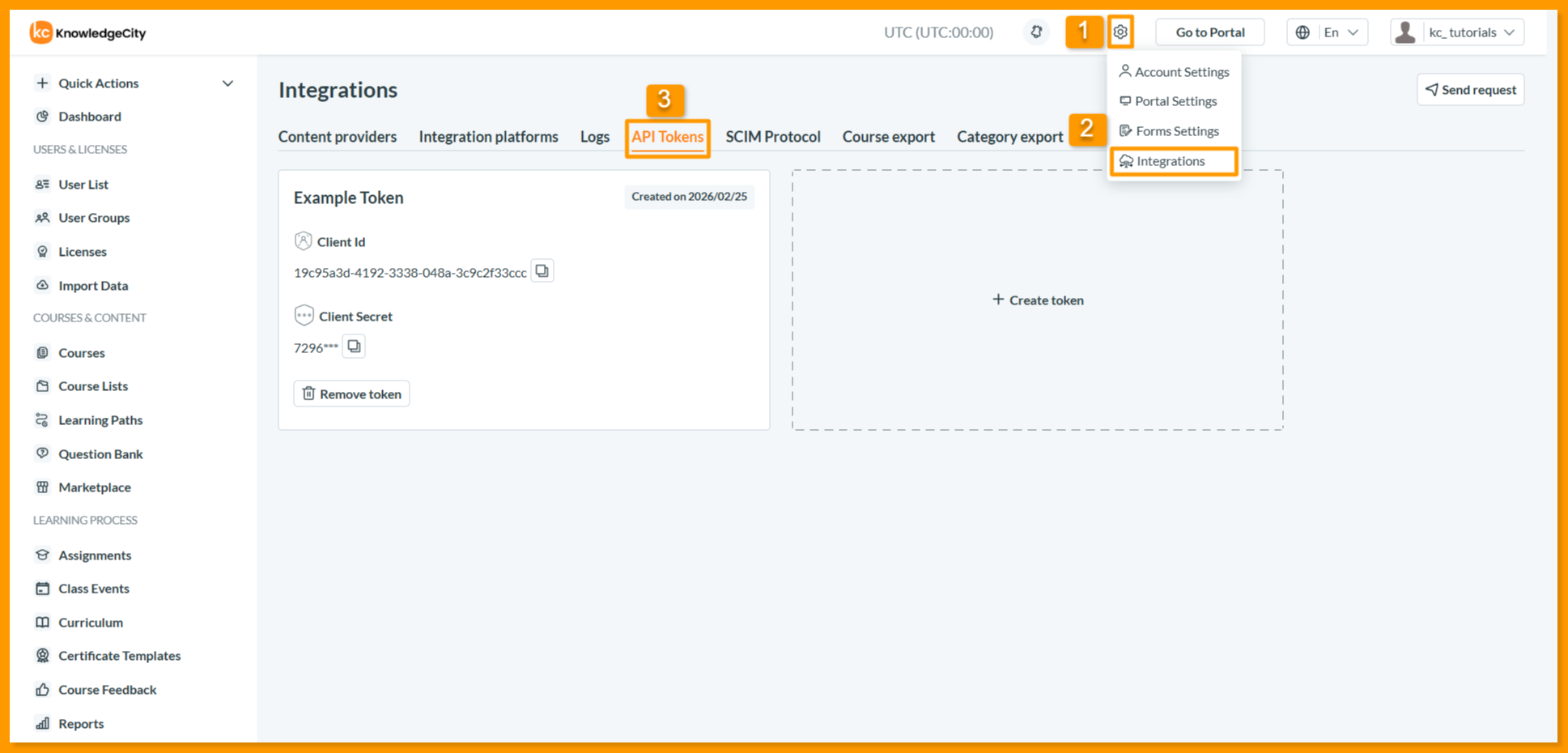
- Locate the Settings dropdown menu on the top panel of the LMS interface.
- From the dropdown, select Integrations. This will open the Integrations Detail page.
- On the Integrations page, select the API Tokens tab. Here, you will see a list of all previously generated tokens and a button to create new ones.
Step 2. Create a New API Token
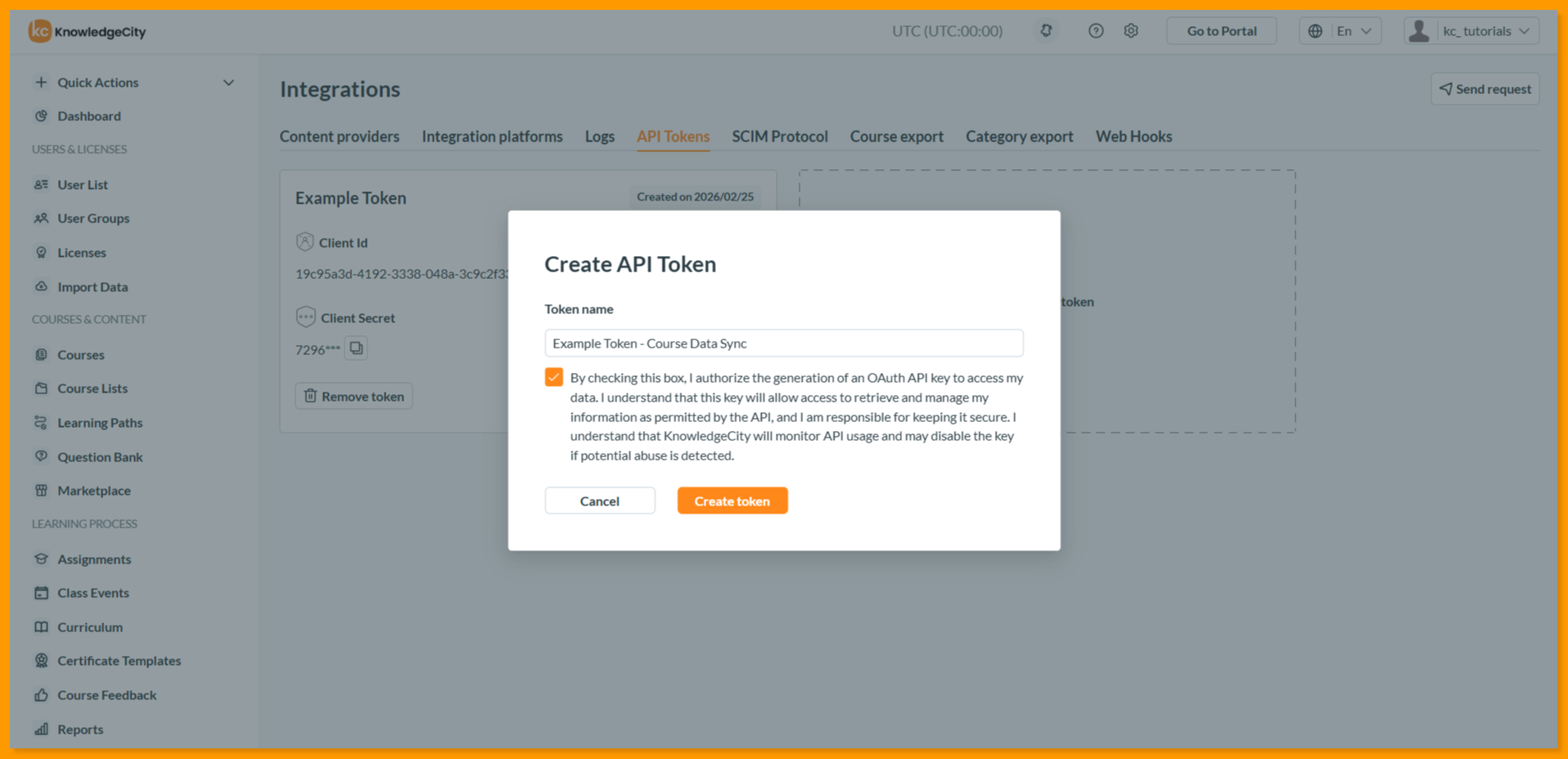
- Click the Create token button. A pop-up window will appear to create new token.
- In the Token name field, enter a descriptive name for your token (e.g., "External Tool Name - Course Data Sync"). This helps you identify the token's purpose later.
- Read the authorization statement carefully and check the box to confirm your understanding and authorization.
- Click the Create token button to generate your credentials.
Important: By creating an API token, you authorize the generation of an OAuth API key to access your data. This key will allow access to retrieve and manage your information as permitted by the API. You are responsible for keeping it secure. KnowledgeCity monitors API usage and may disable the key if potential abuse is detected.
Step 3. Copy Your Client Credentials
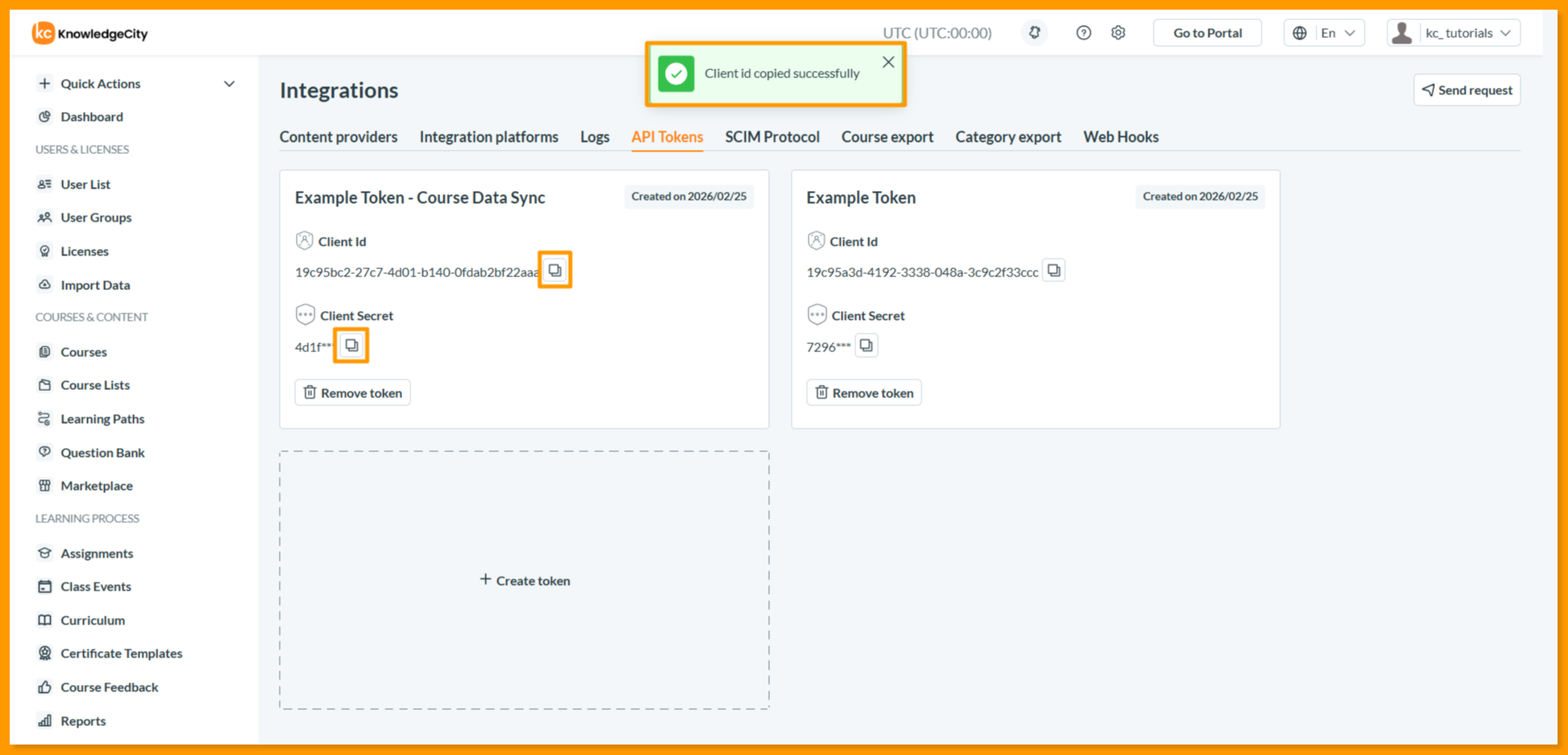
- After creation, your new token will appear in the list of the API Tokens details page.
- Locate your new token card, then copy the Client ID and Client Secret to use in your external application or integration tool:
- Client ID: A unique public identifier for your token. This tells the API which application is requesting access.
- Client Secret: A private key used to authenticate your application. Think of it as a password for your integration. Click to copy and reveal it as needed.
Important: Treat your Client Secret like a password. Never share them in public forums, emails, or client-side code. If you suspect it has been compromised, remove the token immediately and generate a new one.
Step 4. Managing Existing Tokens
- Viewing Tokens: All active tokens are displayed as cards on the API Tokens details page.
- Removing a Token: If a token is no longer needed or you suspect it has been compromised, you can revoke it immediately.
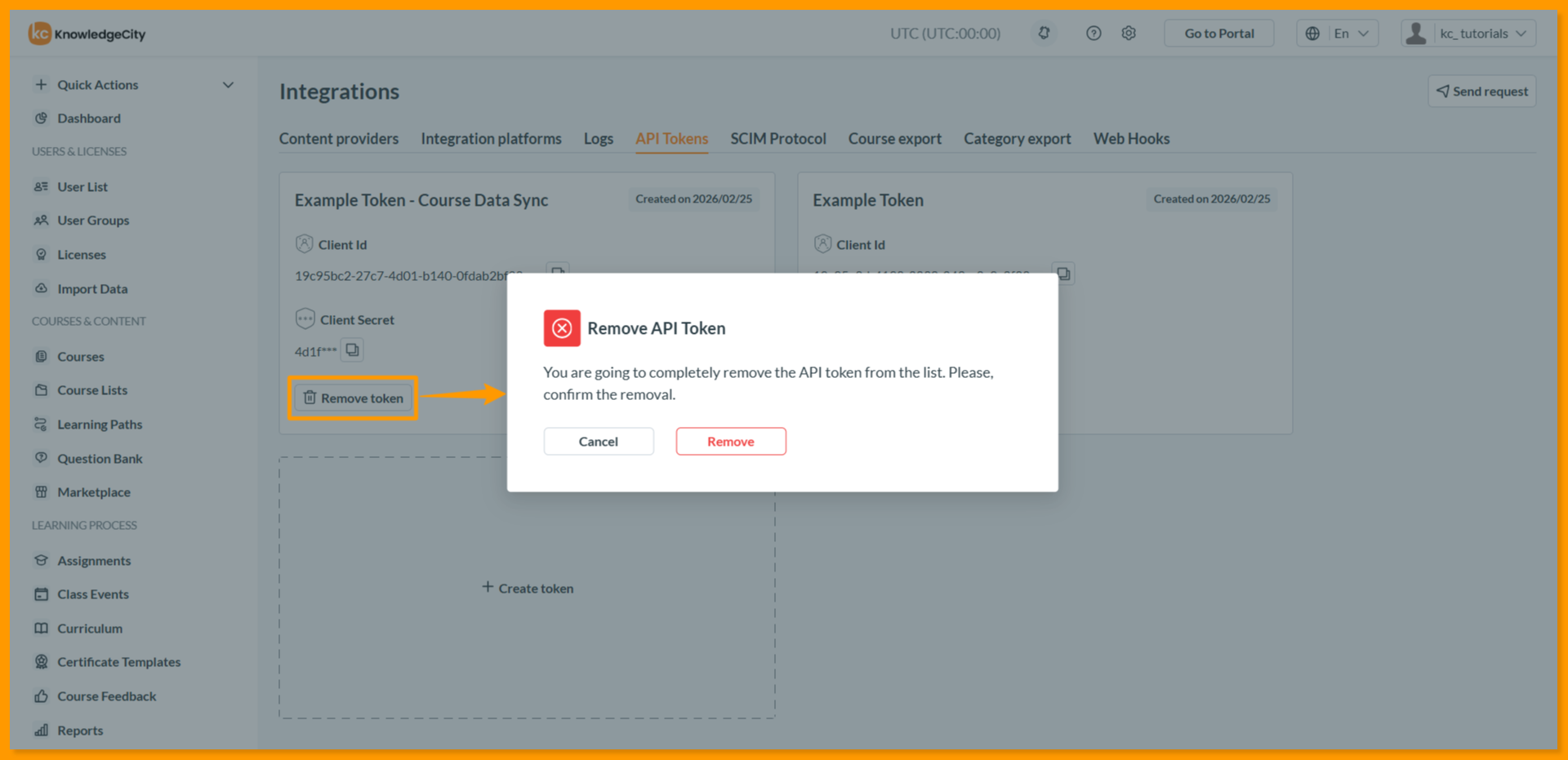
- Find the token card in the list.
- Click the Remove token button located on that card.
- Confirm the removal.
Important: Remove API token is irreversible action and will immediately block access for any external application using that token.
Conclusion
Integrating with the KnowledgeCity LMS via API tokens provides a secure and efficient way to connect external applications and custom tools to your learning platform. By following the steps outlined above, administrators with Full Access can generate, manage, and securely store the necessary credentials while maintaining control over access. Remember to regularly review your active tokens and remove any that are no longer in use to keep your integration environment clean and secure