





Summary
A complete overview of integrating Bamboo HR with KnowledgeCity LMS, including API setup, user import settings, course completion export configuration, and scheduler management.
Introduction
The Bamboo HR integration with KnowledgeCity LMS allows administrators to connect their Bamboo HR account directly to the learning platform. This enables seamless synchronization of user data, automated employee imports, and course completion exports back to Bamboo HR. Once integrated, employee records such as new hires, role changes, and departures can be automatically reflected in the LMS, eliminating manual data entry while ensuring training records remain accurate and up to date.
Requirements
- KnowledgeCity LMS administrator with Full Access, or a custom role that grants the Integrations section: Required to access the LMS Integrations settings.
- BambooHR Admin Account: An administrator account is required to create a dedicated KnowledgeCity (KC) service user and generate an API key for the LMS integration (Please contact your BambooHR administrator for assistance).
Steps to Follow
Follow the step-by-step instructions below to integrate your Bamboo HR account to your KnowledgeCity LMS.
Step 1. Access the Integration Platforms
- Sign in to your KnowledgeCity LMS with an administrator account that has Full Access.
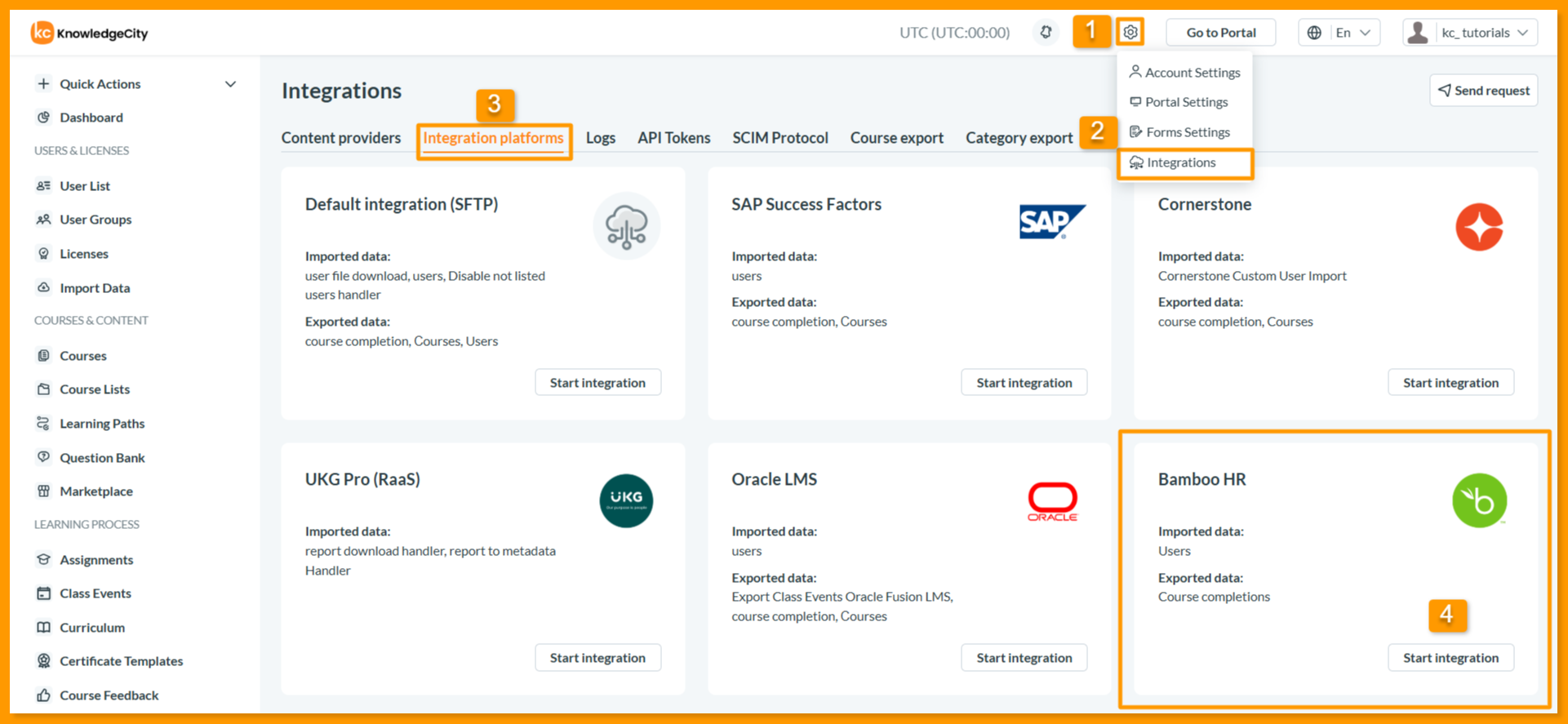
- Locate the Settings dropdown menu on the top panel of the LMS interface.
- From the dropdown, select Integrations. This will open the Integrations Detail page.
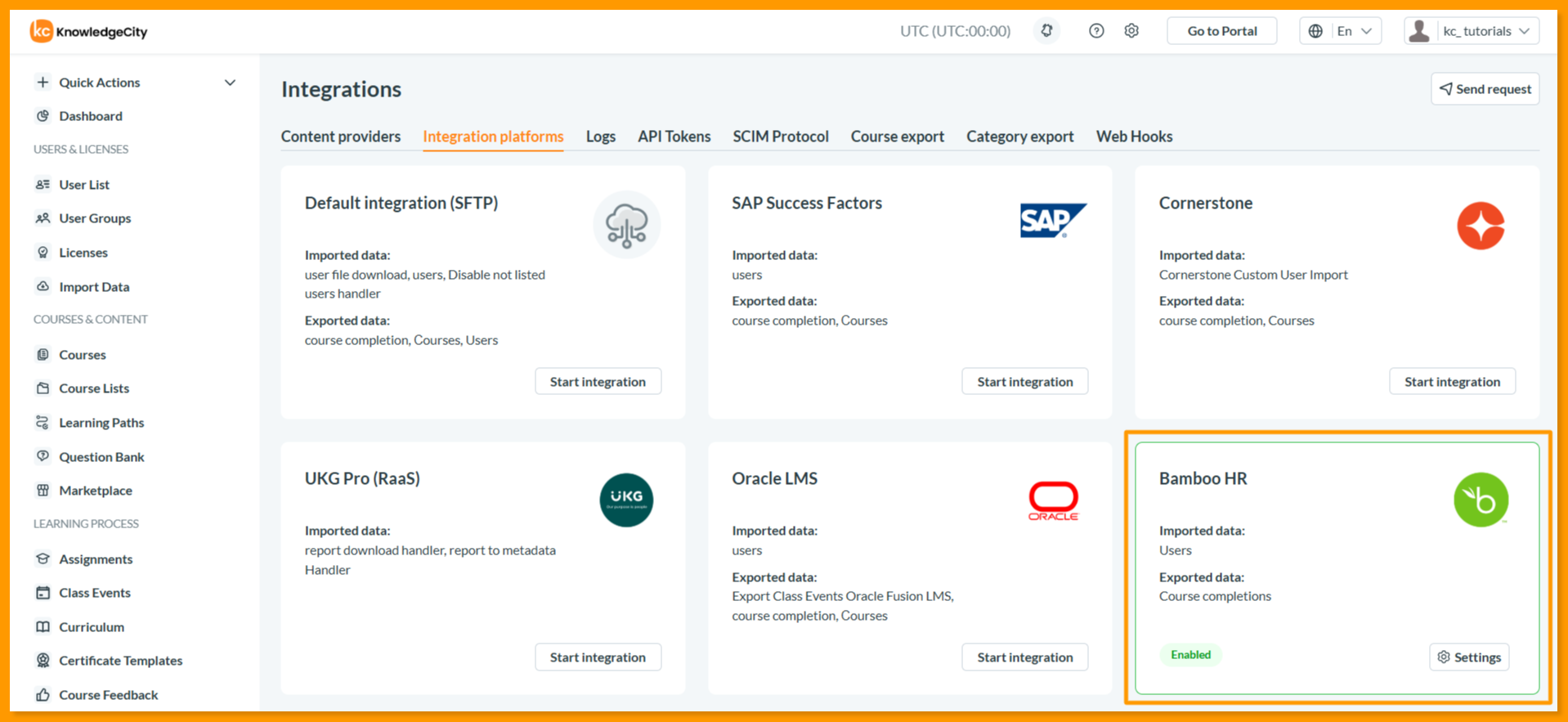
- On the Integrations page, select the Integration platforms tab. This tab displays the list of all available third-party platforms you can integrate with.
Step 2. Initiate the Integration
- Scroll down the list to locate the Bamboo HR.
- On the Bamboo HR card, click the Start integration button.
- Clicking the Start integration button will open the Bamboo HR Integration Details page, where you will configure all integration settings.
Step 3. Configure General Parameters
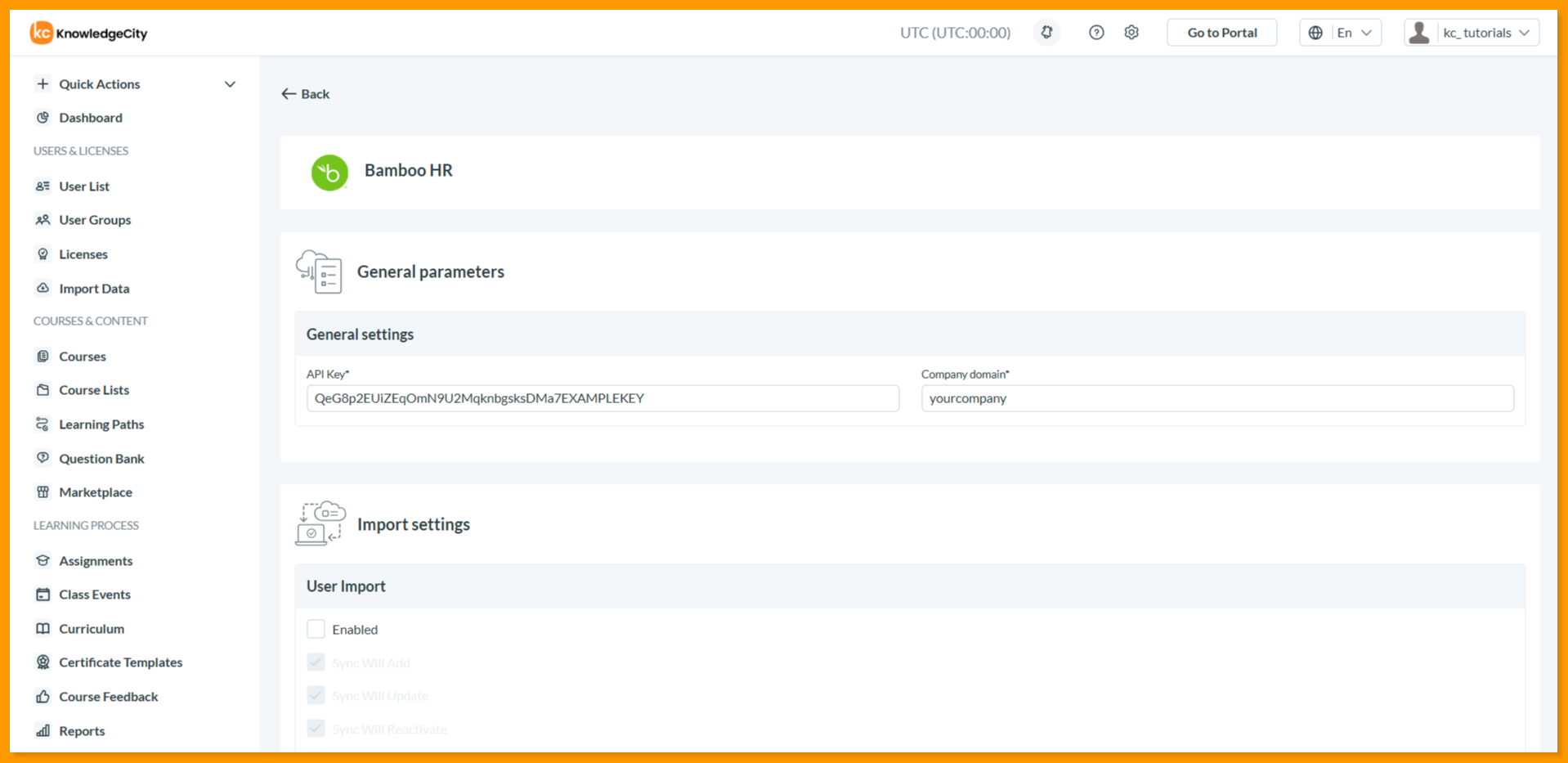
This section contains the required credentials to establish a connection between your KnowledgeCity LMS and Bamboo HR.
- Inside General parameters section, Enter the following details:
- API Key: The unique key generated from your Bamboo HR account (Contact your Bamboo HR admin if you need assistance generating this key).
- Company domain: Your company's unique Bamboo HR subdomain (e.g., if your login URL is
https://yourcompany.bamboohr.com, enteryourcompanyhere).
Note: The API Key and Company Domain fields are mandatory. The connection cannot be established without valid credentials.
Step 4. Configure Import Settings
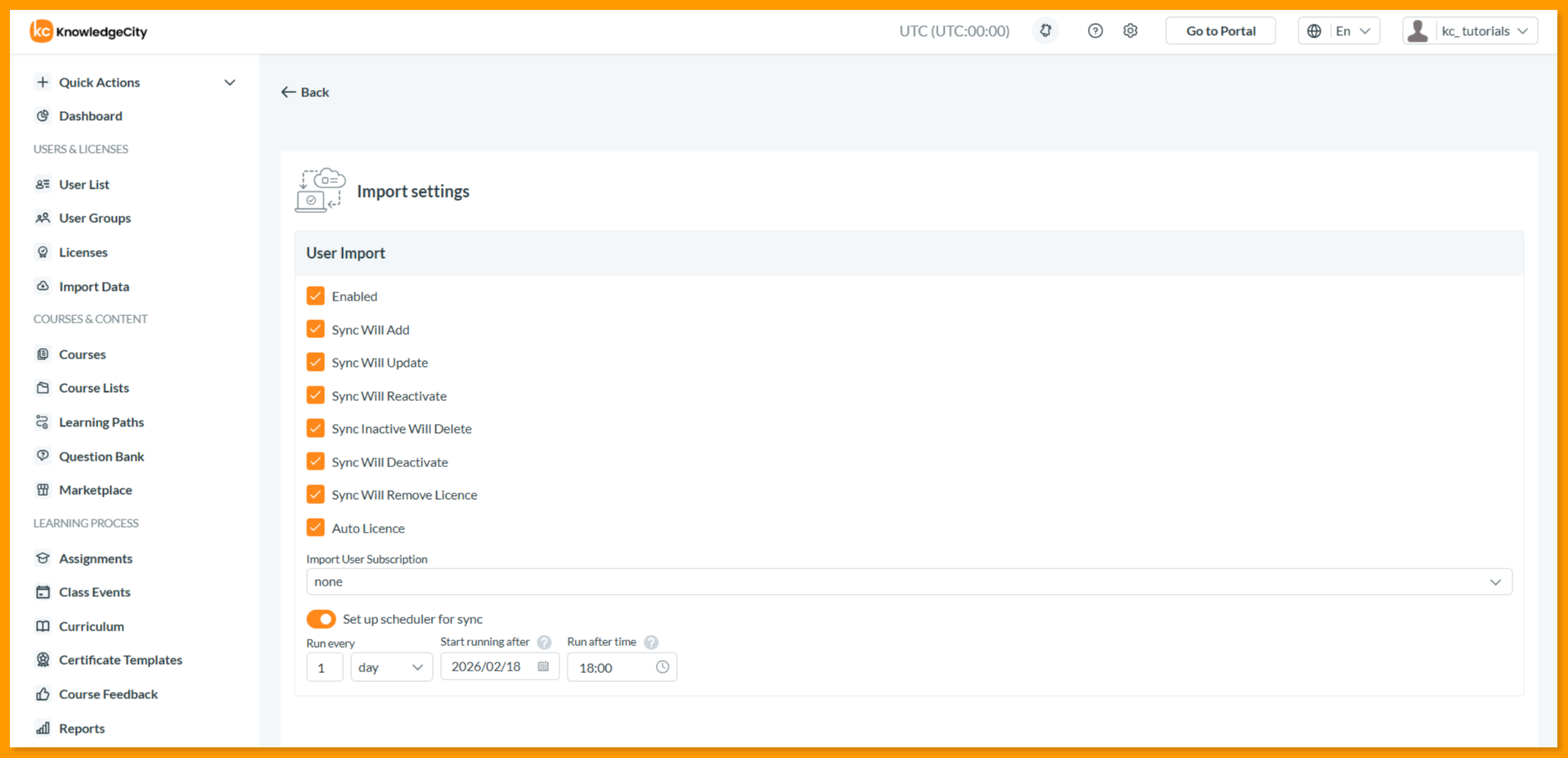
This section controls how user data is synchronized from Bamboo HR into your KnowledgeCity LMS.
- Scroll to the Import settings section on the Integration Details page.
- Configure the following options:
User Import: Enabled: Check this box to activate user synchronization from Bamboo HR.
Sync Actions (determine what happens during each sync):
- Sync Will Add: When checked, creates new users in LMS when they exist in Bamboo HR but not in KnowledgeCity LMS.
- Sync Will Update: When checked, existing user information will be updated if the user is active in both Bamboo HR and KnowledgeCity LMS.
- Sync Will Reactivate: When checked, users will be reactivated in the LMS if they are active in Bamboo HR but currently inactive in KnowledgeCity LMS.
- Sync Inactive Will Delete: When checked, users who are inactive in Bamboo HR will be permanently deleted from the KnowledgeCity LMS.
- Sync Will Deactivate: When checked, users who are inactive in Bamboo HR will be deactivated in the KnowledgeCity LMS while retaining their user records.
- Sync Will Remove License: When checked, users who are inactive in Bamboo HR will have their licenses removed while remaining active or deactivated in the KnowledgeCity LMS.
Auto License: Import User Subscription: Select a specific subscription from the dropdown to automatically assign to newly imported users. Select "none" if you prefer to assign licenses manually.
Set up scheduler for sync:
- Run every: Define the frequency (e.g., 1, 2) and select the time unit from the dropdown (e.g., "once", "day", "week").
- Start running after: Choose the start date for the scheduled sync using the date picker.
- Run after time: Select the specific time of day for the sync to begin.
Step 5. Configure Export Settings
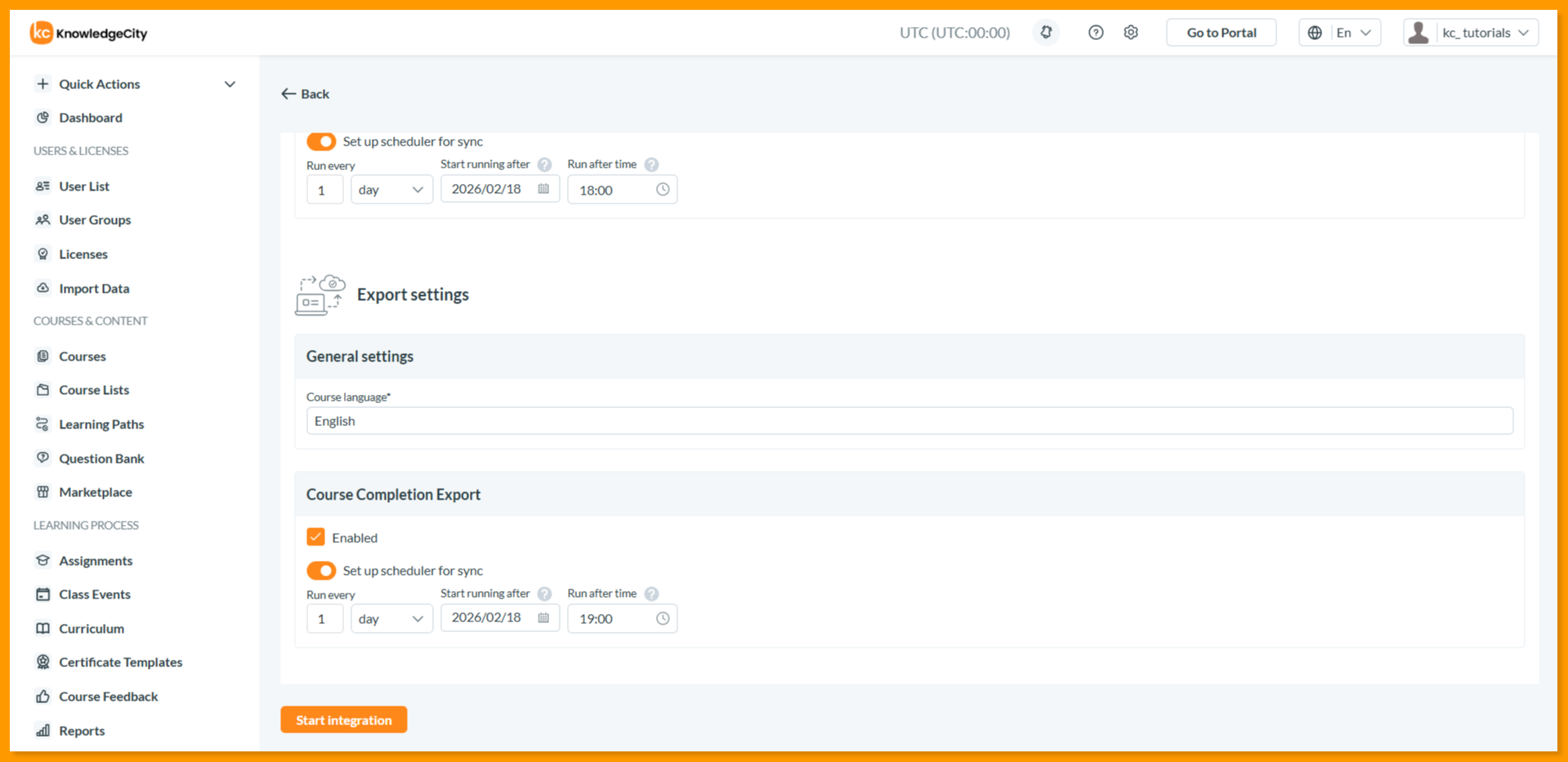
This section controls how course completion data is exported from KnowledgeCity LMS to your Bamboo HR.
- Scroll to the Export settings section at the bottom of the Integration Details page.
- Configure the following options:
General settings: Course language: Enter the Language for exported course data.
Course Completion Export: Enabled: Check this box to activate automatic export of course completion records to Bamboo HR immediately after a user passes a course.
Set up scheduler for sync:
- Run every: Define the frequency (e.g., 1, 2) and select the time unit from the dropdown (e.g., "once", "day", "week").
- Start running after: Choose the start date for the scheduled sync using the date picker.
- Run after time: Select the specific time of day for the sync to begin.
- After configuring all three sections, click the Start integration button at the bottom of the page to save your settings and activate the integration.
Step 6. Confirm Successful Integration
- After clicking Start integration, you will be returned to the KnowledgeCity LMS Integration Platforms page.
- The integration is successfully completed when the Bamboo HR integration card:
- Is highlighted in green
- Shows an Enabled status on the card
- Replaces the Start integration button with the Settings option
- To disconnect the integration at any time, click the Settings button on the same card to Deactivate the integration.
Note: After successful integration, you can return to these settings at any time to modify the settings, temporarily deactivate, or re-enable it as required.
Conclusion
You have successfully integrated your Bamboo HR account with KnowledgeCity LMS. You can now leverage this connection to automate user synchronization, ensure employee data is always up to date, and automatically export course completion records back to Bamboo HR. When managing user imports or running reports, you will now see Bamboo HR as a connected data source. If you ever need to modify or disconnect the accounts, simply reopen the Bamboo HR Integration card and click Settings button to Deactivate the integration.