





Summary
This LMS-focused guide explains how to manage the Leaderboard and points system in Account Settings, including enabling the feature, resetting points (and starting new cycles), and reviewing related activity logs.
Introduction
The purpose of this guide is to provide admins with a clear understanding of how the Leaderboard and points system is managed within the LMS. It outlines all available administrative controls, including enabling the feature, resetting points, managing leaderboard cycles, and reviewing system activity, ensuring accurate and consistent oversight of learner scoring across the platform.
Requirements
Access to the LMS as an administrator with Full Access, or a custom role that grants the Account settings section, to configure Leaderboard settings and perform point resets.
An active account where “Show leaderboard on My Learning page” is enabled to expose all related LMS controls.
A default portal account (non-default accounts do not support modifying Leaderboard settings).
Understanding of how learning activities generate points to ensure accurate oversight of recalculation or reset actions.
Steps to Follow
Steps to Enable “Show leaderboard on My Learning page”
Sign in to the LMS with an administrator account that has Full Access.
Navigate to Settings → Account settings.
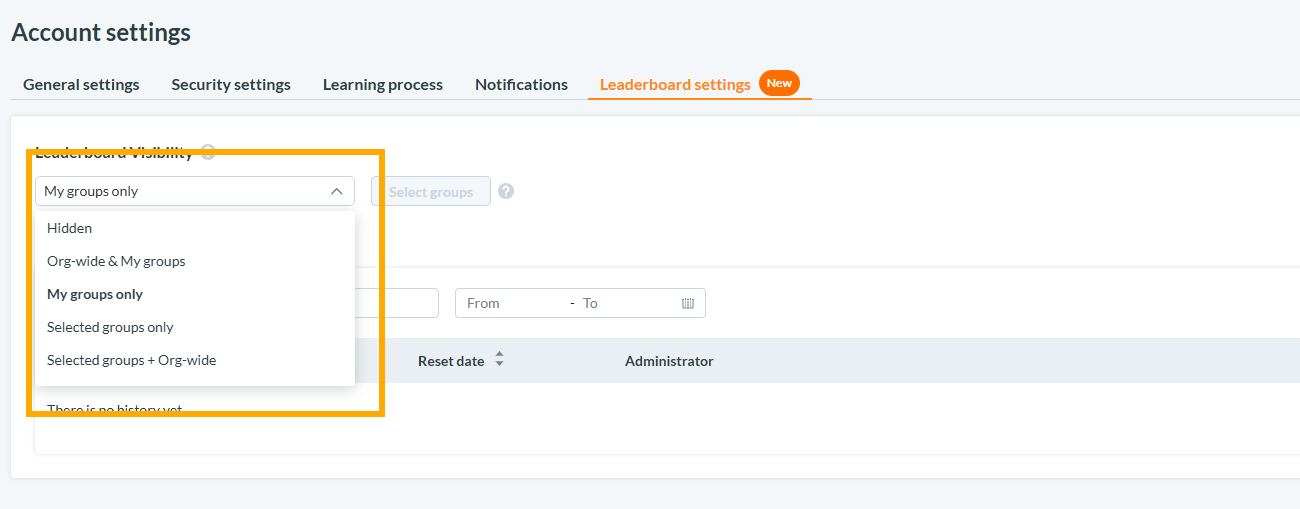
Navigate to the Leaderboard settings section.
Select the visibility options.
Click Save to apply the changes.
Once enabled, leaderboard-related functionality becomes active for the associated portal.
Explanation of the Reset Points Option and Role Restrictions
The Reset points option allows administrators with Full Access to clear all students’ accumulated points and start a new leaderboard cycle. When activated, all point categories, including Daily Activity, Course Completion, and Event Attendance, are reset to zero for every student, and a new cycle begins with a recorded reset date.
This option is restricted to administrators with Full Access.
Only administrators with this access level can view and use the Reset Points button.
Administrators whose custom role does not grant this access cannot perform leaderboard resets, ensuring controlled, secure management of system-wide scoring changes.
Notes on How LMS Leaderboard Settings Affect What Students See on the Portal
Enabling “Show leaderboard on My Learning page” in LMS makes the Leaderboard visible to students on the Portal; if disabled, all leaderboard sections remain hidden regardless of student activity.
The Reset points action immediately impacts the Portal by setting all student points to zero and starting a new cycle; leaderboard displays, point totals, and related messages on the Portal will all update accordingly.
After the first reset, the Portal gains access to cycle-based views (e.g., Leaderboard History), allowing students to review previous cycles. This functionality is triggered solely by settings controlled in LMS.
Non-default portal accounts cannot modify leaderboard settings in LMS, which means their Portal experience remains dependent on the default configuration.
Expected Result
After enabling “Show leaderboard on My Learning page”, the Leaderboard feature becomes active for the learning portal. Students will be able to view leaderboard information on the My Learning page, and additional LMS options, such as the Reset points button, will become available to administrators with Full Access for managing leaderboard cycles and system-wide point resets.
Troubleshooting
Problem | Cause | Solution |
|---|---|---|
Leaderboard not visible on the Portal. | Verify that “Show leaderboard on My Learning page” is enabled in LMS. | Enable the setting in Settings → Account settings → Learning Process → Leaderboard settings and save changes. |
Reset Points button does not appear. | The administrator does not have Full Access, or the leaderboard feature is disabled. | Sign in with an account that has Full Access and ensure Show leaderboard on My Learning page is enabled. |
Points remain unchanged after performing a reset. | The reset was not confirmed, or points were earned earlier on the same day. | Confirm reset in the modal window; note that Daily Activity points cannot be re-earned until the next day. |