





Summary
A comprehensive guide on how to access and interpret Course Cycles, detailed records of a user's progress and attempts in the KnowledgeCity LMS.
Introduction
Course Cycles feature in KnowledgeCity LMS provides a comprehensive view of a learner's journey through a course, tracking each attempt, completion status, scores, and reset history. This feature helps administrators monitor progress, review past cycles, and manage resets. The following steps outline how to access Course Cycles and utilize their detailed reporting to support user learning and compliance.
Steps to Follow
Accessing Course Cycles
Course Cycles can be accessed from different locations within the Knowledge City LMS where Courses are assigned:
- From a User's Profile > Assignments (or Courses) tab
- Directly from the Assignments section of LMS
To open Course Cycles:
- Locate the desired assignment
- Click the three-dotted actions menu (⋮) in its row
- Select "Course cycles" from the Actions menu to open the Course Cycles Details page.
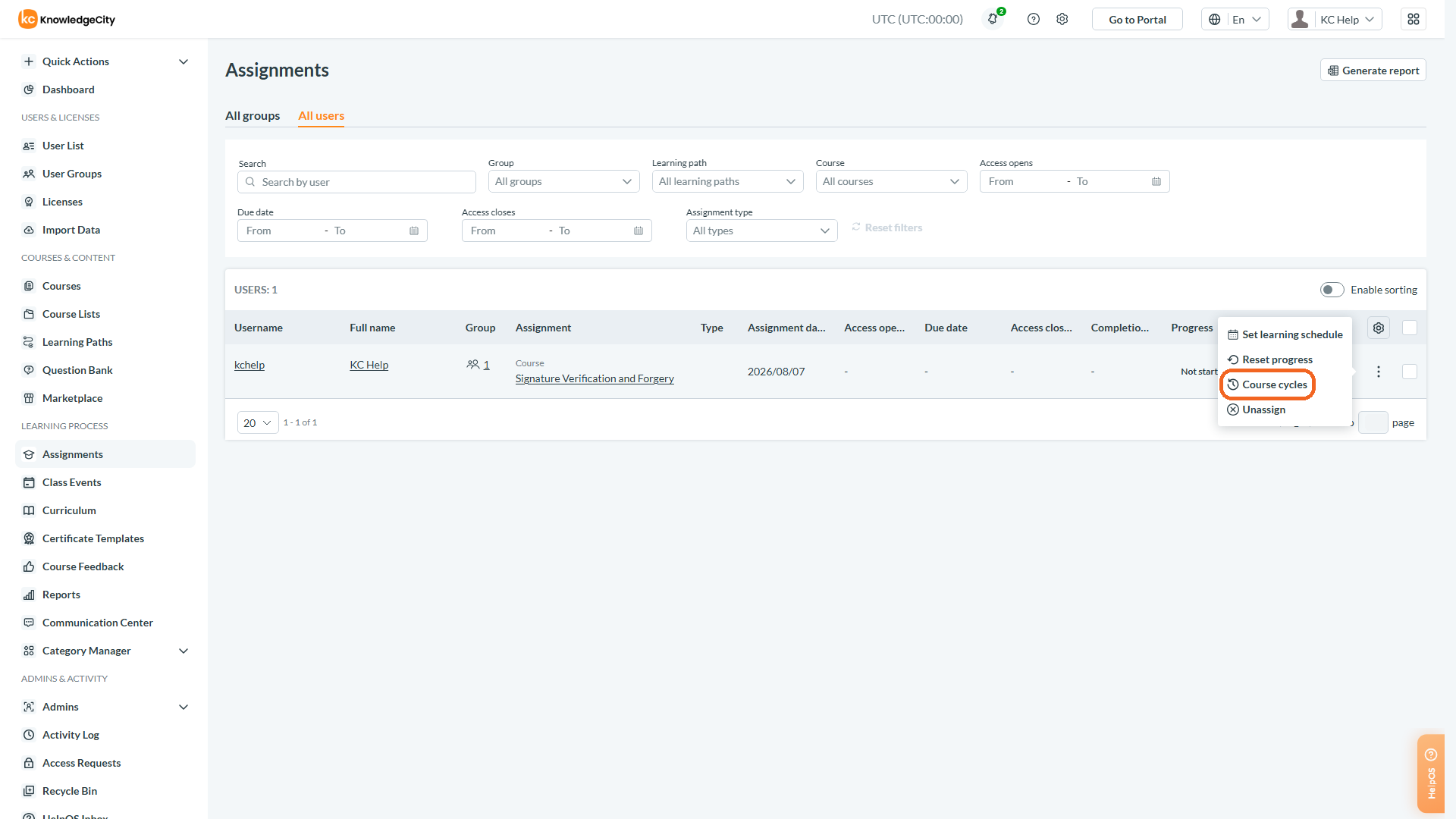
Caption: The three-dotted actions menu on an assignment row, with Course cycles highlighted.
Understanding the Course Cycles Details Page
This page provides a centralized overview of all attempts (cycles) a user has made for the selected course. It gives administrators a quick, at-a-glance history of the user's engagement, performance, and administrative actions. Overall, it serves as a historical log, enabling admins to track progression, verify completion data, and understand restarted courses.
For each cycle, the page displays the following key information:
- Cycle Title/Number: Identifies the attempt sequence (e.g., Cycle 1, Cycle 2).
- Status: The overall status of that attempt (e.g., In progress, Passed, Failed).
- Score: The final certification test score for that cycle.
- Key Dates: Separate timestamps for when the course was Viewed, Passed, and if applicable, Reset.
- Test Attempts: The number of times the final test was taken in that cycle.
- Reset Information: The Reset date and Reset reason (e.g., Shows the reset reason along with the administrator who initiated the reset), which are crucial for audit trails.
- Row actions: At the end of each row sit two icons — one to view and download the course cycle certificate, and a delete (bin) icon labelled Delete cycle. Each is greyed out when it does not apply to that cycle.

Caption: This page provides a centralized overview of all attempts (cycles) a user has made for the selected course.
Viewing Detailed Cycle Information
Click on a specific cycle from the list to open its granular, detailed view. This page provides a lesson-by-lesson breakdown of the user's activity and performance within that course cycle. Its purpose is to support deep diagnostics and verification, helping admins to identify learning challenges, confirm completion compliance, and gather evidence for reporting or support.
The page includes the following per-chapter or per-lesson data:
- Chapter/Lesson: The name of the specific chapter module or lesson.
- Type: The format of the lesson (e.g., Video, Document).
- Runtime: The intended or estimated duration of the lesson.
- User Runtime: The actual time the user spent on the lesson.
- Started: The timestamp when the user first accessed the lesson.
- Passed/Completed: The timestamp when the user finished or passed the lesson.
- Status: The completion status for that lesson (e.g., Completed, Not Completed).
- Generate Report: Click to Export cycle details to Excel.
Deleting and Restoring a Course Cycle
A cycle that was started by mistake — a duplicate attempt, or one created against the wrong learner — can be removed from the Course Cycles Details page.
To delete a cycle:
- Find the cycle's row on the Course Cycles Details page.
- Click the delete (bin) icon at the end of that row. The icon is labelled Delete cycle.
- A confirmation asks "Delete cycle {number} for {learner}? It will be moved to the Recycle Bin and can be restored from there." Confirm with Delete, or Cancel to leave the cycle alone.
What you can and cannot delete. Only a cycle still in progress can be removed. The Delete cycle icon is greyed out on a cycle that has been passed, and on a cycle that already has a certificate against it: "Completed cycles can't be deleted — they're completion and certification evidence." This protects your audit trail, so a completed attempt cannot be erased from a learner's record.
To restore a cycle: a deleted cycle is not destroyed. It appears in the Recycle Bin with the type Course cycle. Open it there and choose Restore course cycle; the confirmation reads "Restore this course cycle? It will reappear in the student's course history."
The action is available to administrators with full access to Students. An administrator with read-only access will not see it.
Important Notes:
- Reset Progress: Use the Reset Progress option from the assigned Course's actions menu to reset the user's current attempt. This creates a new cycle, allowing the user to retake the course from the beginning.
- Always verify a reset by confirming the course progress. Resetting a course cycle reset the existing cycle; it does not delete it. The previous cycle's history is preserved for audit purposes while the user starts a new cycle.
- Reset and delete are not the same thing. Reset leaves the old cycle in place and opens a new one; Delete cycle takes the cycle out of the learner's history altogether and puts it in the Recycle Bin. Reset is the right tool for letting somebody retake a course; delete is for a cycle that should never have existed.
- Student Access: Learners can access their course cycles history from the Cycles tab under My Progress in the Learning Portal.

Caption: The cycle row on the Course Cycles Details page, with the certificate and delete icons at the end of the row.
Conclusion
By leveraging the Course Cycles feature, you gain full visibility and control over user progress and course history within the KnowledgeCity LMS. This allows you to accurately track completions, diagnose learning gaps, and properly manage resets, all while maintaining a clear, auditable record of every cycle. Utilizing these tools ensures you can support learners effectively and uphold the integrity of your training programs.