





Summary
A comprehensive guide on how to create your own certificate templates in the KnowledgeCity LMS.
Introduction
KnowledgeCity LMS provides administrators with a certificate template editor feature that allows for creating custom certificates of completion. When students complete courses they generally earn a certificate of completion. This certificate can be customized if desired. Here are the steps and key features for using the Certificate templates feature.
Steps to Follow
Accessing the Certificate Templates Section
Log in to your KnowledgeCity LMS administrator account.
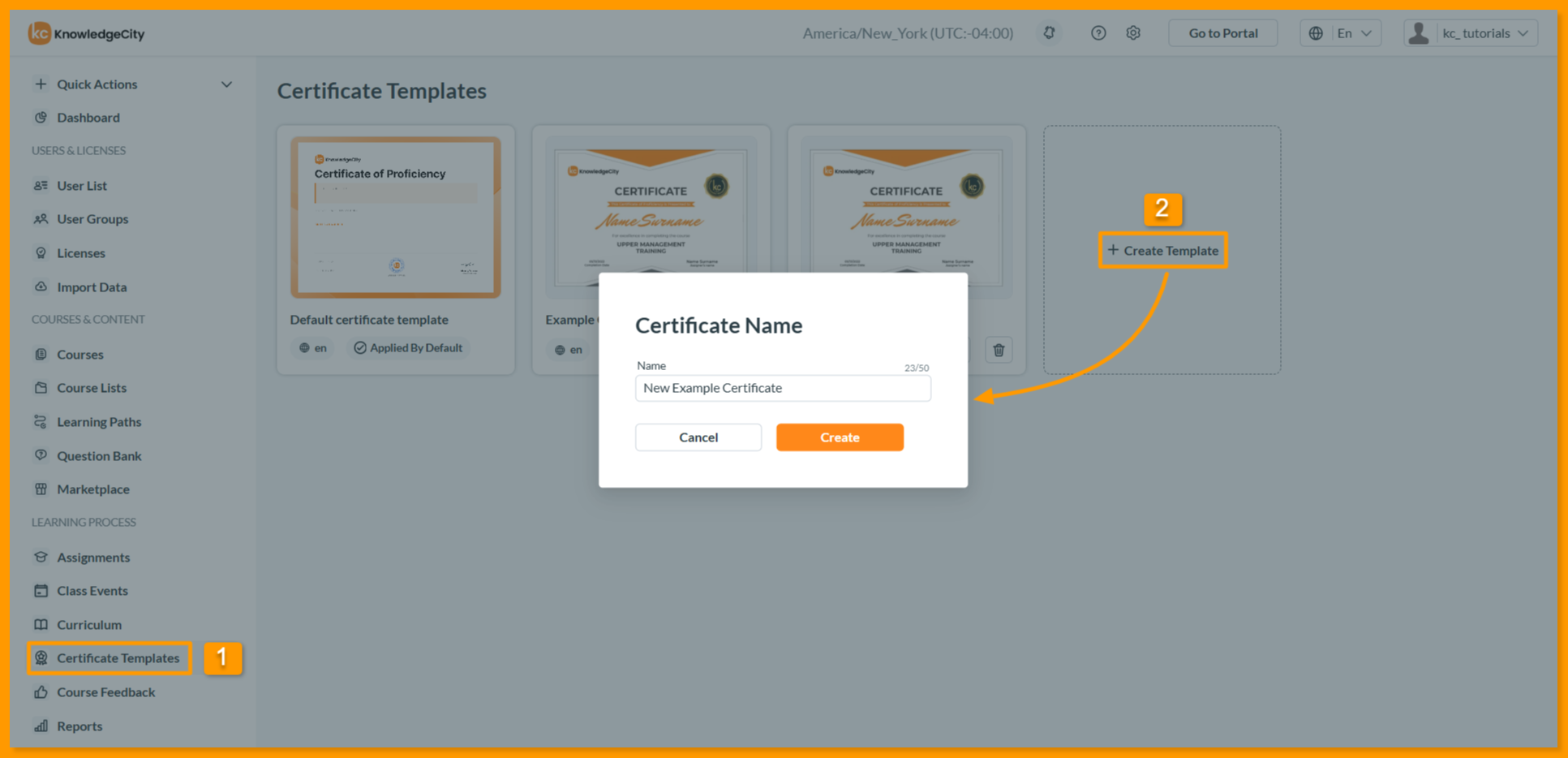
Navigate to the "Certificate templates" section from the LMS left-side panel.
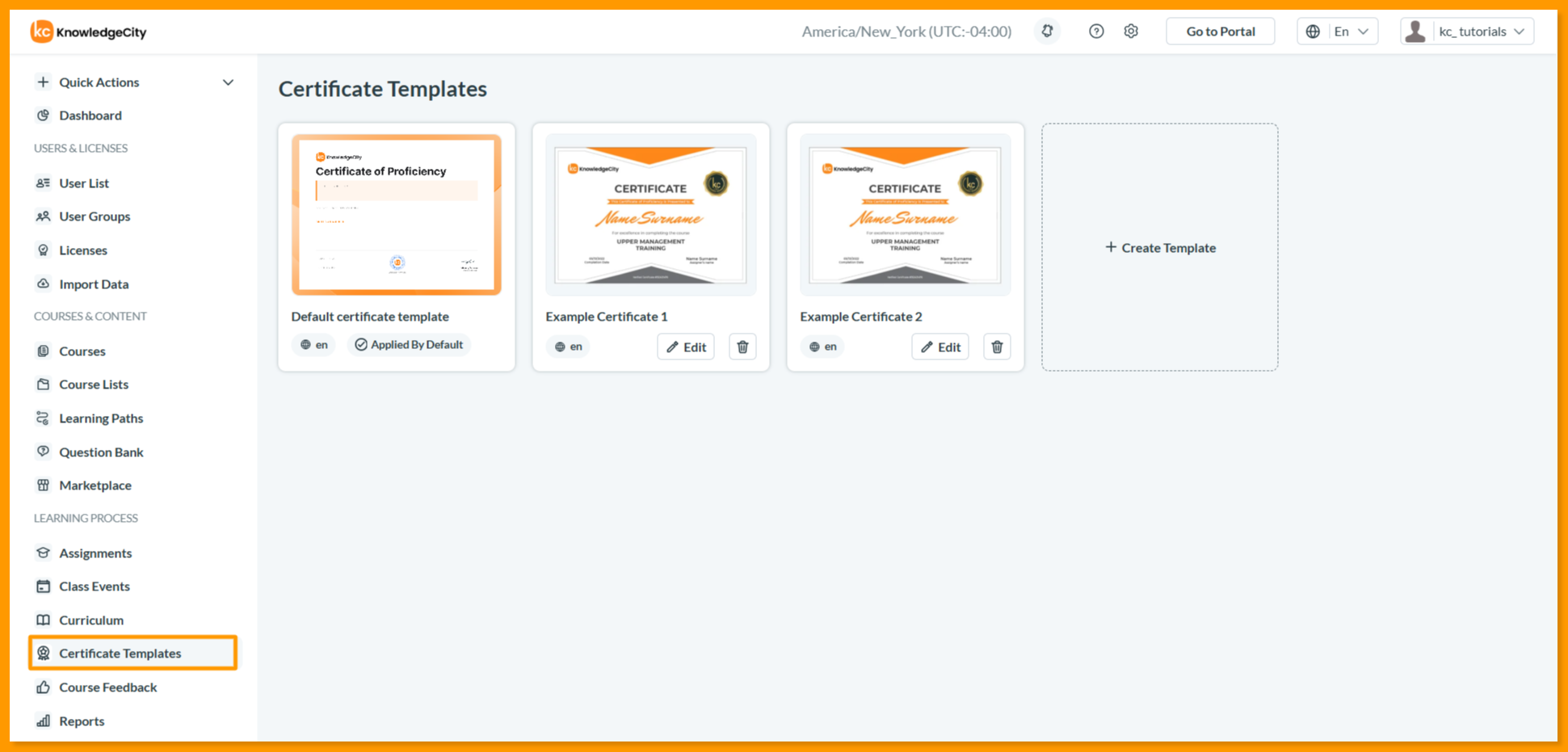
The Certificate templates section page will open including all the existing Certificate templates.
View all certificate templates on the same page. For each existing template:
Quick Preview: Click Preview to see the certificate design.
Edit: Click Edit to modify the template.
Delete: Click Delete to remove it (permanent action).
Creating New Certificate Template
Click Create Template.
Enter the new Certificate Name.
Click Create to create new certificate template.
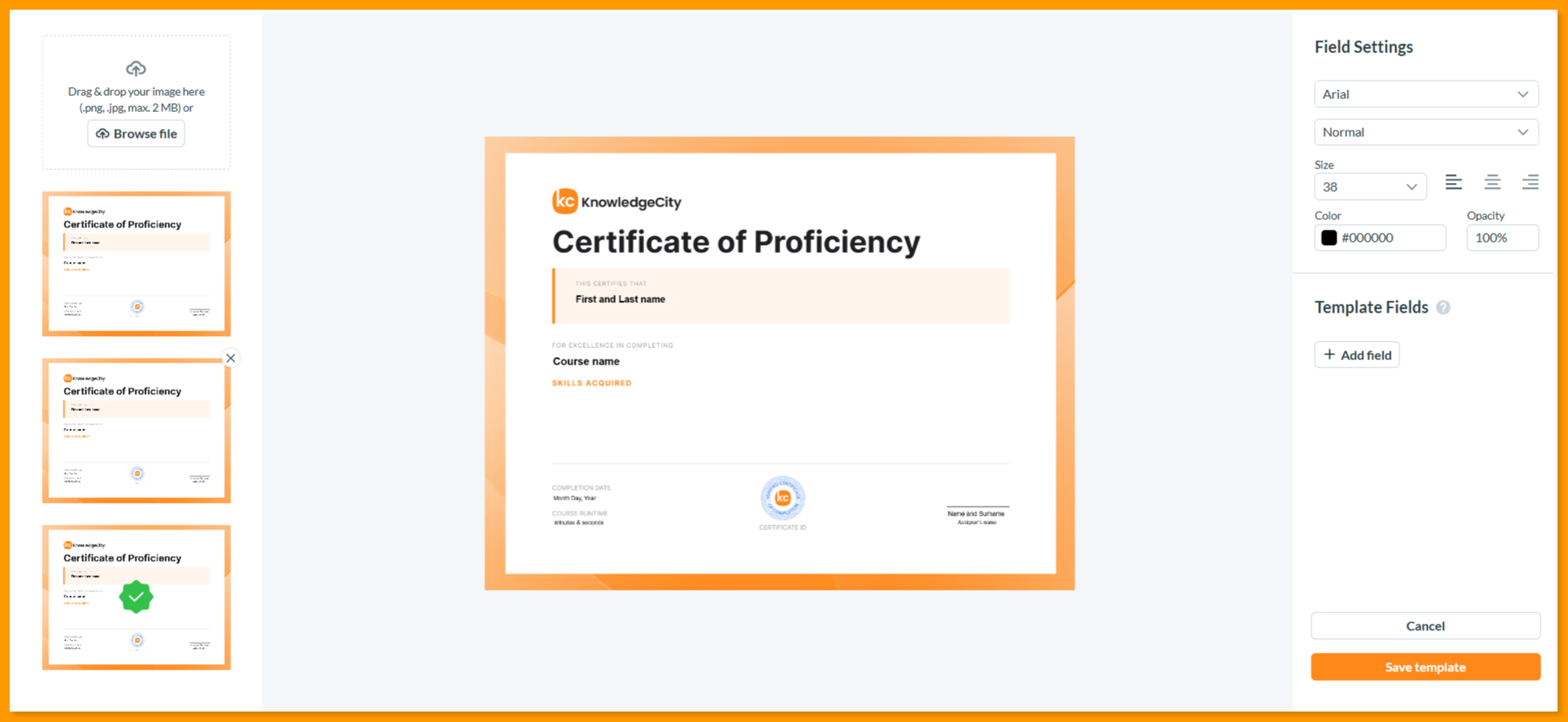
You will be automatically redirected to the new template’s Design page. Where you can click the Create certificate button to open the template editor.
Using the Template Editor
Uploading and Selecting a Background Image:
Administrators can upload their custom background image of the certificate in PNG or JPG format with a maximum size of 2 MB.
Previously uploaded images can be deleted from the list of uploaded images.
Adding Information Fields:
You can add information fields from different resources to the certificate:
Employee ID
First and Last Name
Position
Course Name
Course ID
Certificate ID
Course Runtime
Skills
Date of issue with formatting options such as: dd/mm/yyyy, mm/dd/yyyy, Day Month Year, Month Day Year, Year Month Day, dd.mm.yyyy.
Editing Data Fields:
The active data field is highlighted with a special frame.
Administrators can change the styling of text in the data fields, including fonts, text style (regular, bold, etc.), size, alignment, color, and opacity.
The field can be stretched in width, but the height cannot be changed.
Administrators have the ability to delete data fields or add new fields, if applicable.
The data field can be moved across the entire template workspace.
Saving and Applying Templates:
After customizing your certificate template, you can Save the template and apply it to the LMS to replace the default KnowledgeCity branded certificates of completion.
Assigning Certificates
Once your certificate template is created and saved, you can assign it to the different Assignment types. Navigate to the Assignment tab to proceed.
First, select your Assignment type (User Groups, Courses, Learning Path, Provider, or All Courses) from the dropdown. Then, search for and select the specific items within that category. Finally, review any additional criteria and save the assignment. This provides flexible certificate distribution based on your organization's structure and learning programs.
Available Assignment Types:
User Groups: Assign certificate to specific user groups.
Courses: Assign to individual courses or multiple selected courses.
Learning Path: Assign to entire learning paths or curriculum sequences.
Provider: Assign to courses from a specific course provider.
All Courses: Assign certificate to all courses in the KnowledgeCity LMS.
Certificate Template Creation: Key Points & Best PracticesCustomization: Certificates can be created for specific languages, and custom templates can be removed to revert to the default KnowledgeCity certificate.Text formatting: Data fields can be customized for font, color, and alignment, ensure proper spacing and legibility against the background with no overlapping fields.Design best practices: Use styling options to match your organization's branding, and always preview the certificate before saving and applying.Default certificate features: Includes an interactive design with skills display (up to 4 skills) and course runtime, automatically applied to default certificates.Skills fallback: If a course does not have predefined skills, the certificate will display a default proficiency statement referencing the course name.
Certificate Template Creation: Key Points & Best Practices
Customization: Certificates can be created for specific languages, and custom templates can be removed to revert to the default KnowledgeCity certificate.
Text formatting: Data fields can be customized for font, color, and alignment, ensure proper spacing and legibility against the background with no overlapping fields.
Design best practices: Use styling options to match your organization's branding, and always preview the certificate before saving and applying.
Default certificate features: Includes an interactive design with skills display (up to 4 skills) and course runtime, automatically applied to default certificates.
Skills fallback: If a course does not have predefined skills, the certificate will display a default proficiency statement referencing the course name.
Certificate sources: Templates apply to the course completion certificates the LMS issues. The Certificates tab on a user statistics page lists those alongside certificates that came from outside the LMS, shown in the Issuer column and filterable by Source as KC issued, External or Imported. Certificates that are not KC issued do not come from the template editor.
Conclusion
With the Certificate templates feature, KnowledgeCity LMS admins can give a personal touch to certificates, enhancing the experience for achievers and reflecting your organization's brand or the unique nature of completed courses. The default certificate ensures that even without customization, students receive modern, informative credentials with clear skills representation and professional formatting providing meaningful recognition for every learning achievement