





Summary
Learn how to assign and manage courses for individual students in the KnowledgeCity LMS.
Introduction
The Course List tab within a user profile allows administrators to view, assign, and manage a user's individual courses. This guide provides a step-by-step process for using the Courses section in User Profile.
Steps to Follow
Step 1: Accessing the Courses in User Profile
- Login to the LMS and start on the dashboard or homepage.
- Navigate to the user list on the left side panel of the LMS.
- Select a user by searching or filtering for the one you want to view or edit and clicking on their profile.
- Select the Assignments tab at the top of the page.
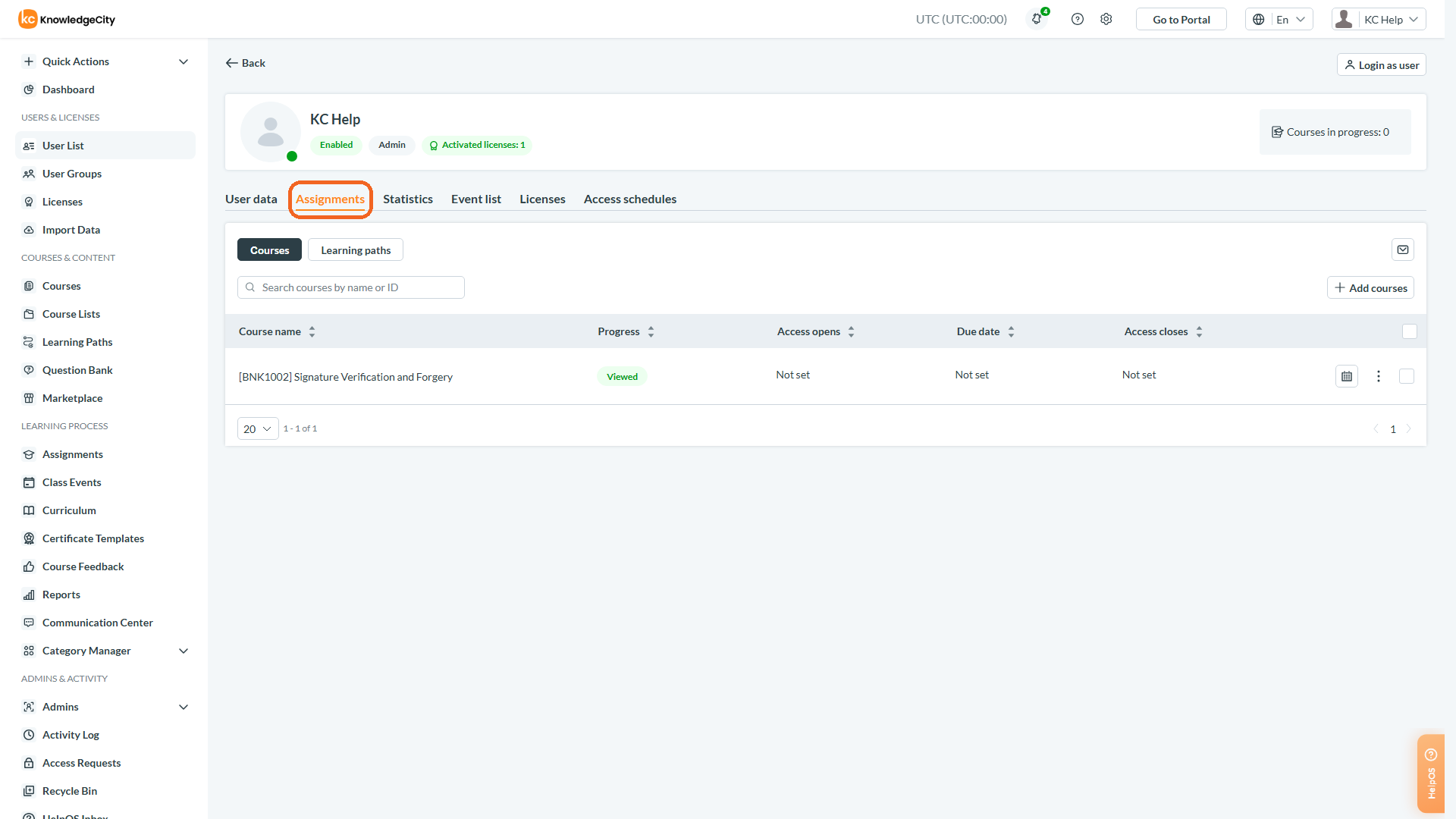
Caption: The Assignments tab selected on a user profile.
Step 2: Viewing and Managing Courses
- Select the Courses tab within Assignments to view all the assigned courses to this user.
- Use the sort buttons in the table column to sort assigned courses by:
- Course name
- Progress
- Due date
- Search for a specific course by course name or ID using the search box.

Caption: The Courses table with the search box and the sortable Course name, Progress and Due date columns.
Step 3: Assigning New Courses
- Click on the Add courses to open the course list popup.
- Search and locate the course you want to assign.
- Click the Add button to the right of the course to assign it to the user.
- Once the course is added it will appear in the selected course list to be assigned.
An example illustrating the newly selected course for a user.
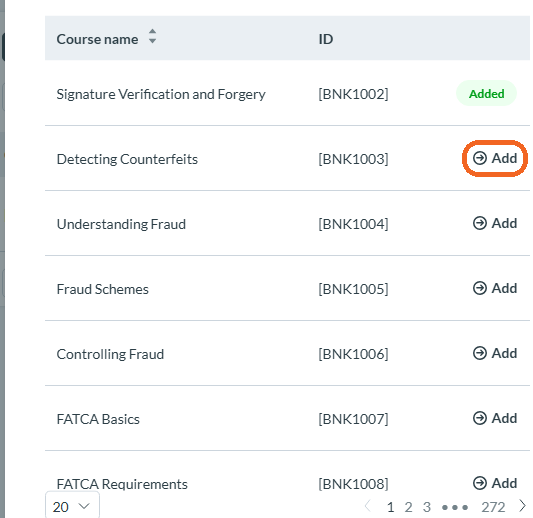
Caption: The course list in the Add courses popup, with the Add button to the right of a course highlighted. A course already assigned shows Added instead.
Step 4: Assigning Multiple Courses
- Use the Add button to add multiple courses in Selected courses list.
- You can also use the checkbox on the left side of the Selected course list to select multiple courses and enable bulk Removal and Scheduling actions.
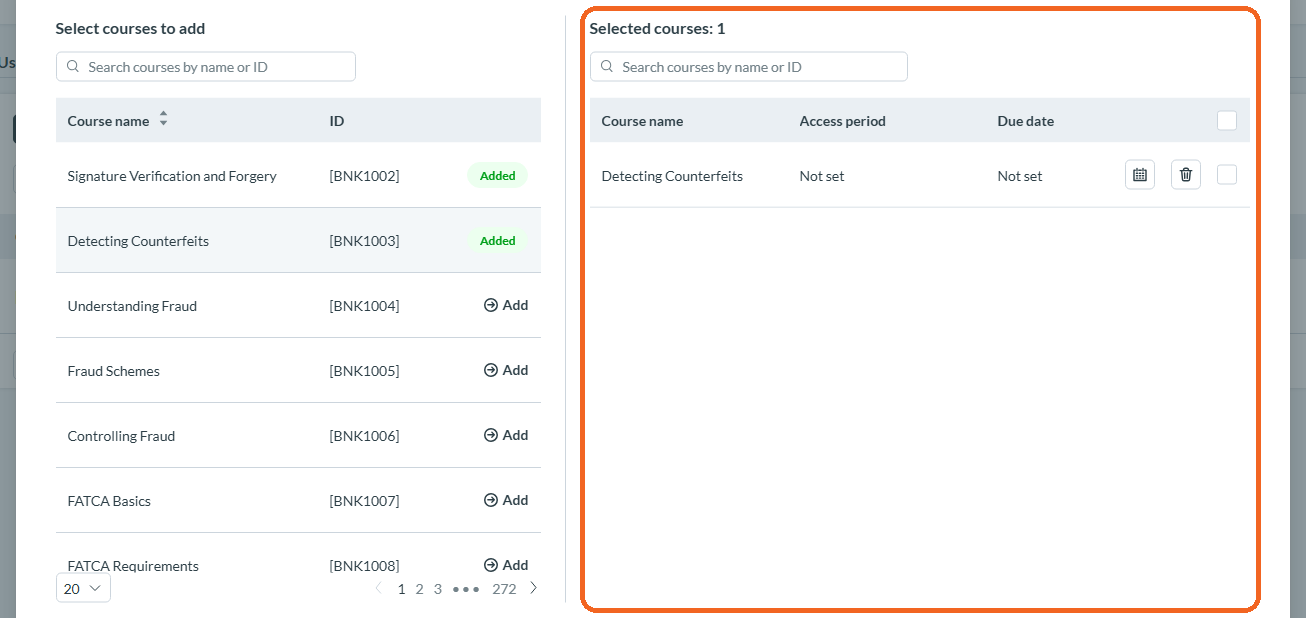
Caption: The Selected courses list on the right of the popup after a course is added, with a checkbox on each row for bulk actions.
Step 5: Setting Learning Schedule
After selecting courses(s) for assignment, you have the option to Set learning schedule for each or to do it in bulk. If you choose to skip this step, simply proceed without an learning schedule period.
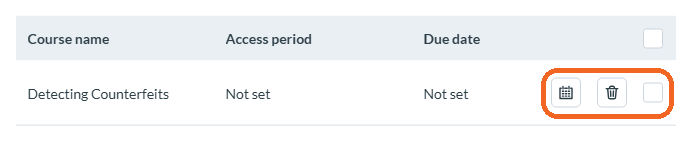
Caption: The per-row controls on a selected course: set learning schedule, remove, and the bulk-select checkbox.
Step 6: Confirming Assignment Status
Once all the required courses are selected and setup accordingly, Use the Assign and save button in the bottom of the popup to confirm the assignment. You can also select or clear the Notify users checkbox to control whether an automatic email notification is sent upon course assignment. After assign and save verify that the course(s) now appear within the user profile's courses tab list.

Caption: The foot of the popup: Cancel, Assign and save, and the Notify users checkbox.
Using the Actions Column & Notify User
- In the Actions column, for assigned course(s), you can:
- Review Course Cycles, For more information, see the How to View and Manage Course Cycles article.
- Unassign the course from assignment
- Reset course progress
- Set learning schedule
- Perform these actions in bulk by selecting Actions Columns checkbox
- You can also use the Notify about assignments button beside the action column to notify students about their course assignments.
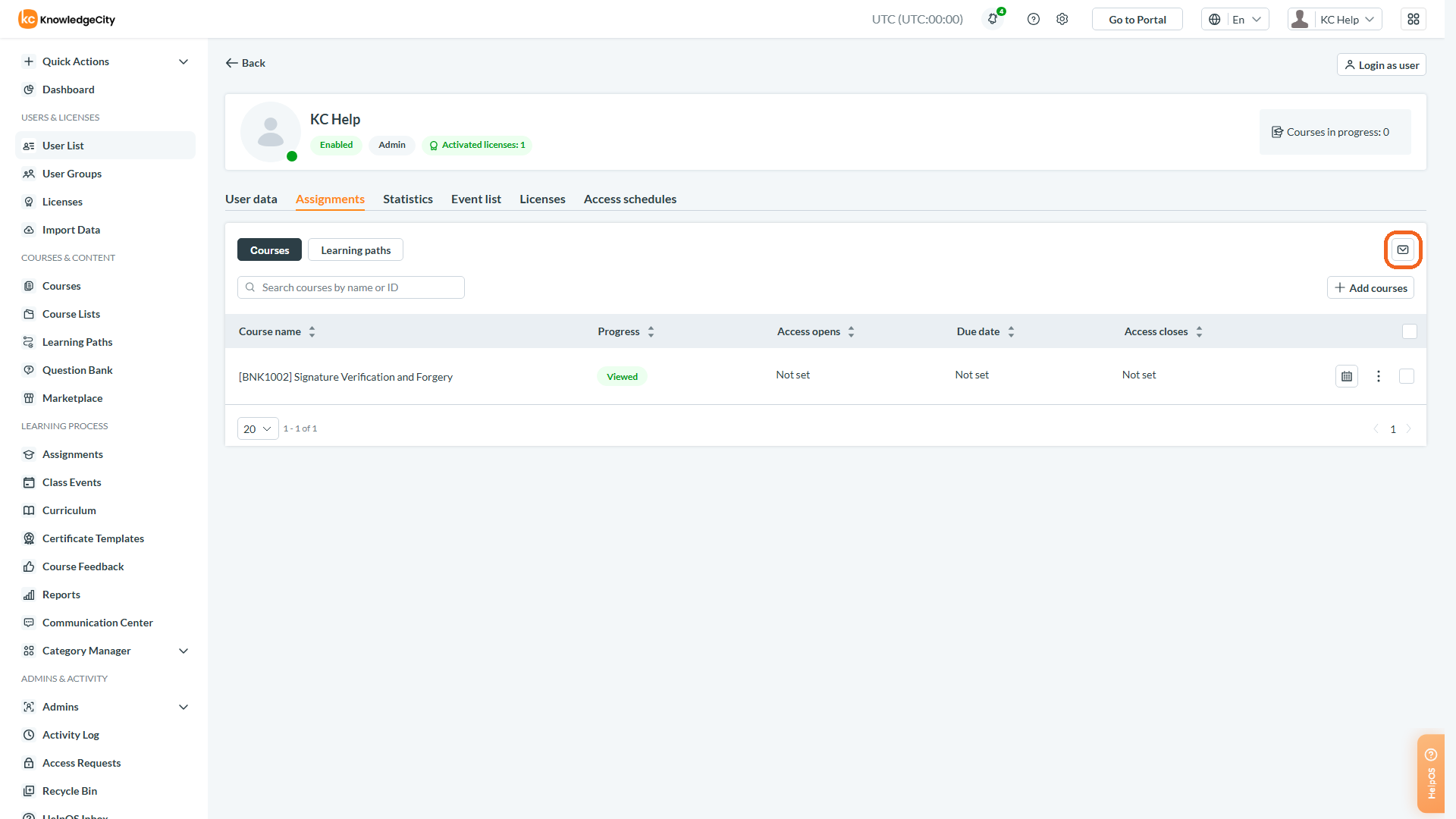
Caption: The Notify about assignments button beside the Actions column of the assigned-courses table.
Conclusion
The Course List section of a user’s profile in the LMS is designed to give administrators the flexibility to tailor the learning experience to each user's needs, whether assigning new courses or tracking progress through existing ones. Always ensure you save your changes to maintain up-to-date course assignments and user progress.