





Summary
This article explains how students can manage their personal information details in Learning Portal.
Introduction
The Account Settings page lets students review and update their personal details directly in the portal. Available fields and sections may vary depending on how your organization has configured profiles; if something isn’t visible or editable, it isn’t enabled for your account.
Requirements
Before using the Account Settings page, ensure that:
- You are logged in to Portal.
- Your admin has configured profile fields in LMS
- (For B2B licenses) Your organization has assigned an active license
Steps to Follow
Accessing Account Settings
- Click profile icon in the top-right corner.
- From the drop-down menu, select Account Settings. The user will be taken to the Personal Information tab by default.
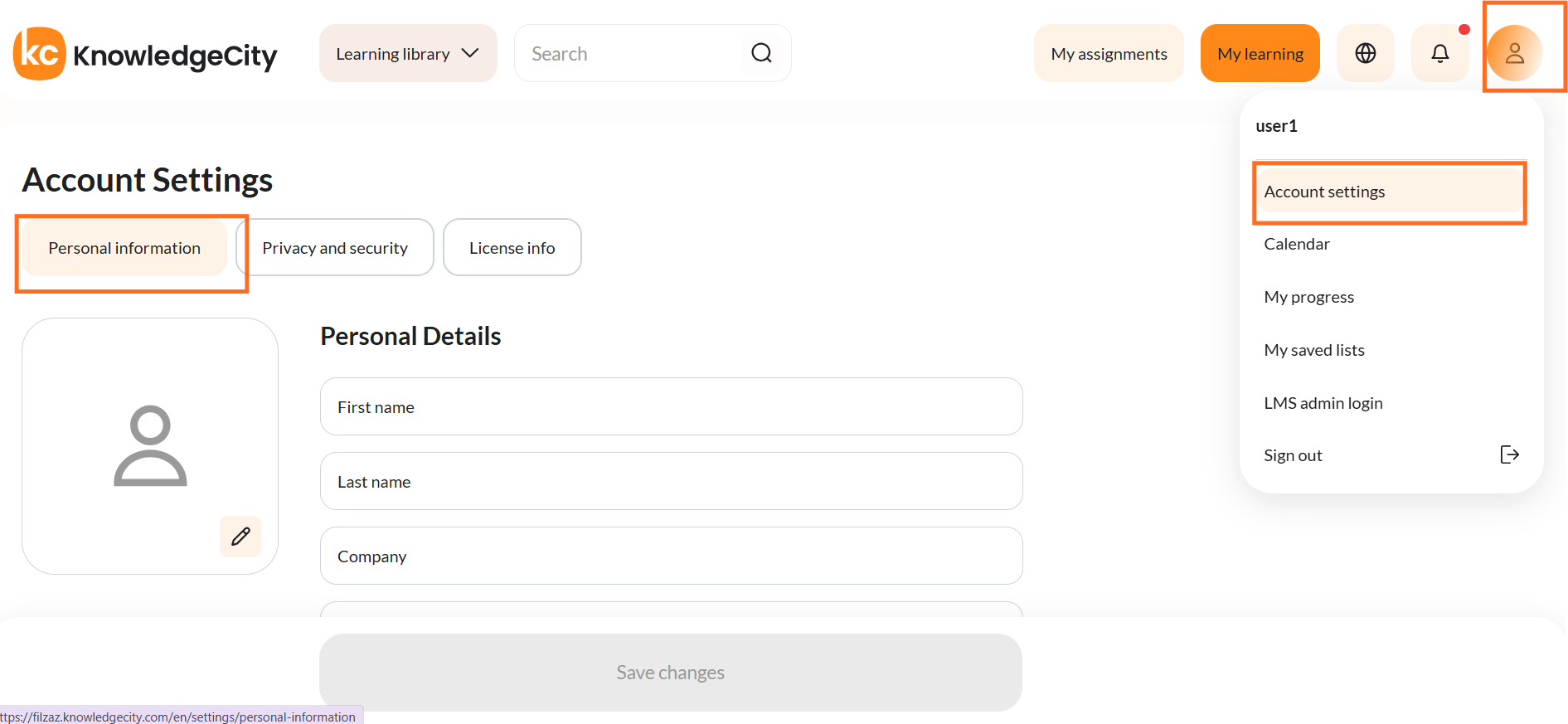
Caption: Selecting Account settings opens the Personal Information tab.
Personal Information
On this tab, students can see the personal profile fields that are available for their account, including standard and any additional fields their organization has chosen to show. Some sensitive fields (for example, username, password, or certain IDs) may not be visible or editable and can only be managed by your organization or support team.
Students can also upload or change their profile image from this tab (if this option is enabled by the organization).
Default Fields
Typically, the following fields may appear for most students:
- First name
- Last name
- Email address
- Position / Job title
These fields may be read-only or editable, depending on your organization’s settings.
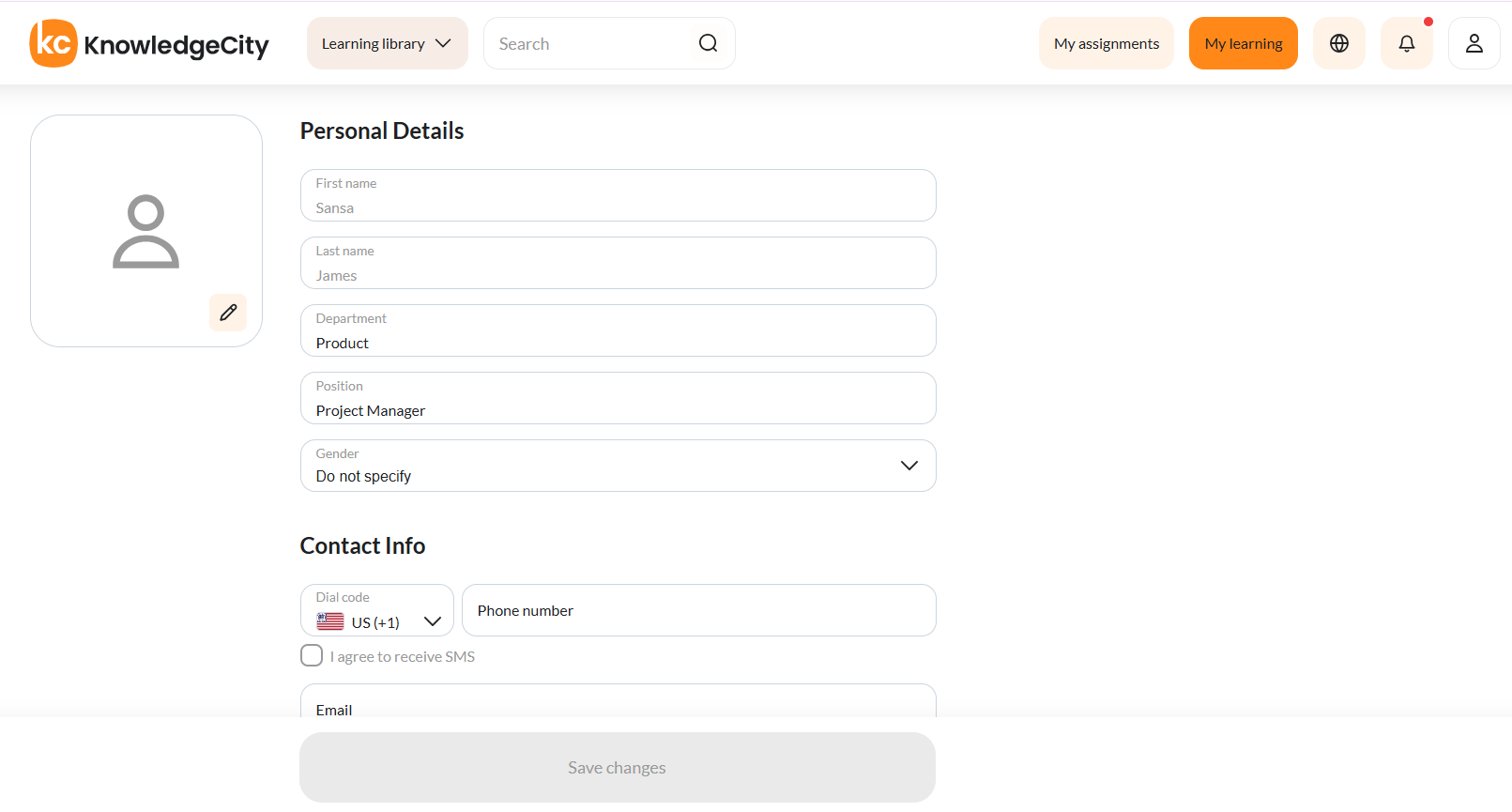
Caption: Typically, the following fields may appear for most students:
Additional (custom) Fields
Your organization may also include extra profile fields, such as:
- Department or team
- Location
- Manager or group
If these are enabled, they will appear in the Personal Information tab along with the standard fields.
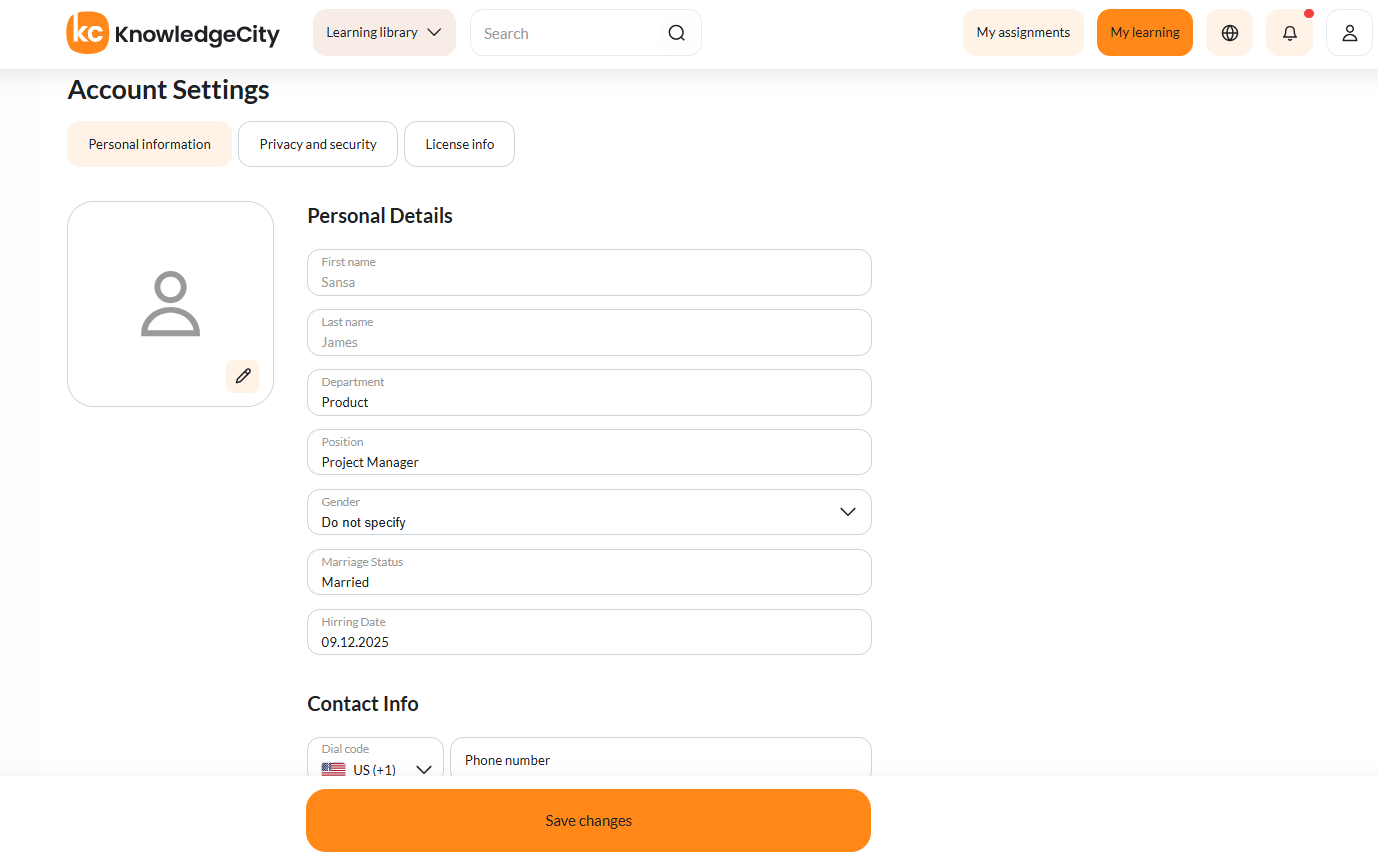
Caption: Your organization may also include extra profile fields, such as:
Contact InfoIn the Contact Info section, students can view and update their contact details (for example, email, preferred language, and phone number), depending on what fields are available for their account.
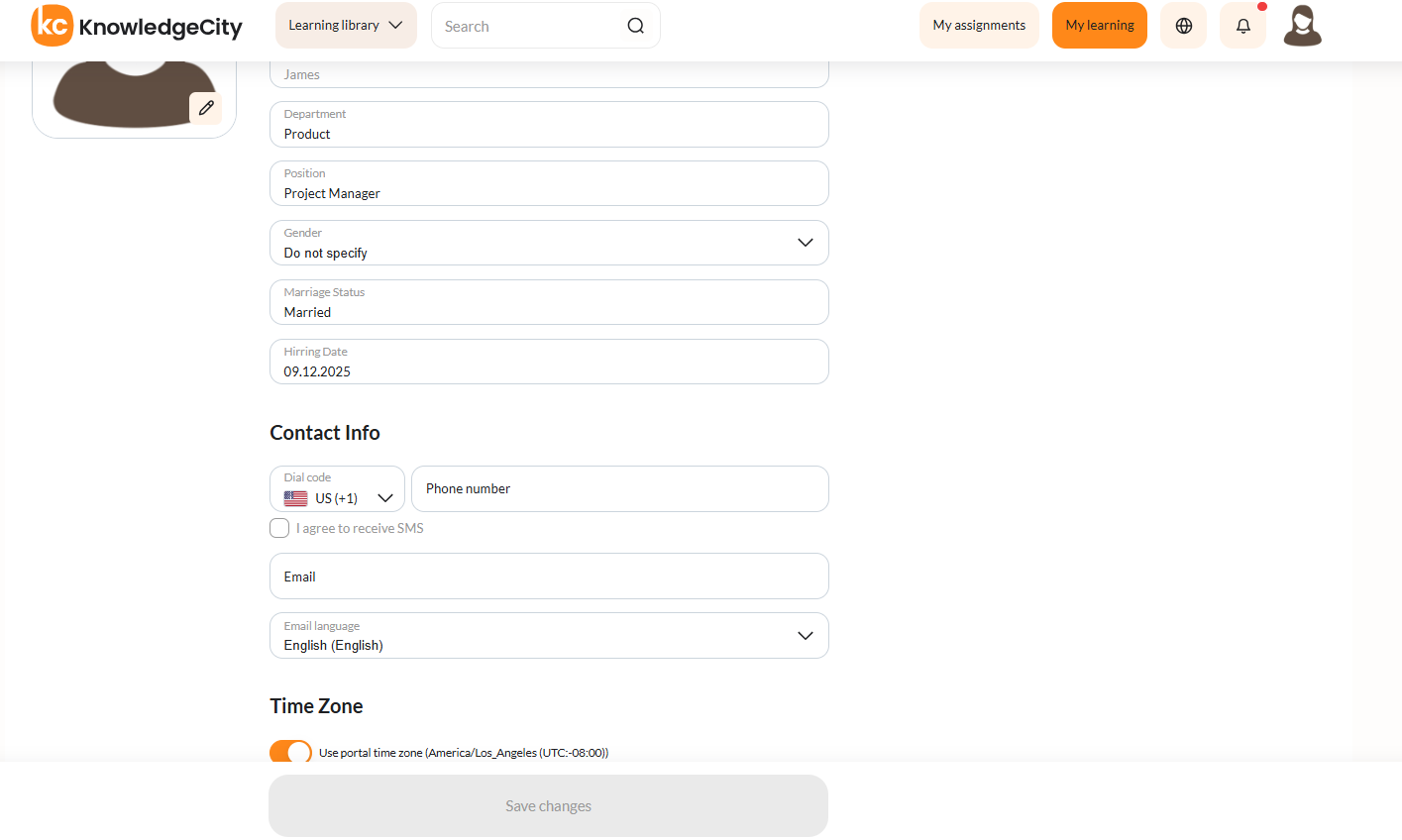
Caption: Contact Info holds the email address, phone number and email language.
Phone Number
A country dial code selector is available so students can accurately enter their phone number with the correct country code. By default, the country code may be suggested based on the region settings of the local device.
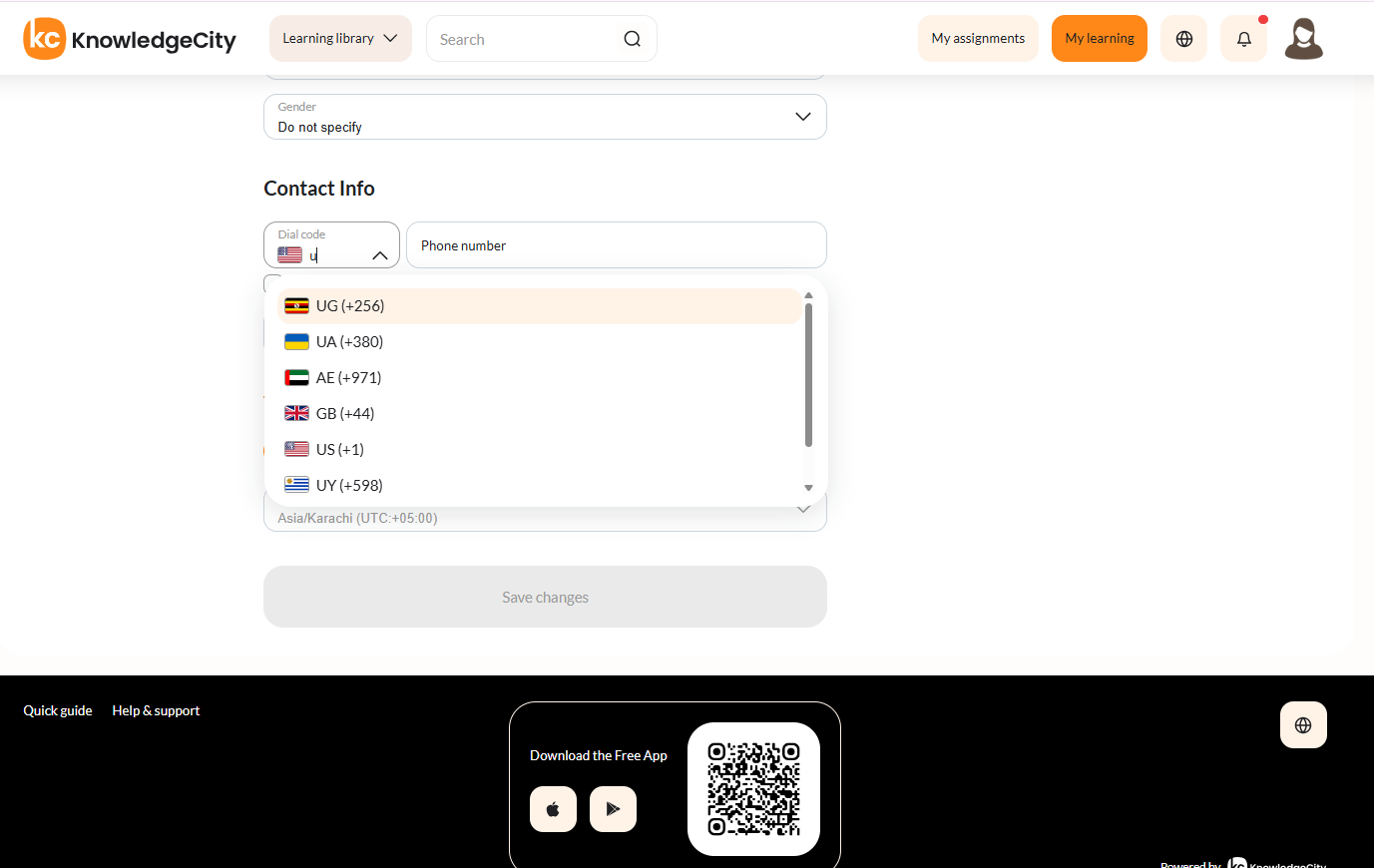
Caption: A country dial code selector is available so students can accurately enter their phone number with the correct country code.
SMS Provider
If SMS notifications are supported and enabled for your organization, a checkbox such as “I agree to receive SMS” may appear next to the phone number.
- The checkbox is turned on by default when a valid phone number is saved.
- If you remove your phone number, the checkbox becomes disabled.
- You can turn this option on or off at any time and then click Save changes.
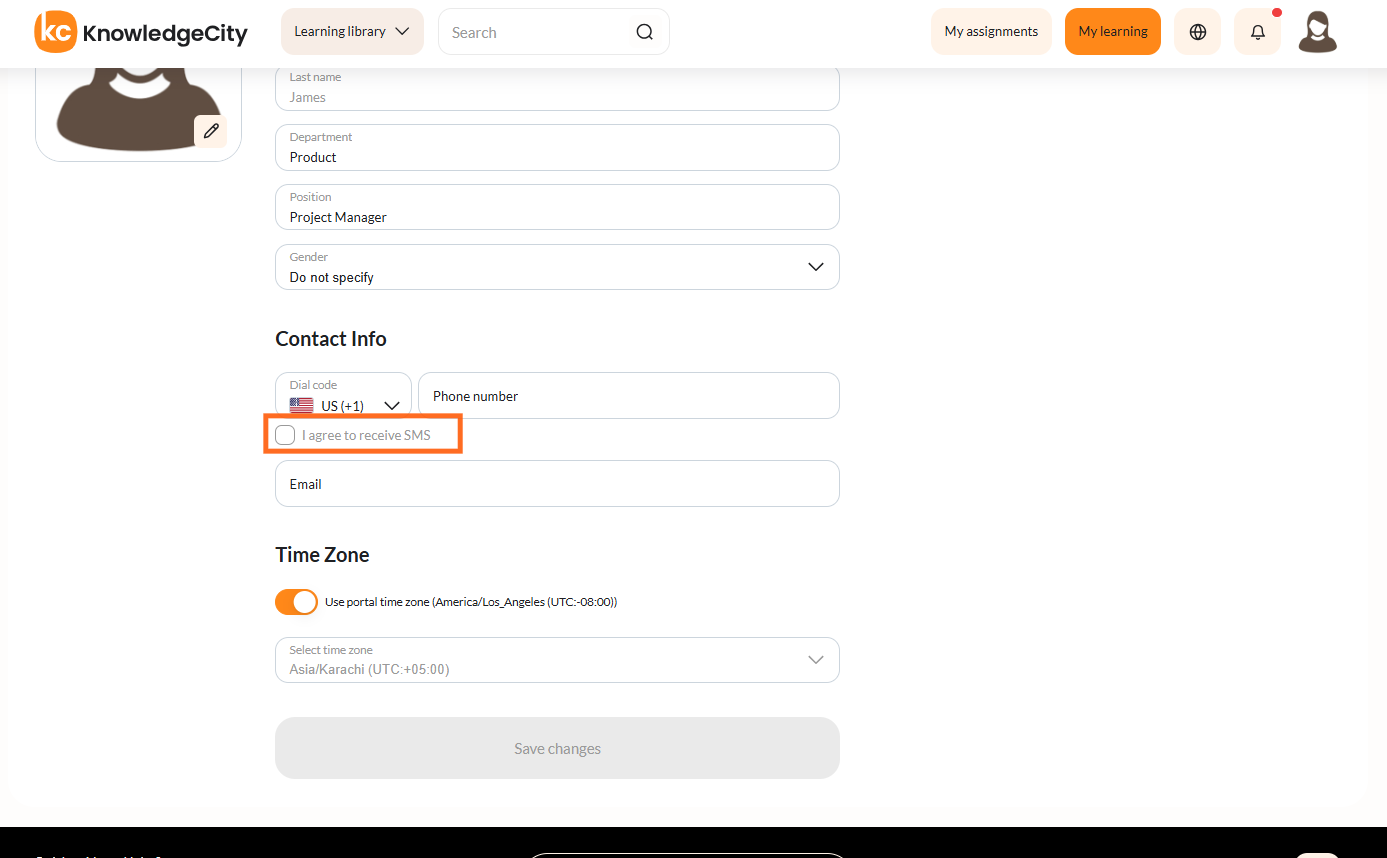
Caption: If SMS notifications are supported and enabled for your organization, a checkbox such as “I agree to receive SMS” may appear next to the phone number.
Time Zone
The Time zone section allows students to review and adjust their time zone for the portal if this option is available for their account. To change their time zone, students can turn off the automatic time zone switcher (if enabled), click the Select time zone field, start typing the time zone or location, choose the correct option from the suggestions, and click Save changes.
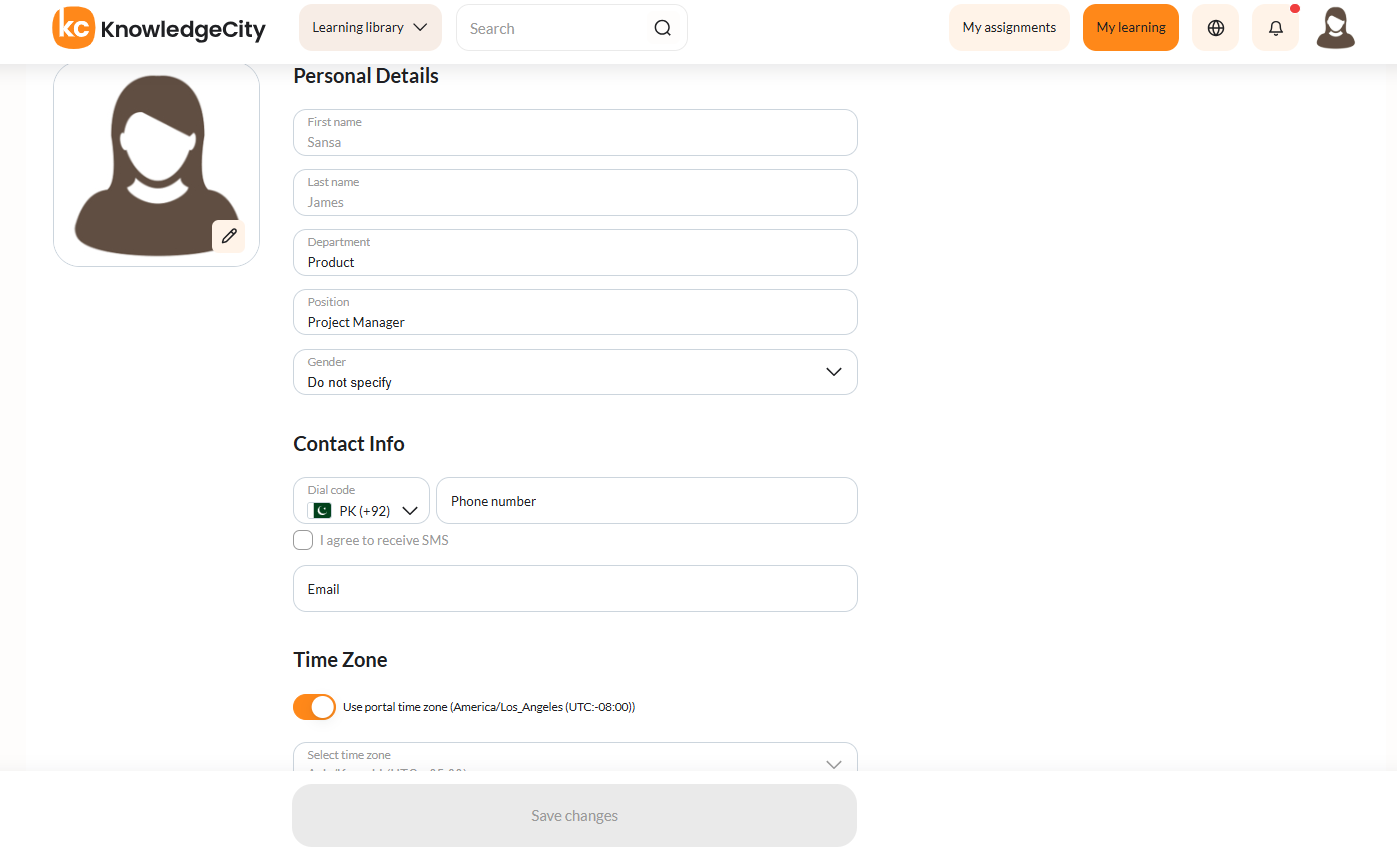
Caption: The Time zone section allows students to review and adjust their time zone for the portal if this option is available for their account.
If no profile fields are configured for students by your organization, the Personal Information page may appear mostly empty or show only a message indicating that no fields are available.
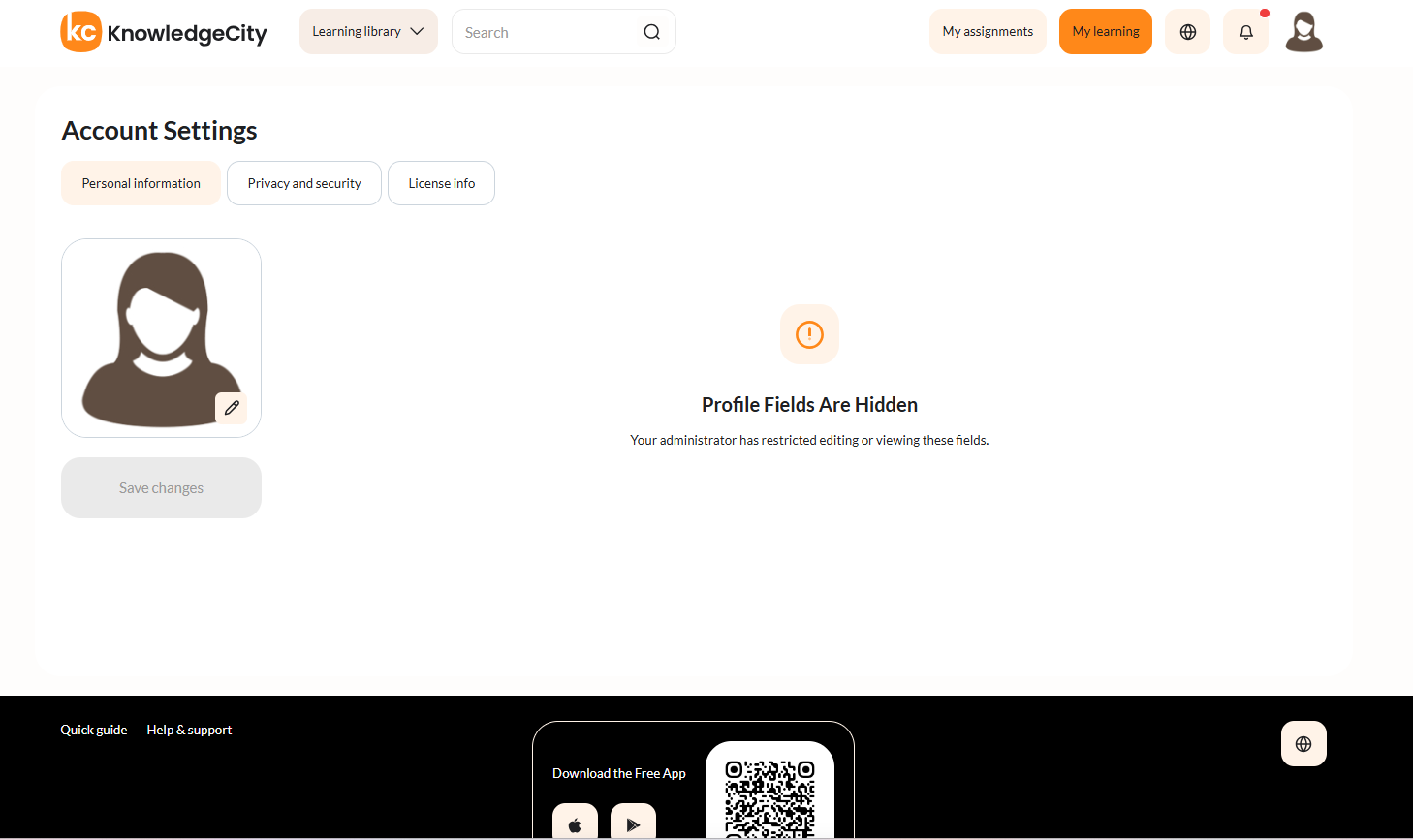
Caption: When no profile fields are configured, the tab shows this message instead.
Expected Result
After following these steps, the student should be able to Update personal and contact information, Edit time zone, phone settings, or SMS consent.
Troubleshooting
| Problem | Cause | Solution |
|---|---|---|
| A section is missing | Related fields not added in LMS Form Settings | Ask the admin to enable fields in Form Settings |
| SMS consent checkbox is disabled | Phone number removed | Re-enter a valid phone number |