





Summary
This article explains how course availability notifications work in the Portal, including what triggers them, what learners see, and what happens when they click a notification. It covers Course Access Opens, Course Archiving Notice, and Course Archived events.
Introduction
Portal displays time-sensitive notifications to help learners stay informed about course availability. These alerts notify users when a course becomes accessible, when it is scheduled to be archived, and when it has been archived. Clicking a notification takes the learner directly to the relevant course page.
Requirements
Student has an active Portal account and a valid email set in User profile.
Notifications are enabled for users.
Steps to Follow
What Learners Receive and See
1) Course Access Opens
Trigger: The access open date for a course has been reached.
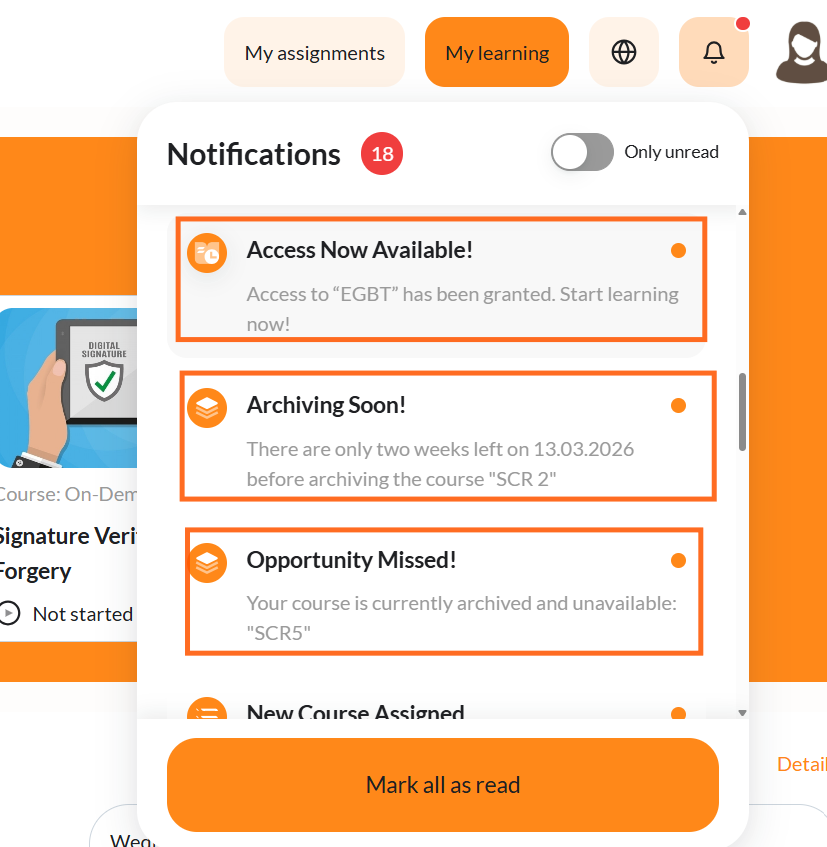
What the learner sees: A Portal notification informing them that the course is now open for access.
On click: The learner is redirected to the relevant course page.
2) Course Archiving Notice
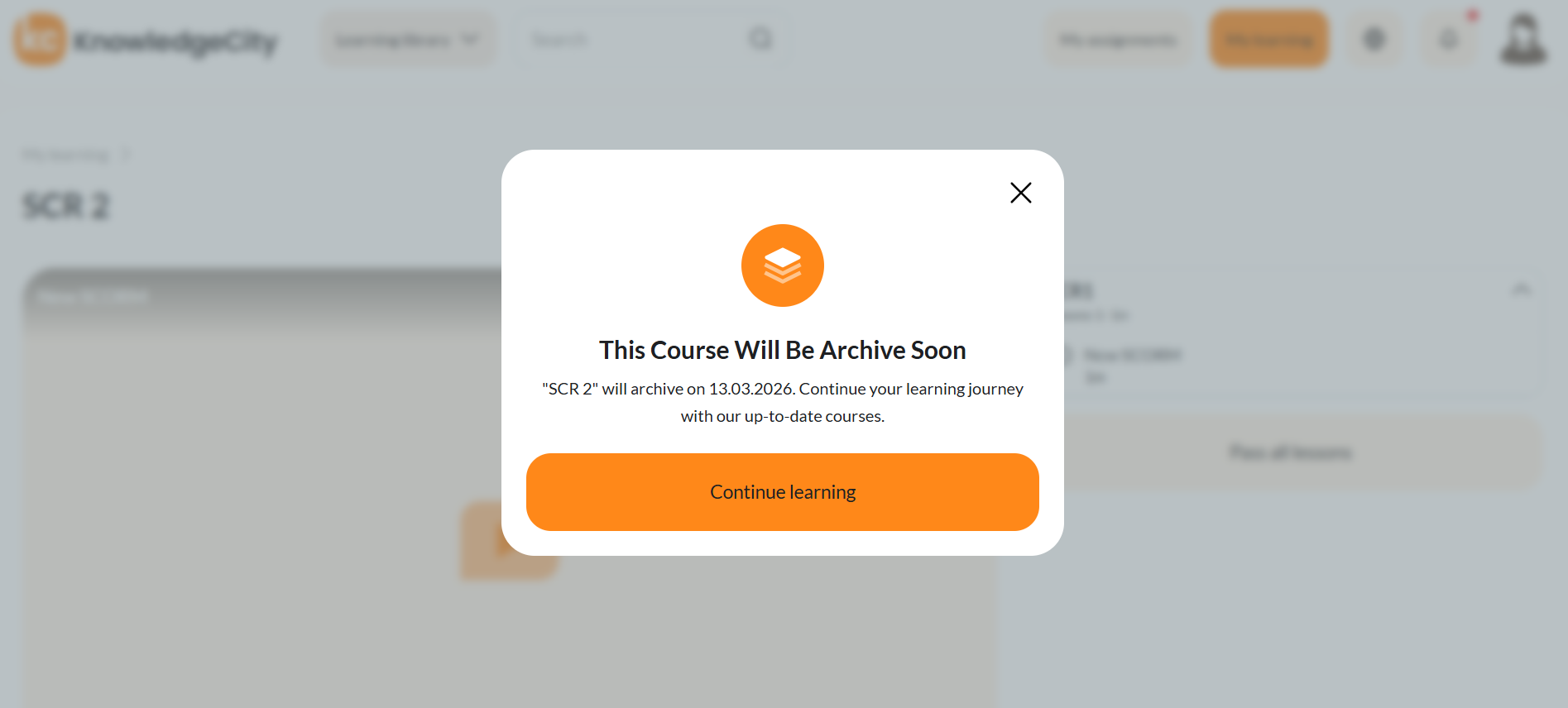
Trigger: An admin has set a future archiving date for a course. A Portal notification is generated 14 days before that date.
What the learner sees: A Portal notification reminding them that the course is scheduled to be archived.
On click: The learner is redirected to the relevant course page, where a modal is displayed with a Continue learning button.
3) Course Archived
Trigger: The archiving date has been reached, or an admin has manually archived the course using an "archive now" action.
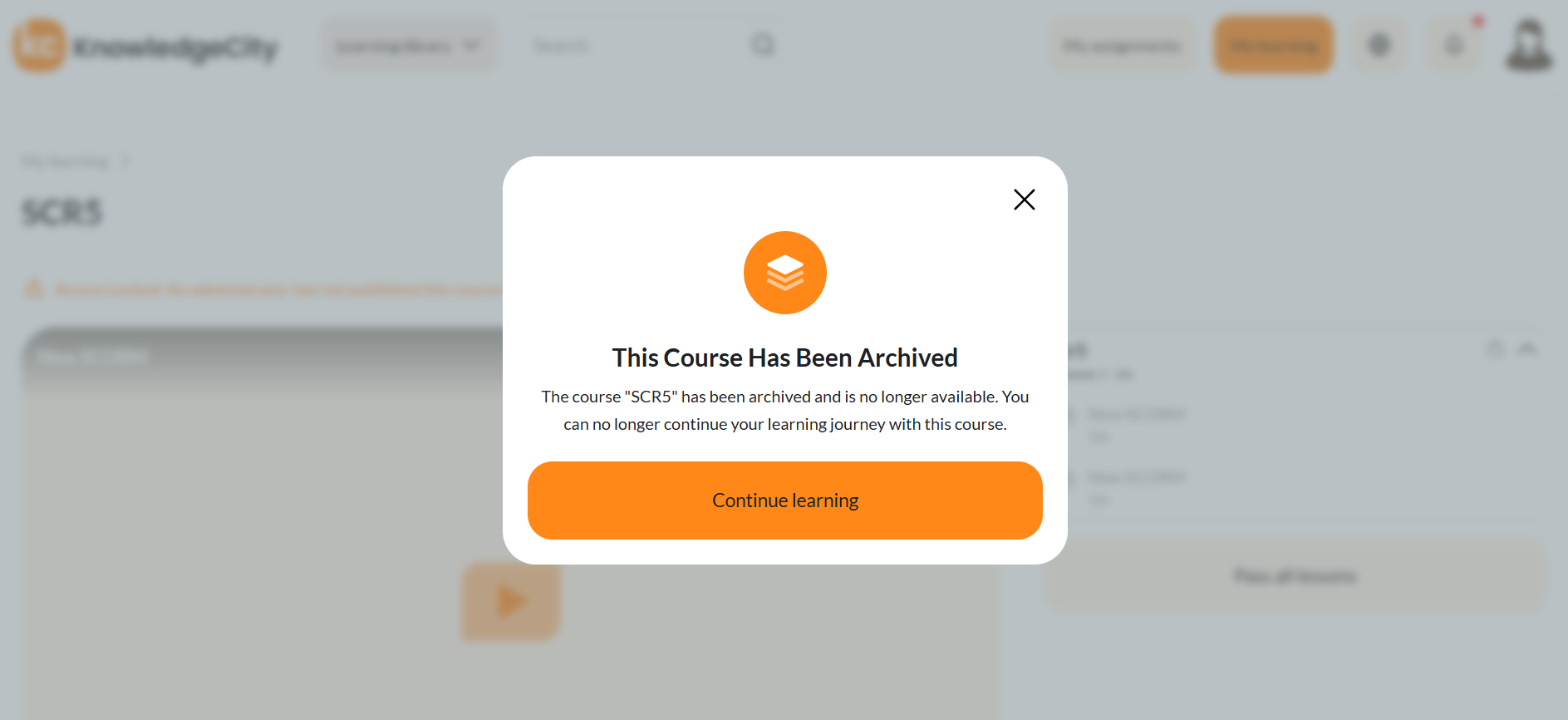
What the learner sees: A Portal notification informing them that the course has been archived.
On click: The learner is redirected to the relevant course page. A modal may be displayed with a Continue learning button, depending on the course status.
How Notifications Are Triggered
Access Opens (Course): A Portal notification is generated when the access open date for a course is reached.
Archiving Notice (Course): A Portal notification is generated 14 days before a scheduled archiving date set by an admin.
Archived (Course): A Portal notification is generated when the archiving date is reached or when an admin manually archives the course.
Expected Result
Learners receive timely in-app notifications for course availability events, mirroring the emails sent from the LMS. Clicking a notification directs the learner to the relevant course page, where any contextual modal provides clear next steps (e.g., Continue learning).
Troubleshooting
Problem | Likely Cause | Resolution |
|---|---|---|
No availability notifications are shown | Notifications disabled in LMSLearner missing email "Notify users" not checked when schedulingEmail dispatch event has not yet occurred | Enable LMS notifications Add learner email Ensure "Notify users" is selectedVerify the email dispatch event has occurred |
Delay seeing a new notification | Portal polling interval or inactive tab delay | Click the bell icon to force a manual refresh Return to an inactive tab to trigger a refreshWait up to the default polling interval |
Clicking notification does not open the course page | Network error Stale course assignmentLearner no longer assigned | Refresh the page and try againConfirm the learner is still assigned to the course |