





Summary
This article explains when Course and Learning Path assignment notifications are triggered, what learners see in the Portal Notification Center, and how to view, open, and manage them.
Introduction
The Portal Notification Center serves as a centralized hub for time-sensitive updates related to a learner's training progress. It consolidates important alerts such as new course or learning path assignments and upcoming due date reminders. By surfacing these notifications in one place, learners can quickly stay informed about required training without needing to navigate through multiple sections of the Portal.
Requirements
- Notifications enabled by Admin
- Learner has a valid email set in LMS User Profile.
- “Notify users” checkbox is selected by the admin on assignment actions.
Steps to Follow
Access the Notification Center
- Sign in to the Portal.
- Select the bell icon in the header to open the Notification Center.
1) Course Assignment Notification
What the learner receives A new item in the Notification Center indicating the course assignment.
How it appears in the Notification Center The bell icon in the header displays a badge when new notifications arrive.
What happens on click / available options Clicking the course assignment notification redirects the learner to the Course page.
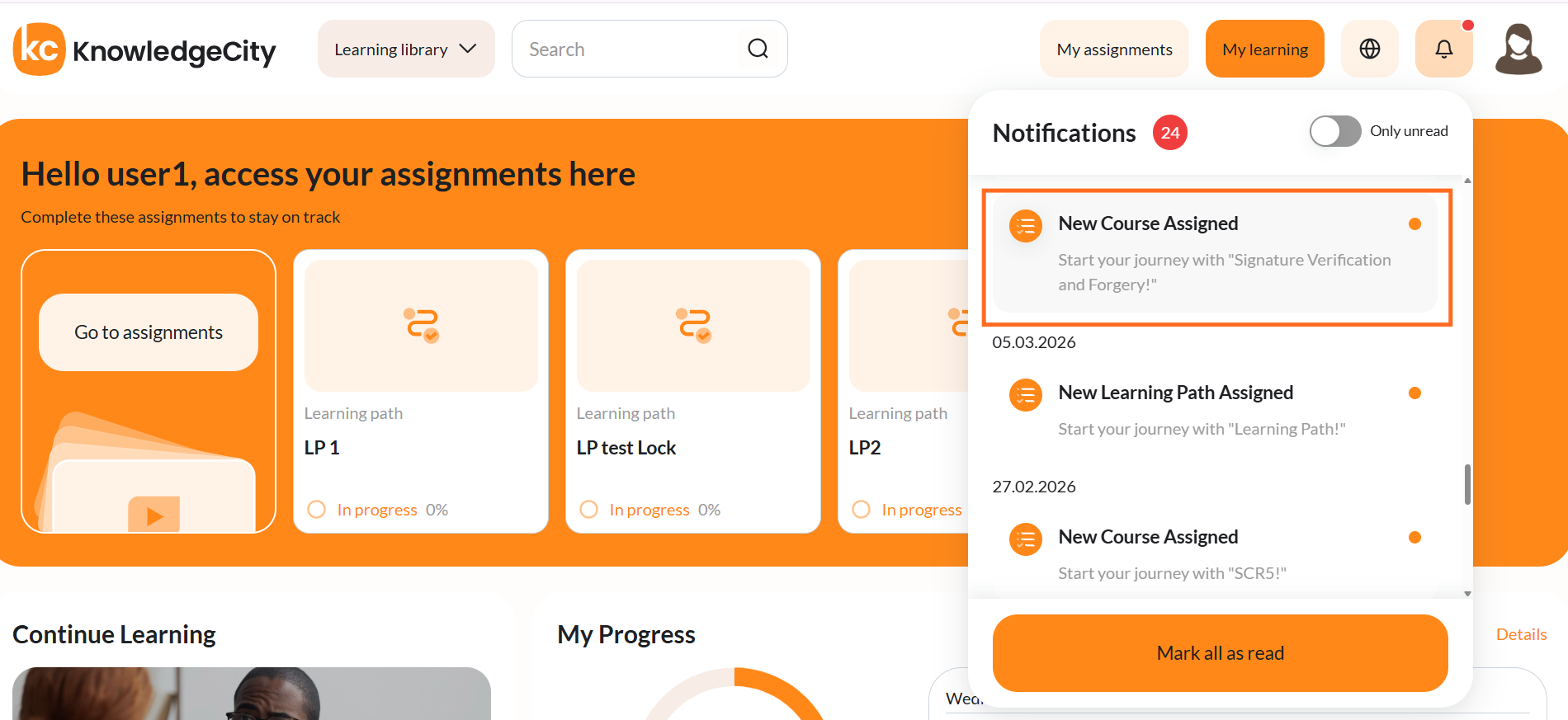
Caption: Each assigned course appears in the notification panel with its course name.
2) Learning Path Assignment Notification
What the learner receives A new item in the Notification Center indicating the learning path assignment (Related due date reminders for the learning path or its included courses may arrive according to the schedule).
How it appears in the Notification Center The bell icon badge indicates unread items. The notification card displays the learning path title and assignment text.
What happens on click / available options Clicking the learning path assignment notification redirects the learner to the Learning Path page.
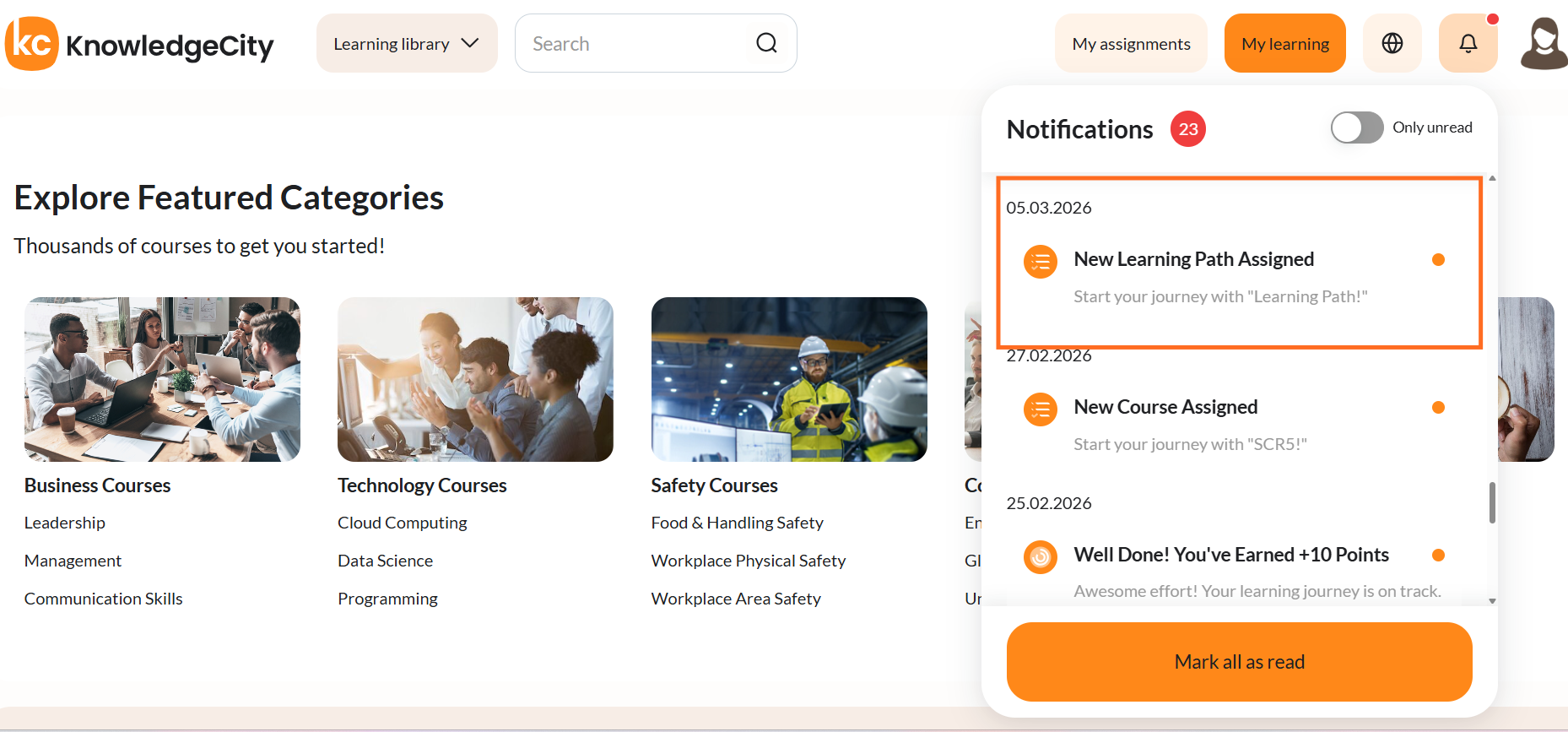
Caption: Learning path assignments appear the same way, labelled New Learning Path Assigned.
Expected Result
- The learner sees assignment notifications in the Notification Center shortly after the assignment is made.
- Clicking the notification opens the correct Course or Learning Path page.
- The notification is marked as read, either automatically or via user action, depending on the UI behavior.
Troubleshooting
| Problem | Likely cause | Quick fix |
|---|---|---|
| No notification appears after assignment | Notifications disabled in LMS.Learner email missing in profile. | Ask admin to enable notifications. Add email to profile Re-check after delivery interval. |
| Notification delivered but clicking does nothing | Temporary UI or routing issue. | Refresh the page and reopen the Notification Center. Open the Course/LP from Assignments/My Learning as a workaround. |
| Due date reminder order feels inconsistent | Emails and portal notifications are separate processes and may queue differently. | Advise users that order may vary. Ensure the event ultimately appears in the Notification Center. |