





Summary
Some courses in KC Library are produced in more than one language. When you browse the library, each course tile shows the languages that course is available in, so you can confirm your preferred language is offered before you open the course.
Introduction
KC Library serves learners across many regions, and content is often published in several languages. To help you find content you can follow, every course is labeled with the languages it supports right on its tile in the library.
This article explains where those languages appear and how to read them, so you can pick a course offered in the language you want to learn in.
Key Concepts
- Course tile: The card in the library that represents a single course. It carries the course details, including the languages the course is available in.
- Available languages: The set of languages a course has been produced in. On a course tile these are shown together as a single, comma-separated list.
- Multi-language content: A course can be associated with more than one language at the same time, and each of those languages is listed on the tile.
- Language label: The line on the tile that reads "in" followed by the comma-separated list of languages, so you can see at a glance what the course offers.
- Hover tooltip: The same list of languages is also available as a tooltip when you hover over the language label, which is useful when the list is long.
Steps to Follow
Open KC Library
Go to KC Library and browse to the area or category that contains the course you want. Each course you see is shown as its own tile.
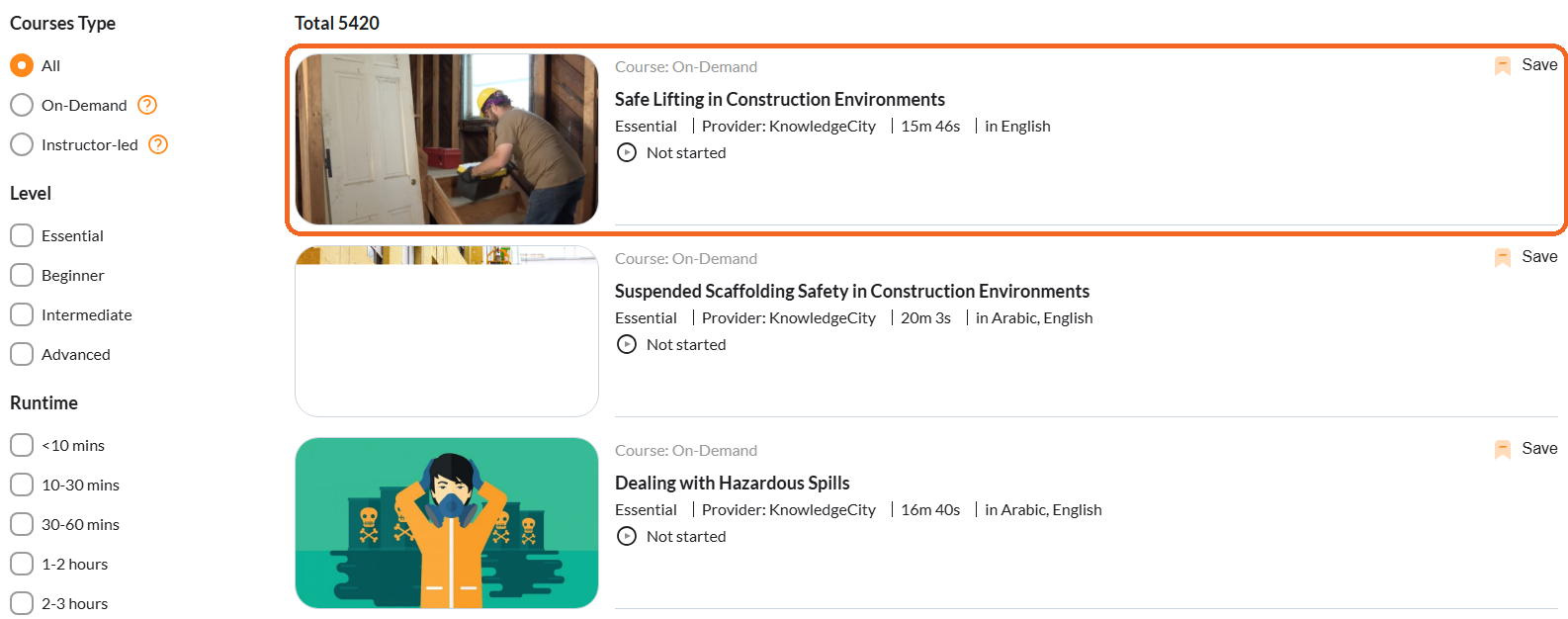
Caption: The Learning Library: filters on the left, and every course shown as its own tile.
Read the languages on the course tile
On the course tile, look for the language label that begins with the word in. The languages the course is available in are listed there as a comma-separated list, for example in English, Arabic, Spanish.

Caption: The tile's detail line. The language label is the last entry: in Arabic, English, Spanish.
Check the full list when it is long
If a course supports several languages and the list is truncated on the tile, hover over the language label to see the complete comma-separated list of available languages in a tooltip.
Choose a course in your preferred language
Confirm that the language you want appears in the list, then open that course to start learning in one of its available languages. If your preferred language is not listed, look for another course tile that includes it.
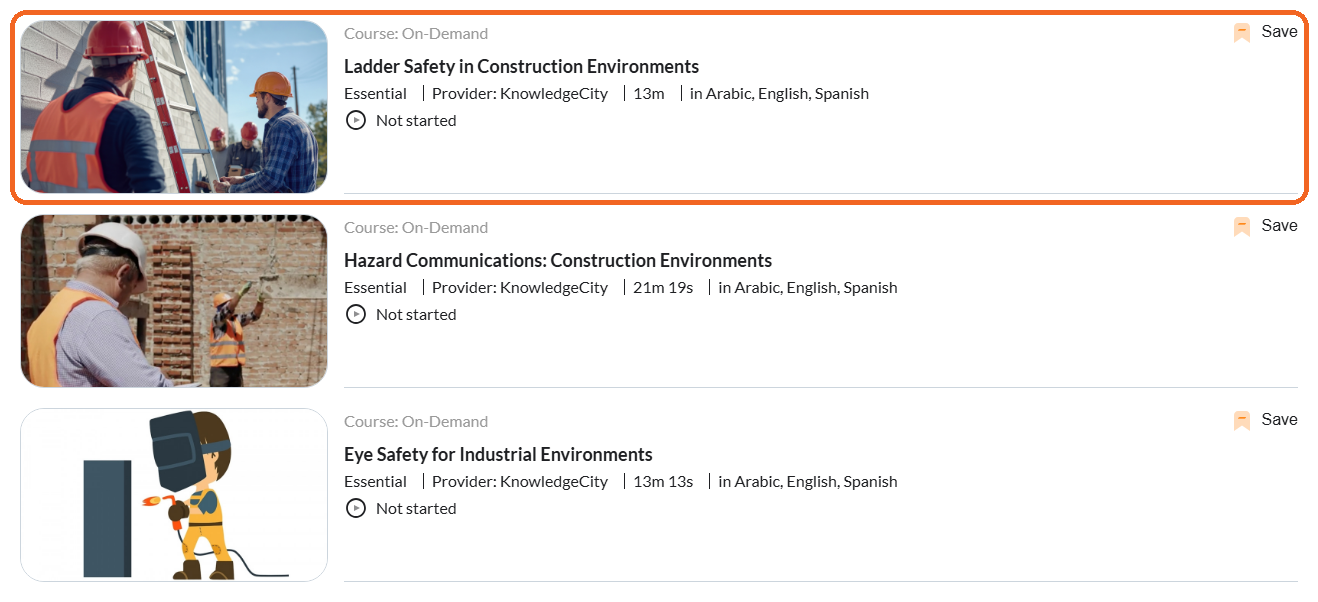
Caption: Compare the language label across tiles and open the course that lists the language you want.
Conclusion
Because KC Library shows the available languages directly on each course tile, you can quickly confirm which languages a course supports and choose the content that fits your preferred language before you begin.