





Summary
You open a course from My learning, review it on the course page, then start it by selecting a lesson from the course's chapter list. This article walks that path, from signing in to opening your first lesson.
Introduction
Courses are organised into chapters, and each chapter holds lessons. There is no single "start" button: you begin a course by opening the lesson you want, and the course page keeps track of how far you have progressed.
The course page is also where you check what a course involves before committing to it — the chapter breakdown, the lesson count and running time, and the requirements you need to meet to complete it.
Key Concepts
- My learning: Your dashboard and the landing page after you sign in. It shows your assignments, what you were last working on, and your recent activity.
- Top navigation: The bar across the top, holding Learning library, My assignments, and My learning.
- Course page: The page for a single course, showing its title, tagline, progress, and content. Its address has the form
/en/library/course/<course id>. - Chapter: A group of lessons on the course page. Each chapter shows its name and a summary such as
Lessons: 6 · 17m 26s. - Lesson: A single item inside a chapter, with its own title and running time. Opening one takes you to
/en/library/course/<course id>/lesson/<lesson id>. - Content / Overview / Transcript: The three tabs on the course page. Content holds the chapter list, Overview holds the course description, and Transcript holds the text of the course.
- Completion requirements: Shown at the foot of the chapter list as Pass all lessons and, where the course has one, Certification test.
Steps to Follow
Sign in and land on My learning
Sign in to your KnowledgeCity portal. You arrive on My learning, which greets you by name and shows your assignments, a Continue Learning panel with the course you were last in, and your Recently Viewed courses.
Find the course you want
Open the course from whichever of these fits:
- Continue Learning — to pick up the course you were last working on.
- Go to assignments, or My assignments in the top navigation — for courses assigned to you.
- Recently Viewed — for a course you opened before.
- Learning library in the top navigation — to browse the full catalogue.
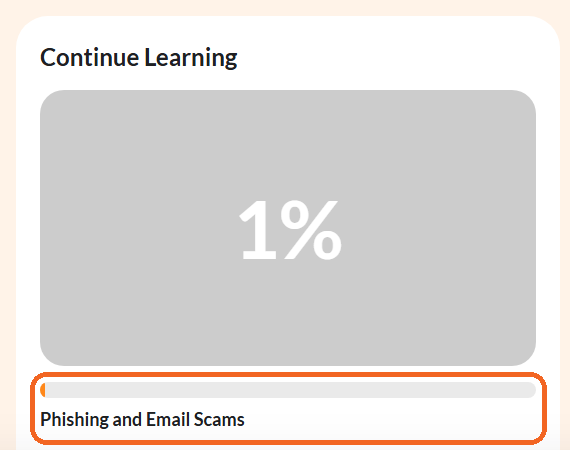
Caption: The Continue Learning panel on My learning, showing the course you were last in and your progress so far.
Review the course page
The course page opens with the course title and tagline at the top, your progress as a percentage, the course type (for example Course: On-Demand), and your current status (for example Not started).
Use the tabs to look further:
- Content — the chapter list, shown by default.
- Overview — the course description.
- Transcript — the course text.
Open a chapter and pick a lesson
On the Content tab, each chapter shows its name and a summary such as Lessons: 6 · 17m 26s. Select a chapter to expand it and reveal the lessons inside, each with its own title and running time.
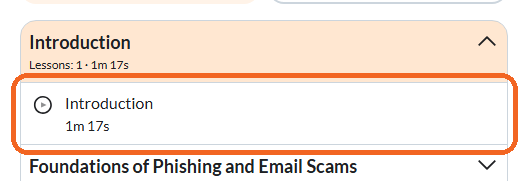
Caption: A chapter expanded on the Content tab: its lesson count and running time, with the lesson inside ready to open.
Start the lesson
Select the lesson you want. It opens at /en/library/course/<course id>/lesson/<lesson id> and begins. Your progress on the course page updates as you work through the lessons.
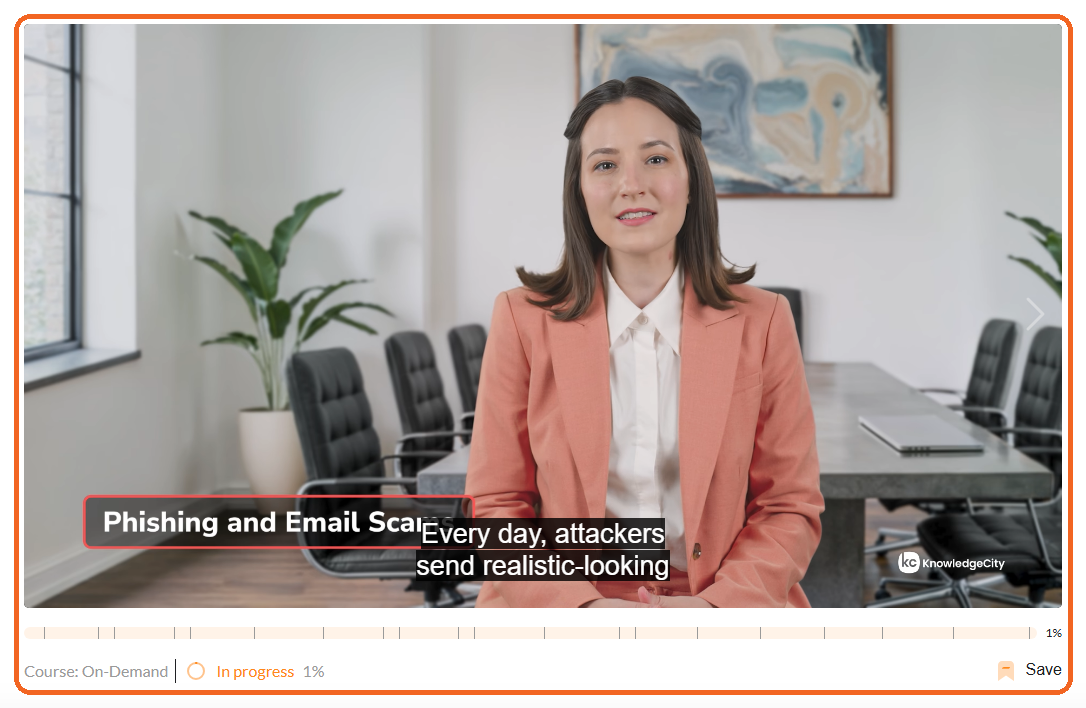
Caption: A lesson open and playing, with the course progress bar and the Save control along the bottom.
Check what completing the course requires
Below the chapter list, the course states what completion takes: Pass all lessons, and where the course includes one, a Certification test. Check these at the start so you know what the course expects before you finish.
Conclusion
Starting a course is a short path: sign in to My learning, open the course from your assignments, Continue Learning, or the Learning library, then expand a chapter on the Content tab and select a lesson. Progress is tracked for you, so you can leave and pick up where you left off.