





Summary
KC Library publishes a public learning library on knowledgecity.com that anyone can browse before signing in. You can explore the catalog by category, drill into subcategories, open a public course page to review its details, and switch the display language, all without an account.
Introduction
The public learning library is the openly accessible face of the KC Library catalog. It lets prospective learners and visitors see what content is available, grouped into the same categories that organize the rest of the catalog, so they can get a sense of the library before they ever sign in.
Because the library is public, you can browse categories, view the courses inside them, and open an individual course page to read its description and key facts. Signing in is only needed when you want to move from browsing into actually taking a course.
Key Concepts
- Public learning library: The openly accessible catalog on knowledgecity.com that you can browse without an account.
- Category: A top-level topic grouping (for example, Business, Technology, Compliance, Safety, and Finance) that you select to see the related courses.
- Subcategory: A grouping nested under a category. Selecting a category can reveal its subcategories so you can narrow to a specific branch.
- Category page: The page that opens when you choose a category. It lists the courses in that category, and where a category has them, its subcategories.
- Certification Programs: Curated collections of the courses needed to prepare for recognized certifications. They sit in the Learning library menu inside your KnowledgeCity portal rather than on the public site, so you need to sign in to open them.
- Public course page: The course page you can open from the library to review a course before signing in. It presents the title, tagline, author, description, lesson count, duration, skill level, categories, and available languages.
- Language switch: The globe control that changes the display language of the public library.
Steps to Follow
Open the public learning library
Go to the learning library on knowledgecity.com. As a visitor who is not signed in, you can browse the library and its category structure without an account.
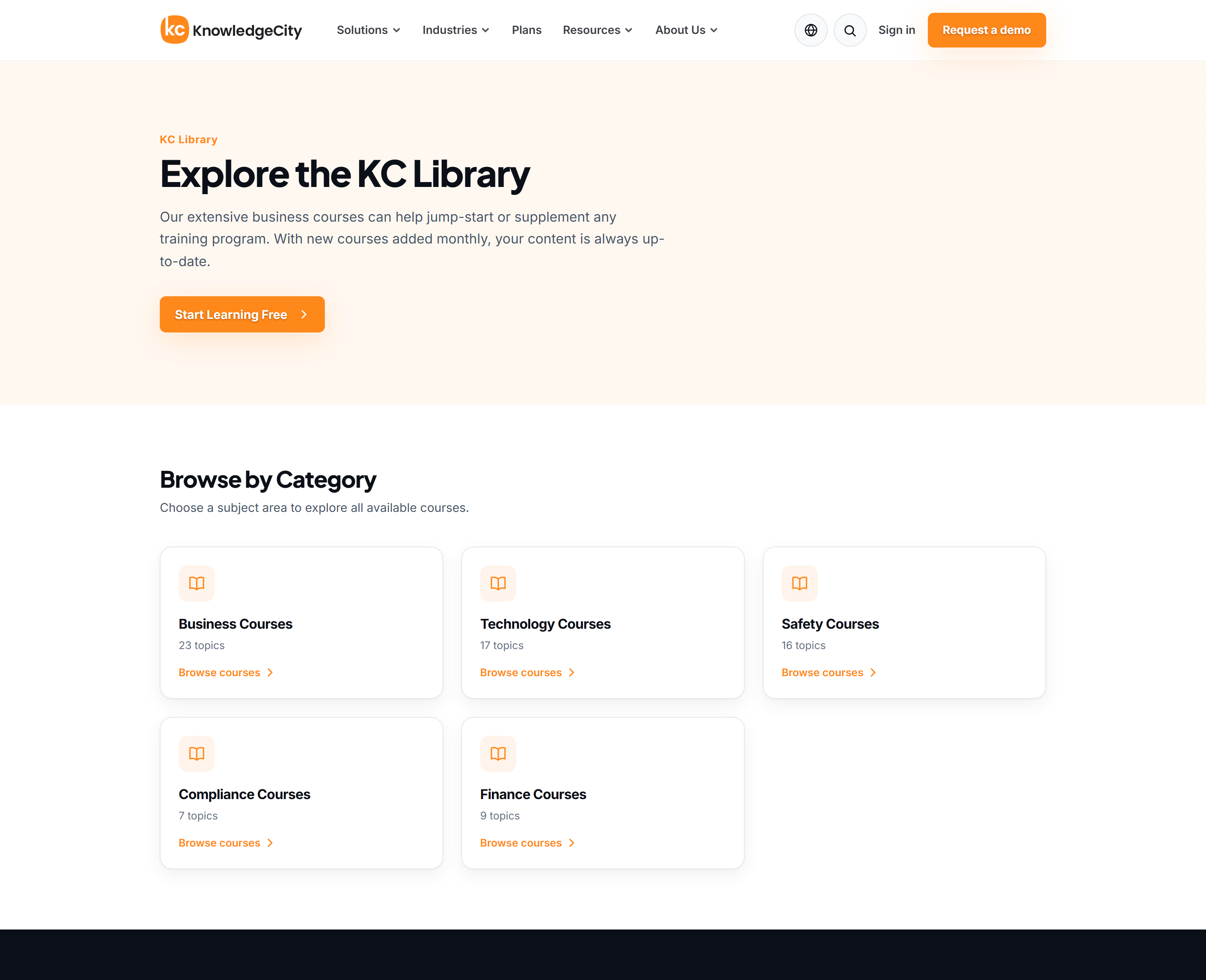
Caption: The public learning library landing page, with the five course categories.
Browse by category
Choose a Category to open its category page. The page lists the courses that belong to that category. Where a category is divided further, it also presents the subcategories nested beneath it so you can drill into a more specific branch.
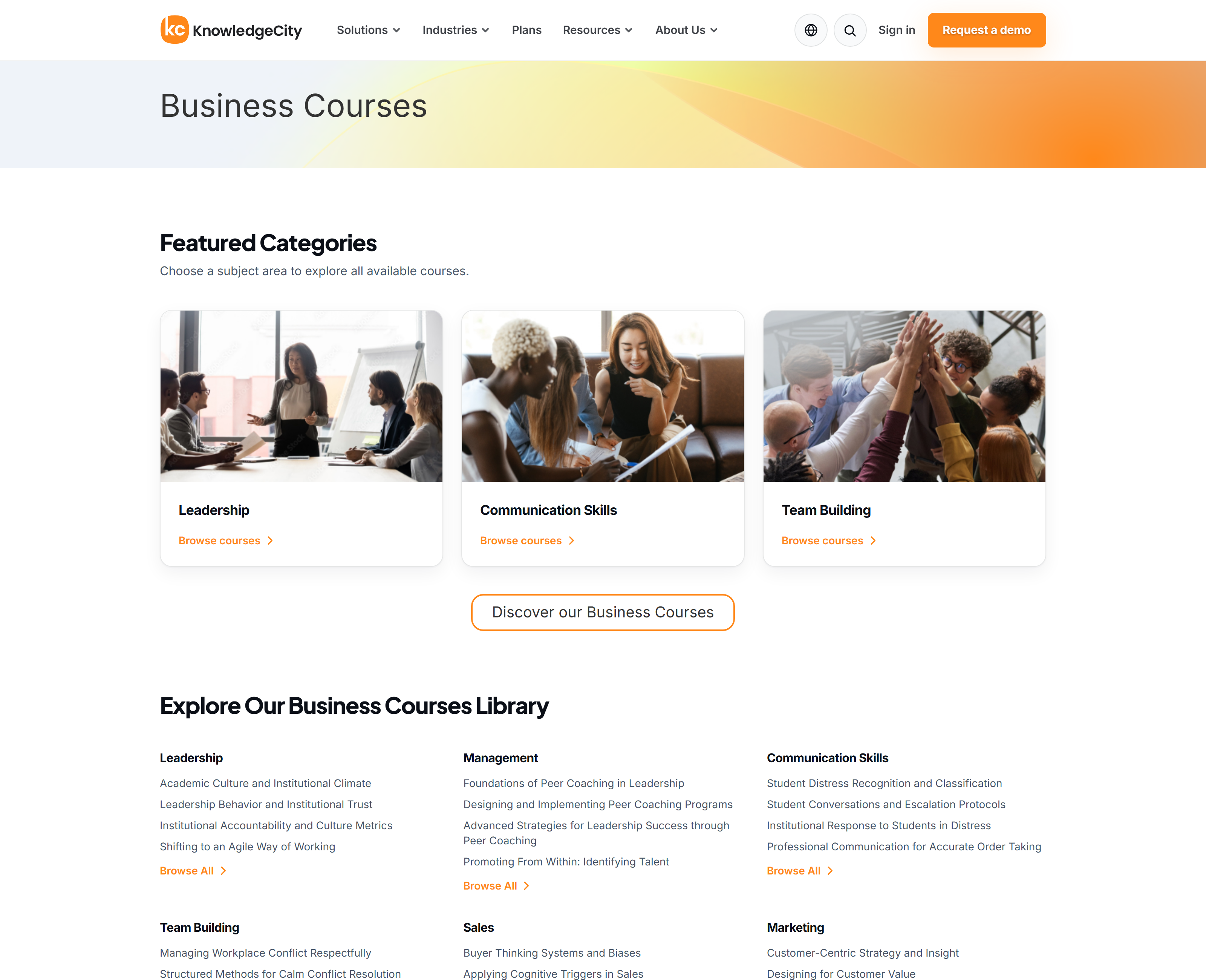
Caption: A category page, Business Courses, listing its subcategories and the courses inside them.
Sign in for Certification Programs
Certification Programs are not part of the public library. If you are working toward a recognized certification, sign in to your KnowledgeCity portal and open Certification Programs from the Learning library menu, where it sits alongside the five subject categories. Each program gathers the courses associated with one certification body into a single collection, so you can review the full set instead of hunting for each course on its own.
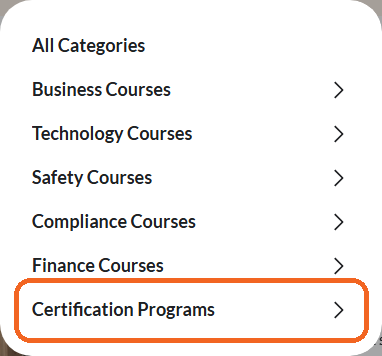
Caption: The Learning library menu in the signed-in portal: Certification Programs sits beside the five subject categories.
Open a public course page
Select a course to open its public course page. Review the Title and any Tagline for a quick sense of the subject, then read the Description to understand what the course covers. Check the Lessons count and the Duration to gauge the time commitment, confirm the Skill Level suits your experience, and scan the Categories and Languages to see where the course fits and which languages it is offered in.
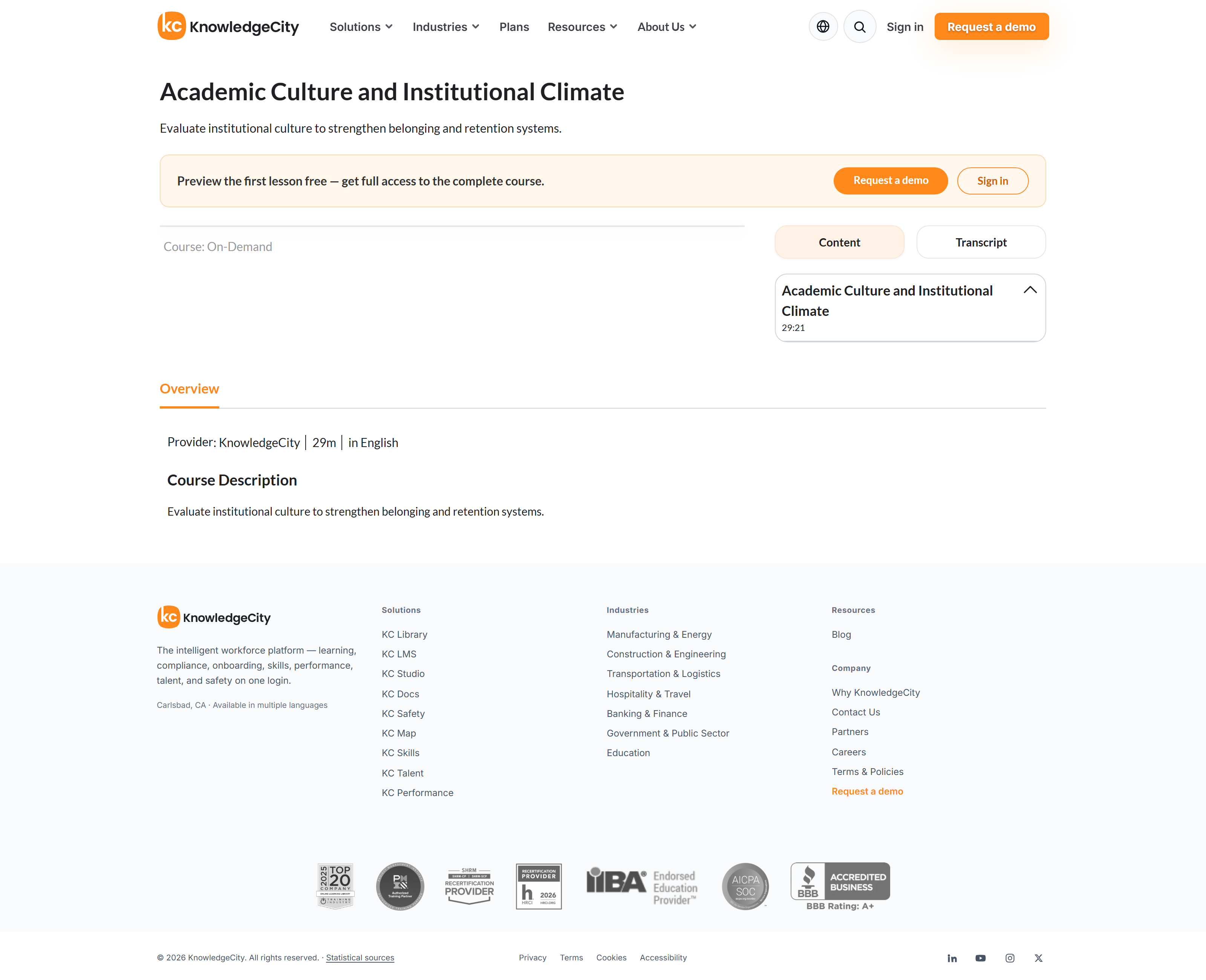
Caption: A public course page: title, description, lesson count, duration and available languages.
Switch the display language
Use the globe control to change the language of the public library. The categories and course information update to the language you select, so you can browse in the language you are most comfortable with.
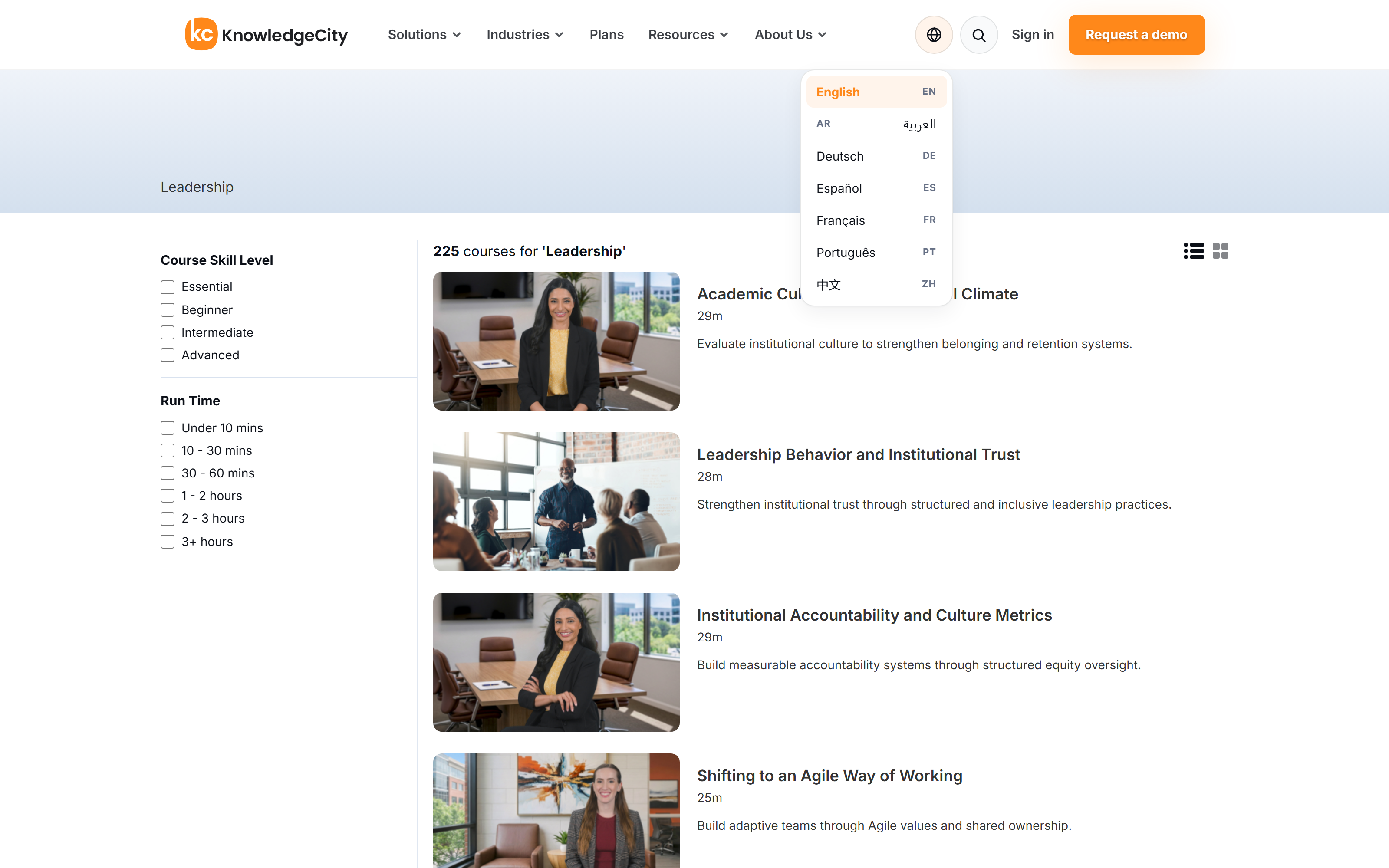
Caption: The globe control on a category page, open on all seven display languages.
Sign in to continue
Browsing, viewing categories, and reading a public course page are all available without an account. When you are ready to move from exploring into taking a course, sign in to continue.
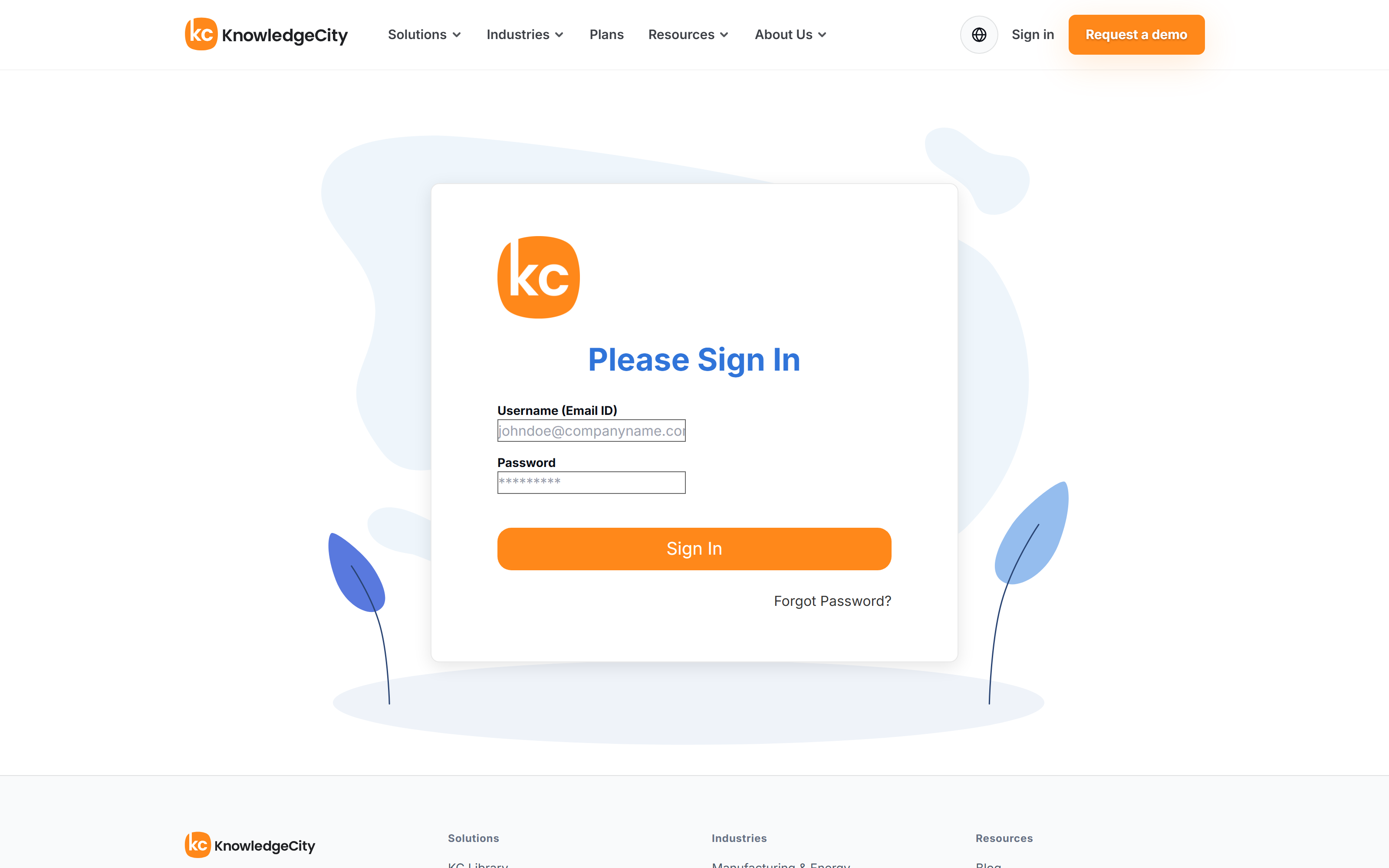
Caption: The sign-in screen, which is presented in English for every display language.
Conclusion
The public learning library on knowledgecity.com lets you evaluate KC Library content on your own terms: browse by category and subcategory, open a public course page to read its details, and switch languages, all before you sign in to start learning. Certification Programs are the one part of the catalog that needs an account — you will find them in the Learning library menu once you sign in.