





Summary
This guide walks a new user through their first sign-in to Safety App and where to begin. You will sign in with your KnowledgeCity account, land on the dashboard, and get oriented to the main areas of the workspace. By the end you will know how to find open work and where your day-to-day tasks live.
Introduction
Safety App is where your organization reports incidents, investigates what happened, drives corrective actions, and keeps safety training on track. Access is granted by an administrator, so your first experience begins with an account that has already been set up for you rather than a self-service signup, and what you see once you are in depends on the role you have been assigned.
New users range from safety managers who investigate incidents and follow corrective actions across sites, to team members who complete assigned safety training. This article covers the shared starting point: getting into your account for the first time, understanding the dashboard, and knowing where to go next.
Key Concepts
- KnowledgeCity account: the account you already use for the rest of the KnowledgeCity platform. Safety App signs you in with it, so there is no separate Safety App password to create.
- User Directory: the KnowledgeCity area where an administrator grants access to Safety App and assigns your role. Your account is set up there rather than inside Safety App.
- Role: the set of permissions assigned to you that determines what you can see and do in Safety App. Your role shapes which areas and actions appear for you.
- Workspace: your organization's shared space in Safety App, holding the incidents, reports, and safety content that you and your colleagues work with.
- Dashboard: the screen you land on after signing in. It is your daily starting point and answers the question of where to focus your attention today.
- Two-factor authentication: an extra identity check at login. Because sign-in happens through KnowledgeCity, this is part of your KnowledgeCity account rather than something you set up inside Safety App.
- Closed loop: the way work flows through Safety App, from reporting an event to investigating it, correcting it, and preventing a recurrence.
Steps to Follow
Confirming that you have access
Your access to Safety App comes from your KnowledgeCity account. An administrator grants that access in the User Directory and assigns your role there, so there is nothing for you to accept or activate beforehand. If you can sign in to KnowledgeCity, you already have what you need. There is no invitation email to look for and no separate Safety App account to set up. If you reach the app and are told you do not have access, ask the administrator who manages access for your organization to grant it.
Signing in for the first time
Open your organization's Safety App address and select Sign in with KnowledgeCity. This is the only sign-in option on the page: there is no email or password field, because Safety App does not hold a password of its own. You are taken to the KnowledgeCity sign-in page, where you authenticate exactly as you would for any other KnowledgeCity product, and you are returned to Safety App automatically once you do. If you are already signed in to KnowledgeCity, opening Safety App takes you straight in with no sign-in page at all. Any two-factor authentication your organization requires is handled as part of that KnowledgeCity step, using whatever method your organization has set up there.
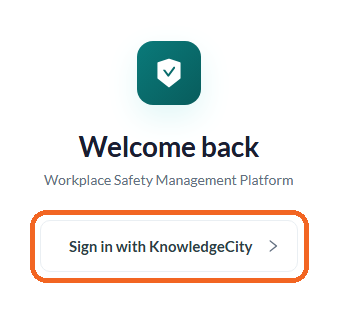
Caption: Sign in with KnowledgeCity is the only option on the page - there is no separate Safety App password.
Getting oriented on the dashboard
Signing in lands you on the dashboard, your daily starting point. The tiles at the top show the key vital signs for your safety program, and scrolling down reveals trend charts and lower panels that surface where work is open. Take a moment to read the dashboard top to bottom, because it is designed to answer one question: where do I focus my attention today?

Caption: The dashboard opens with tiles for TRIR, LTIR, DART Rate, Open Incidents, Avg Days to Close, and Overdue Actions.
Surfacing all of your open work
The dashboard applies a default date range, and that range can hide older items that are still open. If the dashboard looks emptier than expected, switch the range to all time to surface every open item across your sites. This is the quickest way to make sure nothing outstanding is missed during your first review.
Finding your way around
Use the left sidebar to move between the main areas of Safety App. The sidebar groups your areas into labeled sections so related work stays together, with the core workflow holding items such as incidents, investigations, and corrective actions. Which sections and items appear depends on your Role, so your sidebar reflects the work you are responsible for. Explore these areas to see where your recurring tasks live.
Knowing where to go next
With the dashboard in view, you are ready to start working. Reporting, investigating, correcting, and preventing form the closed loop that Safety App is built around, and each area you found in the sidebar supports part of that loop. If your organization uses safety training, assigned courses tie back to this same workflow, so completed training is recorded alongside your safety records.
Conclusion
Getting started with Safety App comes down to signing in with your KnowledgeCity account and learning to read the dashboard as your daily launch point. Because access and sign-in are managed through KnowledgeCity, there is no separate account to activate and no extra password to remember. Once you are comfortable moving through the sidebar and surfacing all of your open work, you have everything you need to begin, and you can return to the dashboard any time to see where your attention is needed next.