





Summary
The Training Rule Builder lets you create configurable rules that assign training when a qualifying incident is logged. Each rule ties a trigger condition to a KnowledgeCity Learning Management System course and an audience, so the right people are enrolled in the right training. An Auto rule assigns training on its own as soon as a matching incident is created; a Manual rule assigns nothing until an administrator runs it against a chosen incident. Together these rules form a rule library that you manage from one place.
Introduction
The Training Rule Builder is the part of the Safety App that connects incident reporting to learning. Instead of manually assigning courses every time something happens, you define rules once. Auto rules fire automatically when a matching incident occurs, and Manual rules let you decide case by case which incidents should lead to training. This closes the loop between an event on the ground and the follow-up training meant to prevent it from happening again.
Safety and training administrators are the primary users. They build and maintain the rules, decide which incidents warrant training, and choose which course and audience each rule targets. The result is consistent, repeatable training assignment that scales across every incident type.
Key Concepts
- Training Rules library: The central list of your rules. Every active rule is shown here at a glance, so you can review your automated training coverage in one place.
- Rule: A single configurable entry that pairs a trigger condition with a course and an audience. When a logged incident matches the trigger, the rule fires.
- Trigger: The condition that causes a rule to fire. You define it using the incident type, a severity threshold, a location filter, or a department scope.
- Execution Mode: How a rule fires. Auto — assignments are created automatically as soon as a new incident matches. Manual — the rule only runs when an admin executes it against a specific incident. Manual is preselected when you create a rule.
- Linked course: The KnowledgeCity Learning Management System course that the rule assigns when it fires.
- Assigned audience: The people the rule targets for training when it fires.
- Deadline (Due within N days): An optional number of days that gives every assignment the rule creates a due date. It is counted from the incident date, not from the day the rule fires. Leave it blank for no deadline.
- Rule status: Whether a rule is currently active. The library shows each rule's current status so you can tell which rules are live.
- Assignment status: Every assignment a rule creates starts as Pending and becomes Enrolled once KnowledgeCity LMS accepts the enrollment. It then moves to In Progress and Completed or Failed as the employee works through the course. Cancelled is set only by an administrator.
Steps to Follow
Open the Training Rules library
Go to the Training Rules area in the Safety App. This is your rule library, where every rule is listed alongside its trigger condition, its linked course, its assigned audience, and its current status. Reviewing this list first helps you see what automated training coverage already exists before you add more.
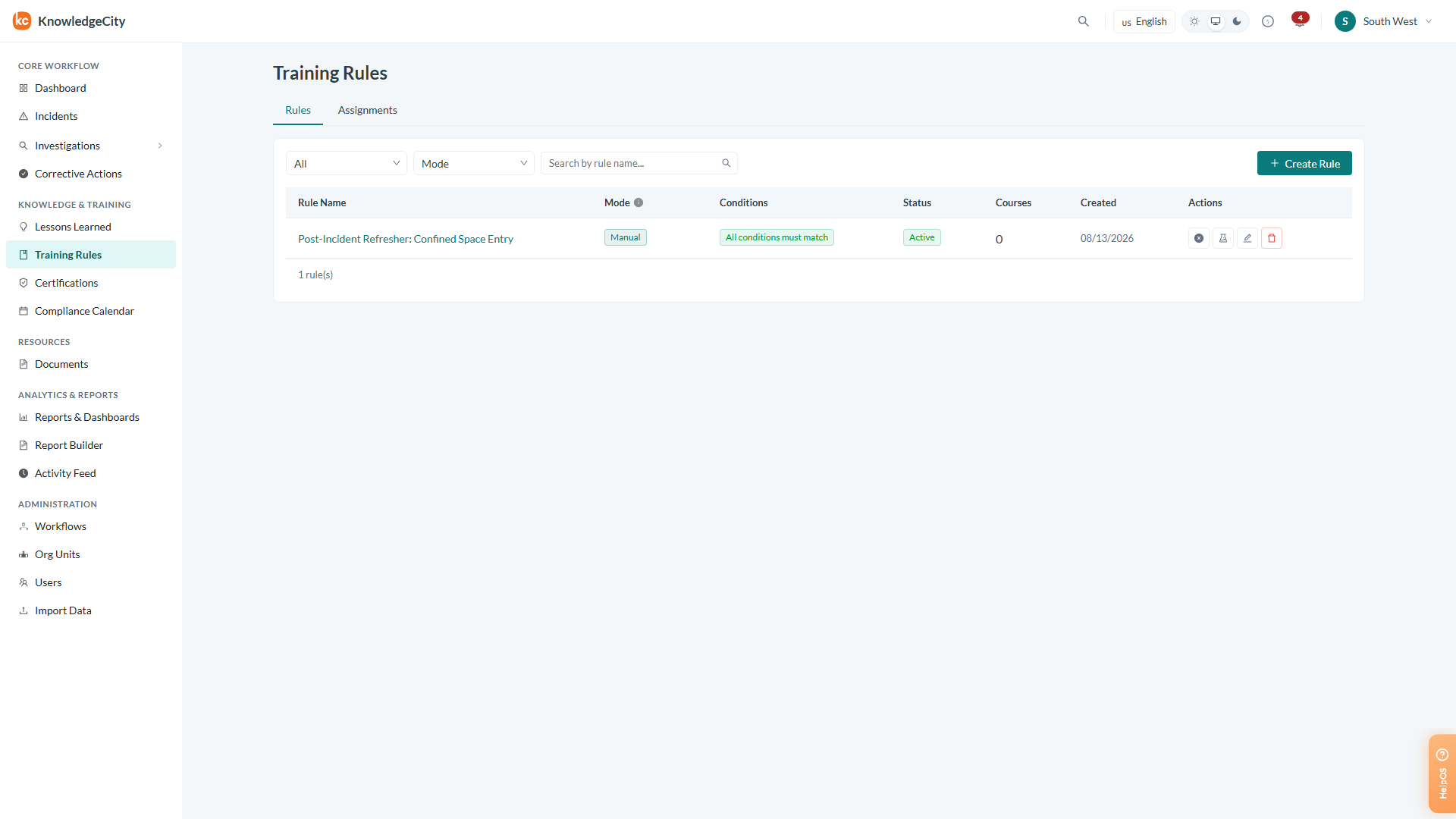
Caption: Go to the Training Rules area in the Safety App.
Review the existing rules
Scan the rule rows to understand how each one behaves. Each row shows the trigger event, the linked KnowledgeCity Learning Management System course, the assigned audience, and the rule status. The Mode column shows whether the rule is Auto or Manual. Use this view to confirm coverage and to spot gaps where a new rule is needed.
If a rule is marked with an Unmatched location warning, one of its location values matches no location in your account. A location condition is matched on the whole name, so a typo or an abbreviation means the rule never fires unless an incident is reported with exactly that location. Check the spelling.
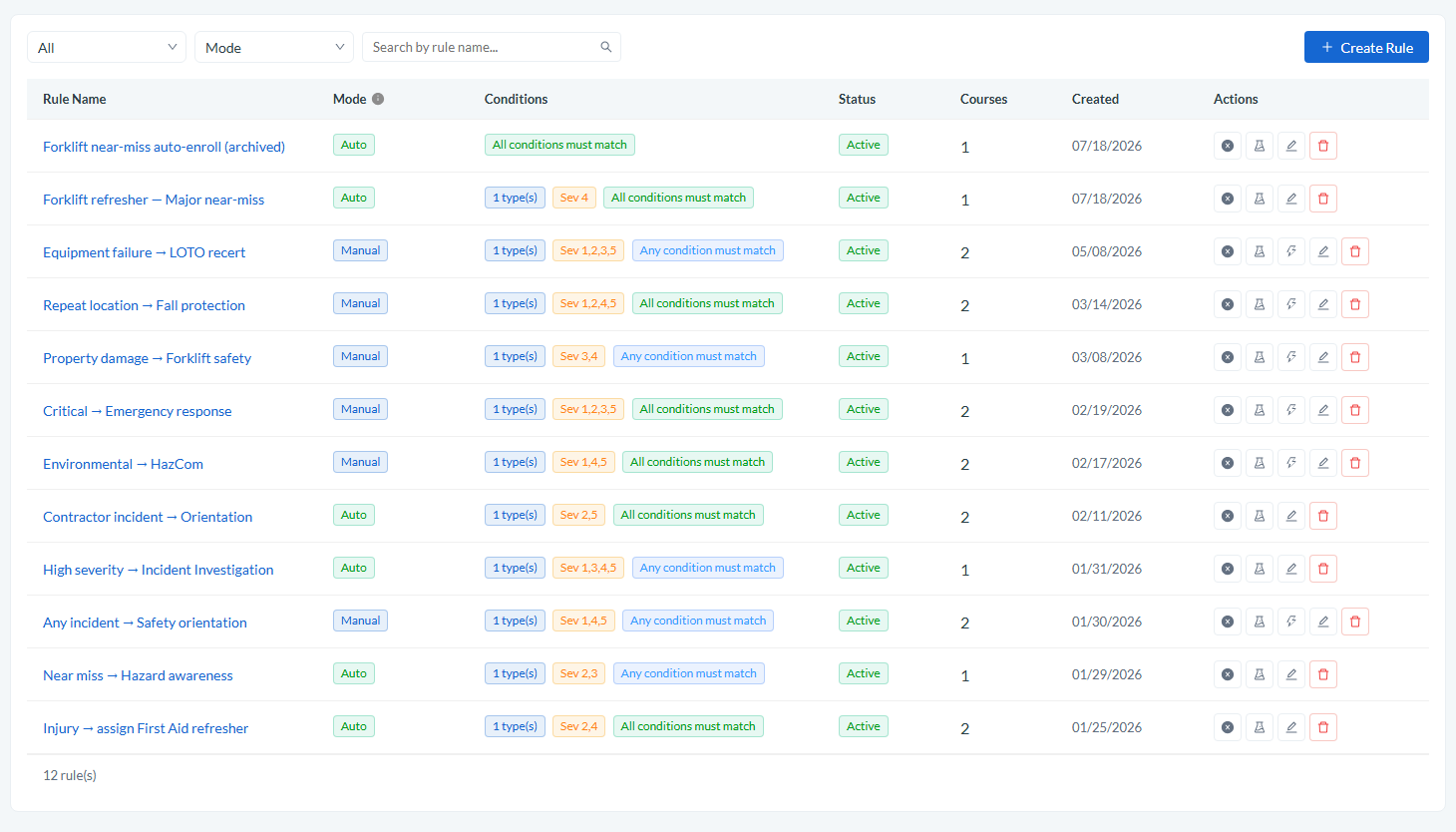
Caption: The Mode column shows Auto or Manual; the Actions column carries Test rule and, on Manual rules, Run rule against an incident.
Create a new rule and define its trigger
Start a new rule and begin with the trigger, since the trigger is what determines when the rule fires. Choose the condition that should fire the rule from the available options:
- The incident type
- A severity threshold
- A location filter
- A department scope
Pick the combination that matches the situations you want the rule to respond to. The same pattern applies to every incident type, so you can build rules for chemical incidents, forklift operations, and any other category the same way.
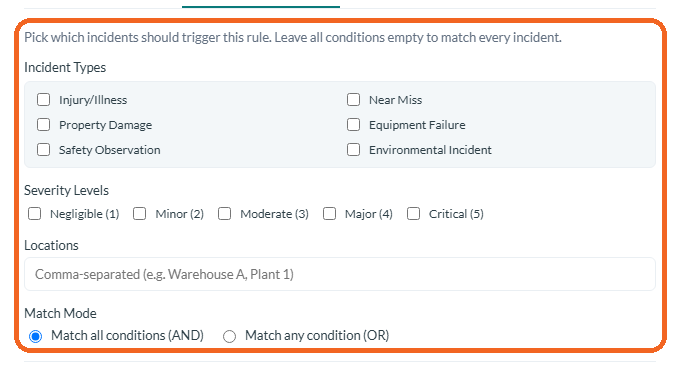
Caption: Start a new rule and begin with the trigger, since the trigger is what determines when the rule fires.
Link the course and choose the audience
Connect the rule to the KnowledgeCity Learning Management System course that should be assigned when the trigger fires, and set the assigned audience that will receive the training. This is what turns a matching incident into a concrete training assignment for the right people.
To give the training a deadline, enter a number of days in Due within N days. Each assignment is then due that many days after the incident date — for example, a rule set to 7 that fires on an incident dated 3 March produces assignments due 10 March. Leave the field blank for no deadline. When the LMS integration is connected, the due date is sent to KnowledgeCity LMS with a course enrollment, so the learner sees the same deadline there. A learning path assignment keeps its due date in the Safety App only, and a due date that has already passed is not sent to the LMS.
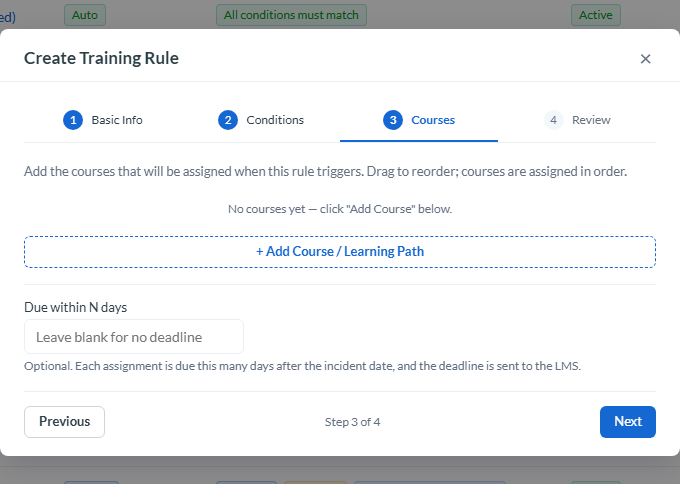
Caption: Add the courses the rule assigns, and set an optional deadline in Due within N days.
Set the rule status and save
Choose the rule's Execution Mode. Manual is preselected, and a Manual rule never fires by itself — choose Auto if you want the rule to run on matching incidents automatically. Confirm the rule's status so it is active, then save it. Once saved, the rule appears in the Training Rules library with the rest of your rules, where you can review or adjust it later.
An Auto rule only evaluates incidents at the moment they are created, so it does not apply to incidents reported before the rule existed. To cover an earlier incident, run a Manual rule against it, as described in the next step.
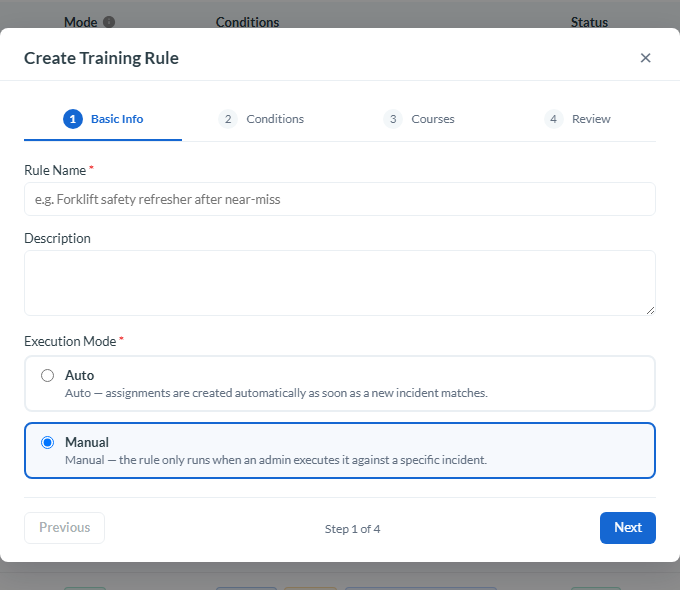
Caption: Choose the rule’s Execution Mode. Manual is preselected, and a Manual rule never fires by itself.
Run a Manual rule against an incident
A Manual rule only creates assignments when you run it. Active Manual rules carry a Run rule against an incident action (the lightning icon) in the Actions column of the rules list. Auto rules do not have this action, and neither does a deactivated rule — reactivate it first.
- On the rules list, click Run rule against an incident on the Manual rule's row.
- Pick the incident to apply the rule to and click Check Incident. The rule is evaluated first, and nothing is assigned yet.
- If the rule matches, click Execute for this incident, then confirm with Execute.
- Read the result. It shows how many assignments were created, how many were skipped because that person already had the course for that incident, and how many could not be sent to the LMS.
Running the same rule against the same incident again is safe: nobody is assigned the same course twice for the same rule and incident. To check a rule without assigning anything, use the Test rule action in the same Actions column instead — pick an incident and click Run Test to see whether the rule would trigger, who would be assigned, and which courses they would receive. When a Manual rule matches, the test result also offers Execute for this incident.
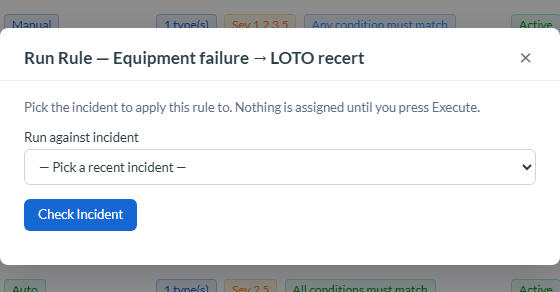
Caption: A Manual rule only creates assignments when you run it.
Conclusion
By building rules that link incident triggers to KnowledgeCity Learning Management System courses and audiences, the Training Rule Builder turns incident reporting into targeted training — automatically for Auto rules, and on your decision for Manual rules. Maintaining these rules in one library keeps your follow-up training consistent and lets it scale across every incident type your organization tracks.