





Summary
Safety App does not use a separate Safety App password. You sign in with your KnowledgeCity account through single sign-on (SSO), so there is no Safety App password to forget or reset. If you cannot get in, you regain access by signing in with KnowledgeCity or by recovering your KnowledgeCity account.
Introduction
Because Safety App authentication is handled by KnowledgeCity SSO, the sign-in page shows a single Sign in with KnowledgeCity button rather than email and password fields. There is no "Forgot password" link on the Safety App sign-in page, because Safety App never holds a password of its own to reset.
This means recovering access is about your KnowledgeCity account, not a Safety App one. If your KnowledgeCity credentials work, you are one click away from Safety App; if they do not, you recover them where you manage your KnowledgeCity or organization identity.
Key Concepts
- Single sign-on (SSO): signing in to Safety App using your existing KnowledgeCity account instead of a separate Safety App password.
- Sign in with KnowledgeCity: the one button on the Safety App sign-in page, which hands authentication to KnowledgeCity.
- KnowledgeCity account: the identity that actually controls access; any password or recovery lives with this account, not with Safety App.
- Administrator: the person who manages your organization's accounts and can help if your KnowledgeCity access or provisioning is the problem.
Steps to Follow
Open the Safety App sign-in page
Go to your Safety App sign-in page. You will see a single Sign in with KnowledgeCity button and no email or password field, because Safety App uses SSO.
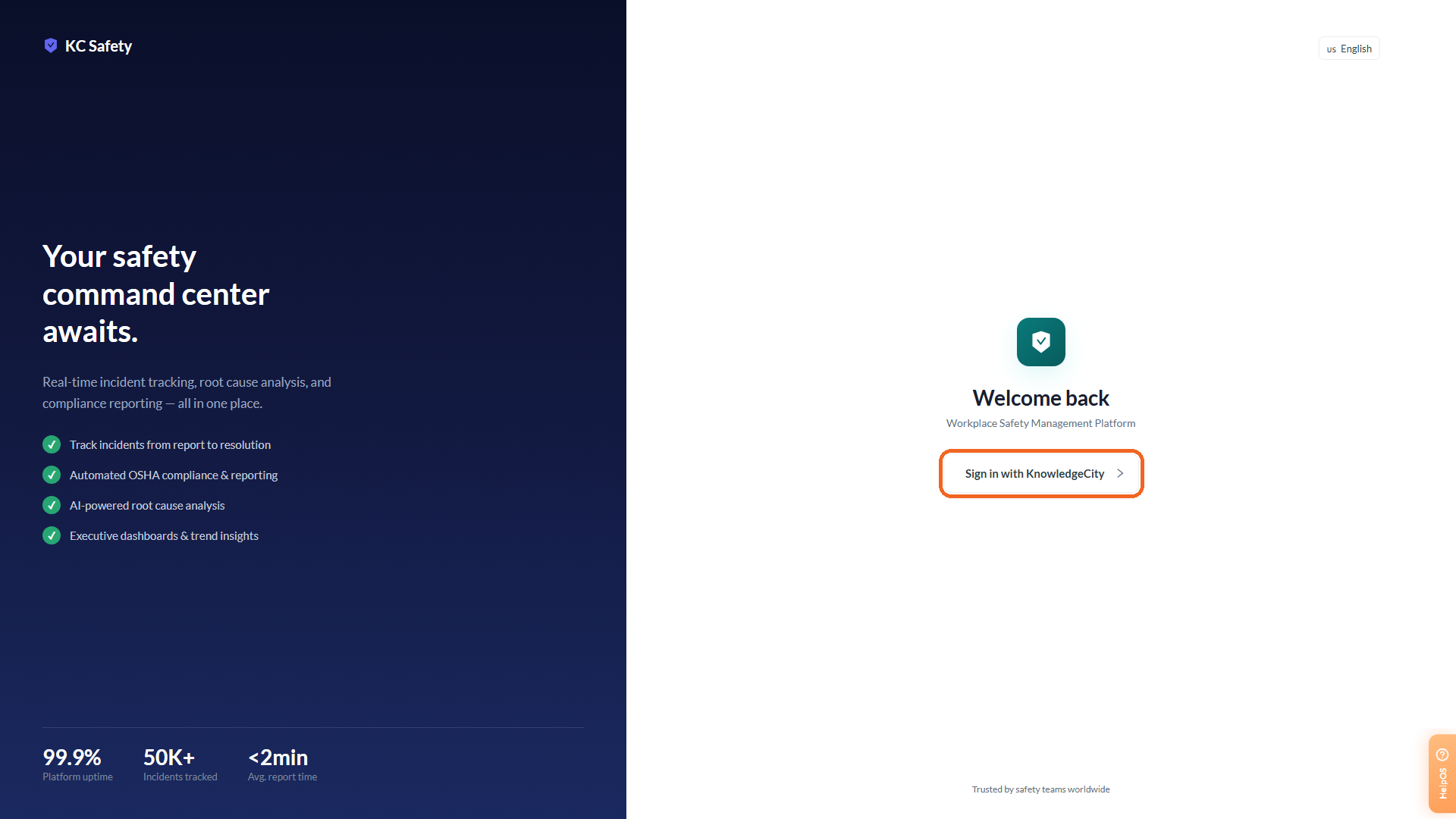
Caption: The Safety App sign-in page has one Sign in with KnowledgeCity button and no password field, so there is no Safety App password to reset.
Sign in with KnowledgeCity
Select Sign in with KnowledgeCity. You are taken to KnowledgeCity to authenticate, and once you are signed in there, you are returned to Safety App with access. If you already have an active KnowledgeCity session, this completes without asking for anything further.
If you cannot sign in with KnowledgeCity
Because there is no Safety App password, a sign-in problem is a KnowledgeCity account problem. Recover or reset your KnowledgeCity credentials through KnowledgeCity, or through your organization's identity provider if your company uses one to sign in. Restoring access there restores your Safety App access as well.
Contact your administrator if you are still locked out
If you still cannot sign in after recovering your KnowledgeCity account, contact your organization's administrator. They can confirm that your account is active and provisioned for Safety App, and help with any identity or access issue that self-service recovery cannot.
Conclusion
Safety App has no password of its own to reset: access is entirely through KnowledgeCity SSO. To get back in, sign in with KnowledgeCity, recover your KnowledgeCity account if those credentials are the problem, and contact your administrator if access still does not work.