





Summary
The General settings in Safety App are where an account administrator sets account-level defaults such as the account name, time zone, and locale. These settings establish a consistent baseline that applies across the whole account. This article explains what the General settings do, who manages them, and how to configure them.
Introduction
Every organization needs a consistent foundation for how its account behaves, including how it is identified, which time zone it operates in, and which regional conventions it uses. The General settings page is the account-level place in Safety App where an administrator establishes these defaults so that the rest of the account follows them.
These settings are typically managed by a Safety App administrator. Configuring them correctly matters because the account name, time zone, and locale shape how information is presented and interpreted throughout Safety App, so getting the baseline right keeps the experience consistent for everyone in the organization.
Key Concepts
- General settings: The account-level configuration page in Safety App where core defaults such as name, time zone, and locale are set for the whole organization.
- Account name: The identifier for your organization's account in Safety App. It represents your account across the product.
- Time zone: The default time zone for the account, which sets the regional time baseline that Safety App applies consistently across the organization.
- Locale: The regional and language preference for the account, which governs the conventions used when information is displayed.
- Account-level setting: General settings are configured once for the whole account, so the values apply consistently across the organization rather than per individual user.
- Administrator control: Because these defaults affect everyone in the account, they are managed by an administrator rather than by individual users.
Steps to Follow
Open the General settings
Sign in to Safety App with an administrator account and go to the settings area. Open the General settings page. This page shows the account-level defaults that currently apply to your organization.
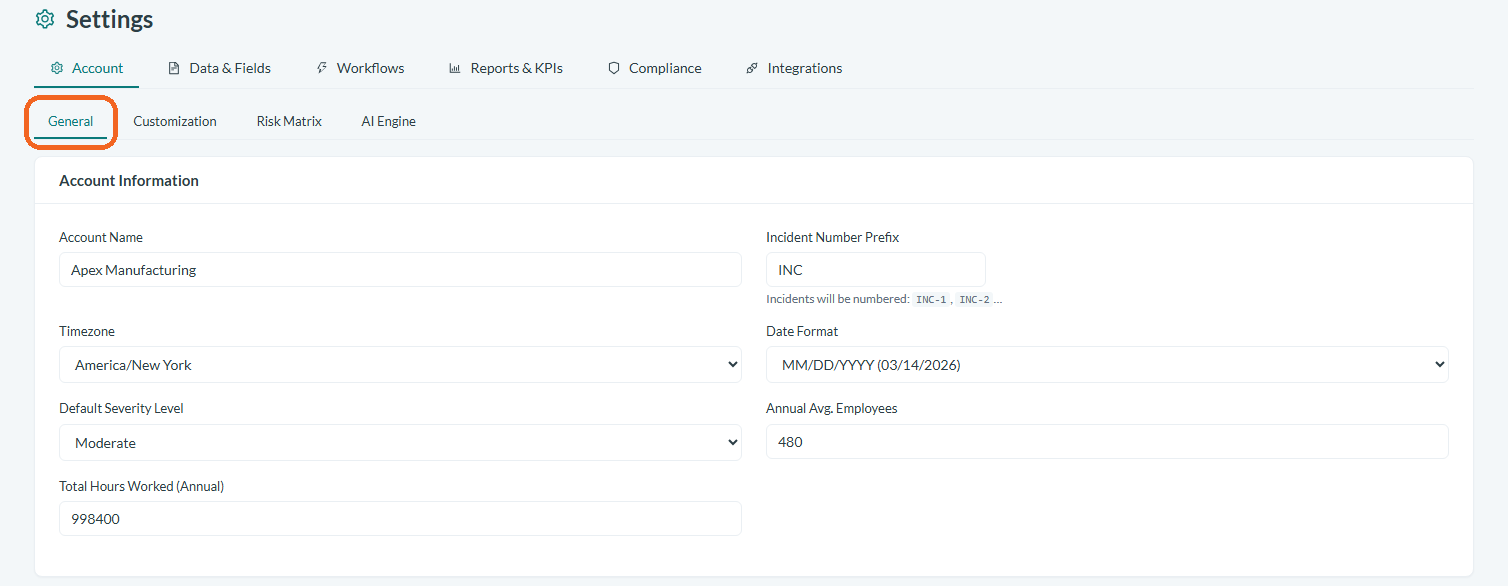
Caption: Sign in to Safety App with an administrator account and go to the settings area.
Set the account name
Review the account name and confirm that it correctly identifies your organization. Update it if needed so that your account is represented accurately across Safety App.

Caption: Review the account name and confirm that it correctly identifies your organization.
Configure the time zone
Select the time zone that matches where your organization operates. Setting an accurate time zone establishes the regional time baseline that Safety App applies consistently for the account.

Caption: Select the time zone that matches where your organization operates.
Choose the locale
Set the locale to match your organization's regional and language preference. The locale governs the conventions used when information is presented, so choose the option that best fits how your organization works.
Save your changes
Save your changes so that the updated defaults take effect for the account. After saving, the General settings page reflects your current configuration, which becomes the active baseline for your organization.
Update the settings when your needs change
Return to the General settings page whenever your organization's details change, for example if the account should use a different name, time zone, or locale. Adjust the values and save again to keep Safety App aligned with your current requirements.
Conclusion
Configuring the General settings in Safety App is a straightforward but foundational task that establishes account-level defaults for your whole organization. By keeping the account name, time zone, and locale accurate and current, you ensure that Safety App presents a consistent experience aligned with how your organization operates.