





Summary
The Safety App signs you in with your existing KnowledgeCity account. There is no separate password to create, no invitation email to wait for, and no sign-up step: the login page offers a single Sign in with KnowledgeCity button. This article covers finding your organization's address, signing in, where you land afterwards, the profile details worth completing straight away, and what to do if something does not work.
Introduction
Most first-time sign-ins go wrong for one of two reasons: people look for a password they were never given, or they are waiting for an invitation that is never going to arrive. Neither exists here. Your access comes from the KnowledgeCity account you already have, and the only thing that needs to happen first is that an administrator has granted that account access to the safety portal.
This article is for everyone regardless of role, from someone who will only ever report an incident through to a Super Admin configuring the account. The sign-in is identical for all of them; only what you see afterwards differs.
Key Concepts
- KnowledgeCity account: the account you already use for the rest of the KnowledgeCity platform. The Safety App authenticates you with it, which is why it holds no password of its own.
- User Directory: the KnowledgeCity area where an administrator grants access to the safety portal and assigns your role. Your access is managed there, not inside the Safety App.
- Role: your permission level, one of Reporter, Safety Manager, Admin, or Super Admin. It is assigned in the User Directory and applied automatically when you sign in.
- Reporter Portal: the interface Reporters land in, built around submitting and following incident reports.
- Admin Panel: the interface Safety Managers, Admins, and Super Admins land in, which opens on the Dashboard.
- Profile: your personal settings inside the Safety App, covering contact details, department, notification preferences, and interface language.
Steps to Follow
Finding your organization's address
Your organization has its own Safety App address, which takes the form of your KnowledgeCity portal address followed by the safety section, for example https://yourcompany.knowledgecity.com/safety, where yourcompany is your organization's portal code. Your administrator can confirm the exact address, and it is worth bookmarking it.
If you are already signed in to the KnowledgeCity platform, you can open the Safety App from there instead and arrive already authenticated, without seeing a login page at all.
Signing in
On the login page, select Sign in with KnowledgeCity. This is the only option on the page: there is no email field and no password field, because the Safety App does not hold credentials of its own.
You are taken to the KnowledgeCity sign-in page, where you authenticate exactly as you would for any other KnowledgeCity product. Once you have, you are returned to the Safety App automatically. If you can sign in to KnowledgeCity, you already have everything you need here.
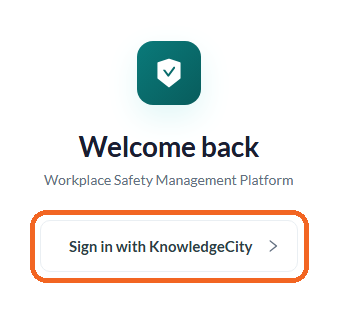
Caption: The login page offers a single Sign in with KnowledgeCity button, with no email or password field.
Completing two-factor authentication if your organization uses it
Because sign-in happens on the KnowledgeCity side, two-factor authentication belongs to your KnowledgeCity account rather than to the Safety App. If your organization requires it, you are prompted for it during the KnowledgeCity step, using whichever method has been set up there. Anything you need to change about it is handled in your KnowledgeCity account settings or by your IT department.
Knowing where you land
You do not choose an interface; your role decides it.
Reporters land on the Reporter Portal home page, where the control for reporting an incident is displayed prominently. Safety Managers, Admins, and Super Admins land in the Admin Panel, opening on the Dashboard.
Completing your profile
Do this before anything else. An incomplete profile can send your incident reports to the wrong person and can stop important notifications reaching you.
Select your avatar or name in the top-right corner of any page and choose My Profile. Then fill in or check:
- Phone Number, which is optional but recommended, so the safety team can reach you quickly if they need to follow up on something you reported.
- Department, which is recommended because it is used to route your incident reports to the right safety manager and to assign relevant training. This is the field most worth getting right.
- Notification Preferences, choosing between email, in-app notifications shown on the notification bell, or both. Both is the recommended setting.
- Language, which sets the interface language for your account and can be English, Español, or العربية.
Select Save Changes when you are done. You can update your profile at any time.
Your name and email address come from your KnowledgeCity account and cannot be corrected here. If either is wrong, ask your administrator to correct it in the User Directory.
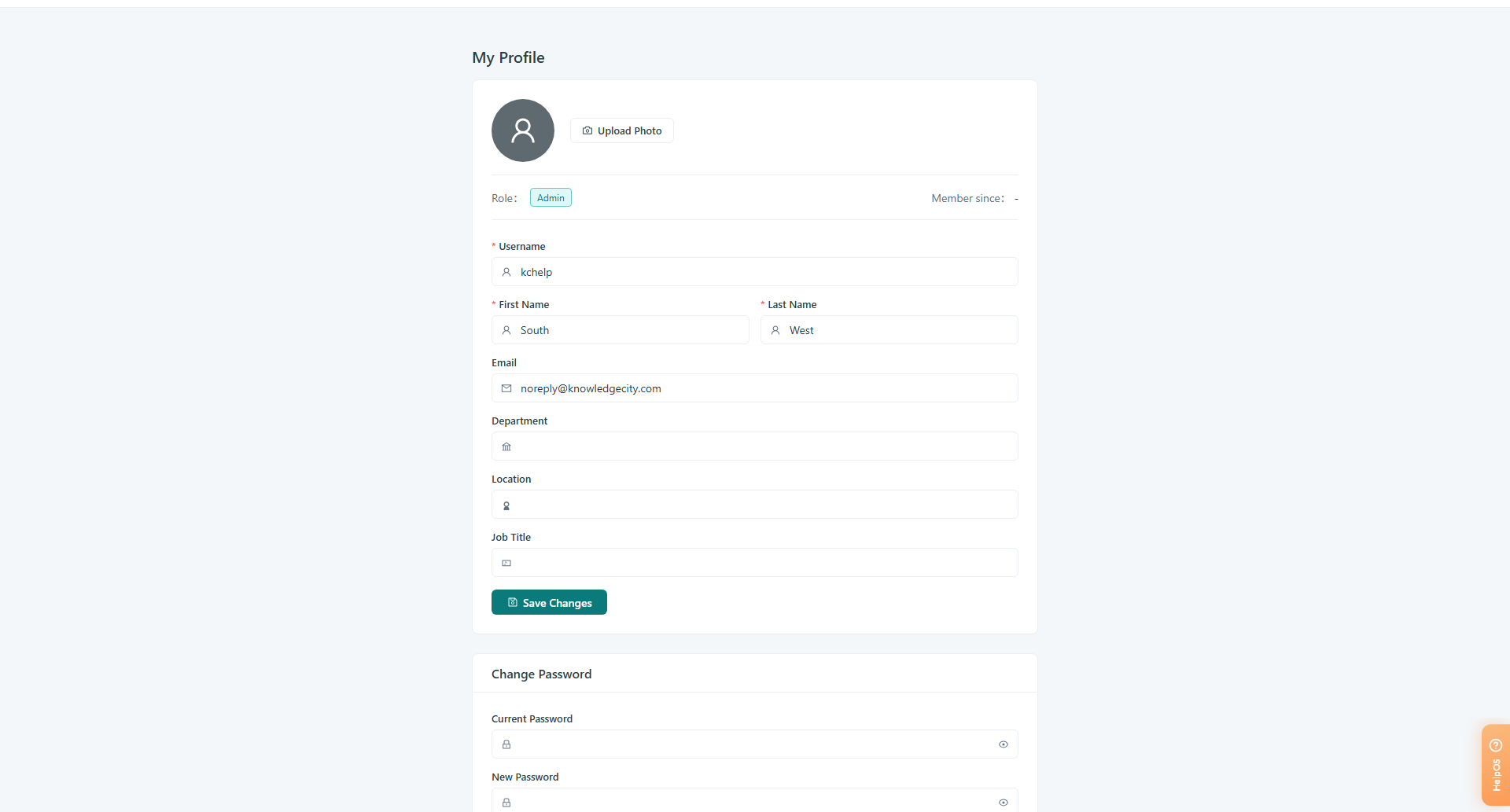
Caption: Select your avatar or name in the top-right corner and choose My Profile to review and complete your details.
Resolving common first-login problems
If you sign in successfully but are told you do not have access, your KnowledgeCity account has not yet been given access to this safety portal. This is the most common first-login problem and it is not something you can resolve yourself: ask your administrator to add you in the User Directory.
If the KnowledgeCity sign-in itself fails, because a password is not accepted or an account is locked, that is a KnowledgeCity account issue rather than a Safety App one. Use KnowledgeCity's password recovery or contact your IT department.
If you land in a different interface from the one you expected, your role is not what you thought. Roles are assigned in the User Directory, so ask your administrator to check it. Any change takes effect the next time you sign in rather than immediately.
If you get a blank screen or a loading error after being redirected back, try a hard refresh, then a different browser, with Chrome recommended. Clearing your browser cache and cookies resolves most of the rest. If it persists, contact your administrator.
Conclusion
Signing in for the first time comes down to opening your organization's Safety App address and selecting Sign in with KnowledgeCity. There is no separate password, no invitation, and no account to activate, so if you can reach KnowledgeCity you can reach the Safety App. Spend the two minutes on your profile immediately afterwards, particularly your department, because that is what makes sure your reports reach the right people and their responses reach you.