





Summary
Reporting an Incident lets you submit a workplace incident through a guided 6-step wizard in the Safety App. You move through the steps to record the incident category, what happened, who was affected, and any supporting photos or files, then review everything before submitting. A draft of your report is saved automatically as you go, so you can resume where you left off.
Introduction
The incident reporting wizard is the primary way to capture and submit details about a workplace incident such as an injury, near miss, or property damage. It walks you through each part of the report one step at a time, so nothing important is missed, and it lets you attach photo or file evidence to support what you describe.
Anyone who needs to log an incident can use the wizard, and reports can be submitted either with your identity attached or anonymously. Because the wizard auto-saves a draft after each step, you can start a report, step away, and return to finish it later.
Key Concepts
- Report mode: At the start, you choose whether to submit the report with your identity or anonymously.
- Incident category: The type of incident being reported, such as injury, near miss, or property damage.
- Affected persons: The people involved in or affected by the incident, each of which can be recorded with a role such as injured party, witness, first responder, supervisor, contractor, or other.
- Evidence and photos: Supporting files attached to the report, including images and PDFs.
- Confirmation step: A read-only summary of everything you entered, with the ability to jump back and edit any step before submitting.
- Auto-saved draft: The wizard saves your incident data as you advance through the steps, letting you resume reporting from where you left off.
Steps to Follow
Step 1: Choose your report mode
When you begin a new report, decide whether to submit it with your identity attached or anonymously. Use the anonymous option if you prefer not to have the report associated with you.
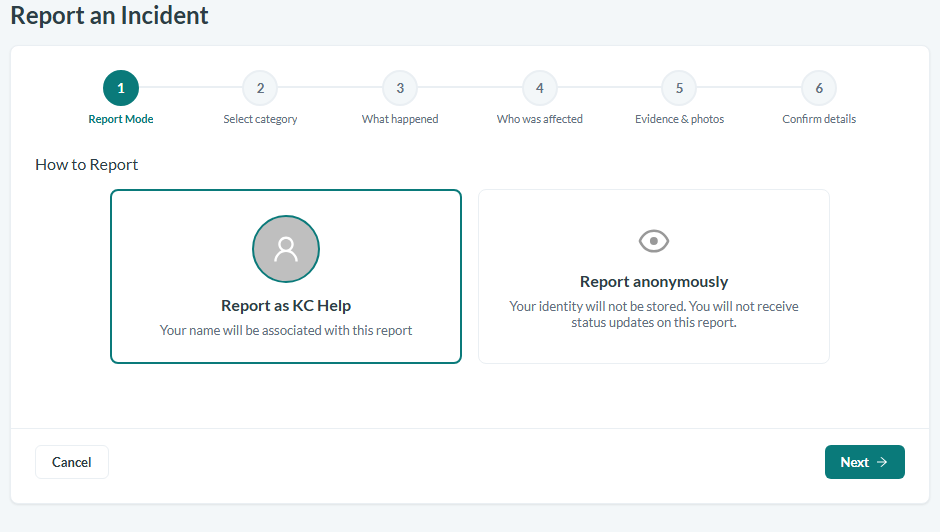
Caption: Step 1 of the wizard: report with your identity attached, or choose Report anonymously.
Step 2: Select the incident category
Select the category that best describes the incident, such as an injury, a near miss, or property damage. The category you choose determines which additional fields appear later in the wizard.
Step 3: Describe what happened
Provide the core details of the incident:
- Enter a brief title for the incident.
- Set the incident date and incident time when it occurred.
- Enter the location where it took place.
- Select the department associated with the incident.
- Write a description of what happened. The description must be reasonably detailed, so include the key facts of the event.
If you selected an injury or illness category, you will also be asked for the body part affected, with options such as Hand/Fingers, Arm/Shoulder, Leg/Knee/Ankle, Foot/Toes, Head, Eyes, Back, Neck, Chest/Torso, or Multiple/Other.
Step 4: Record who was affected
Add the people involved in or affected by the incident. You can add multiple people, selecting existing users from the system or entering people manually if they are not listed. For each person, indicate their role in the incident, such as injured party, witness, first responder, supervisor, contractor, or other.
Step 5: Attach evidence and photos
Add any supporting files to help document the incident. You can drag and drop files to upload them. Supported file types are JPEG, PNG, GIF, WEBP, and PDF, with a maximum size of 10MB per file.
Step 6: Confirm the details and submit
Review the read-only summary of everything you entered across the previous steps. If anything needs changing, use the edit controls to jump back to the relevant step and make corrections. Once the details are correct, submit the report.
After a successful submission, a confirmation screen appears where you can choose to view existing incidents or report another incident.
Conclusion
The incident reporting wizard gives you a clear, step-by-step path to capturing everything needed to document a workplace incident, from category and details through affected persons and supporting evidence. With anonymous reporting and auto-saved drafts, you can report confidently and complete your submission whenever it is convenient.