





Summary
The reporter view of a submitted incident is the full detail page for a single report you created in Safety App. It lets you read the current status of your incident, review the information you submitted, and follow the report as it moves through the process toward resolution.
Introduction
When you report a safety incident, your work does not end at submission. The report continues through review, and often through investigation and follow-up, before it is closed. The reporter detail view gives you a single place to open one of your incidents and see where it stands.
This view is used by reporters, meaning anyone who has created and submitted an incident in Safety App. You reach it from your list of reported incidents, and it shows you the record you submitted along with the status it currently holds.
Key Concepts
- Reporter: the role that describes the user who created and submitted an incident. You see the detail view for an incident because you are its reporter.
- Incident detail view: the full page for a single incident, opened by selecting that incident from your list of reports.
- Status: the stage the incident currently sits in, such as Open, Under Investigation, Action Required, Closed, or Resolved. A report you have not yet submitted stays as a Draft.
- Status badge: the label that shows, at a glance, where the incident currently sits in the process.
- Severity badge: the label that shows how serious the incident is.
- Incident number: the identifier assigned to your report, for example
INC-01, which stays with the record as it progresses. - Investigations and corrective actions: downstream work that can be opened from a reported incident and that links back to your original report.
Steps to Follow
Open your incident
From your list of reported incidents, select the incident you want to review. This opens its detail view, the full page for that single report. You reach this view because you are the reporter of that incident.
Read the current status
Look at the Status badge to see where your incident currently sits. As the report is reviewed and worked on, its status moves through stages such as Open, Under Investigation, Action Required, Closed, and Resolved. Checking the status tells you what is happening with your report without needing to contact anyone.
Review the details you submitted
Read the core information carried by the report, including the Title, the Occurred At date, the Location, and the Description. The Severity badge shows how serious the incident is, and the Incident number, such as INC-01, identifies the record. Use these details to confirm you are looking at the right report and to recall what you submitted.
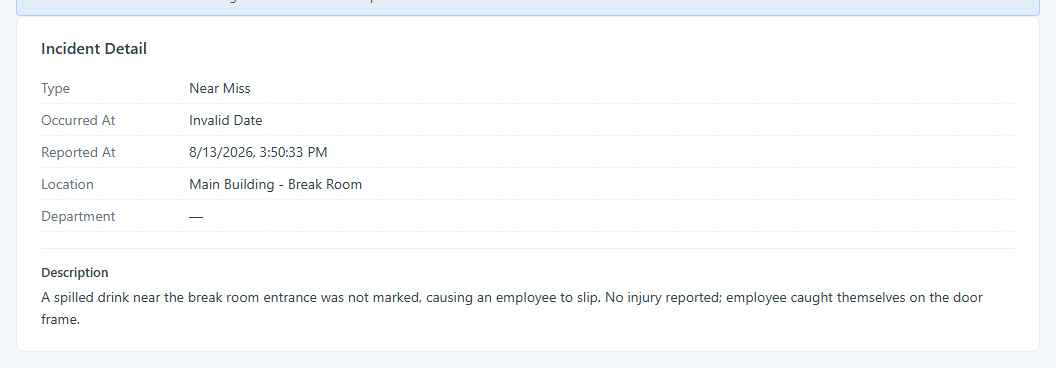
Caption: Read the core information carried by the report, including the Title, the Occurred At date, the Location, and the Description.
Follow updates and follow-ups
As your incident progresses, it can lead to downstream work such as an investigation or corrective actions. This follow-up work links back to your original report, so the detail view is where you can see that your incident has moved beyond the initial report and into review or action.
Continue a draft
If the report is still a Draft, meaning you started it but have not submitted it, open it from your list and continue working on it from there. Once submitted, it takes on a status and progresses through the process like your other reports.
Conclusion
The reporter detail view keeps everything about one of your submitted incidents in a single place, from the status badge that shows where it stands to the details you originally reported and the follow-up work that links back to it. Use it whenever you need to check on a report you submitted and understand what is happening with it.