





Summary
Regulatory notifications in Safety App are the required, time-sensitive notifications you must send to a regulatory body when a qualifying incident occurs. When a serious event is reported, Safety App opens a notification window tied to the incident and tracks the regulatory clock so the deadline does not slip. This article explains how to find, work, and close these notifications so your organization stays compliant.
Introduction
A regulatory notification is an event-driven obligation that opens when a qualifying incident, such as a serious injury, is recorded in Safety App. Unlike a fixed annual posting, this kind of obligation is triggered by the event itself and often opens within hours of the event, which is why Safety App treats it as a running clock rather than a one-time task.
Safety directors, safety managers, and site managers use regulatory notifications to make sure required notifications reach the right authority on time. A safety director at headquarters can see notification windows across every site, while a site manager sees only the ones that belong to their own location.
Key Concepts
- Regulatory notification: A required notification to a regulatory body that opens when a qualifying incident is recorded, tracked as a deadline until it is met and closed.
- Regulatory clock: The countdown Safety App tracks for a qualifying incident, surfaced on the incident's Compliance tab so you always know how much time remains.
- Qualifying incident: A serious event that triggers a notification window. The incident itself opens the obligation, so it is tied directly to the underlying record.
- Notification window: The event-driven window that opens after a serious event, sometimes within hours, and stays open on the calendar until it is closed.
- Linked source record: Every notification links back to the incident that generated it, so one click takes you from the deadline to the underlying incident.
- Evidence to close: Each obligation defines what evidence is needed to close it, who owns it, and what closing it requires.
- Reminders: Each notification carries reminders at 30 days out, 7 days out, and the day it is due, notifying the owner and surfacing the deadline on the executive dashboard.
- Role-scoped visibility: What you can see depends on your role, so a safety director sees every site while a site manager sees only their location's obligations.
Steps to Follow
Confirm the qualifying incident and its regulatory clock
Start from the incident that triggered the obligation. Open the incident's Compliance tab, which flags whether the event is subject to regulatory requirements and shows the regulatory clock for the incident. This is where you confirm that a notification is required and see how much time remains before it is due.
Find the notification window on the Compliance Calendar
Open the Compliance Calendar to see the notification as an event-driven deadline. When a serious event opens a notification window, that deadline appears on the calendar alongside your other obligations and is carried through to closure. Switch to list view to rank upcoming deadlines by date, or use week view to focus on the next seven days.
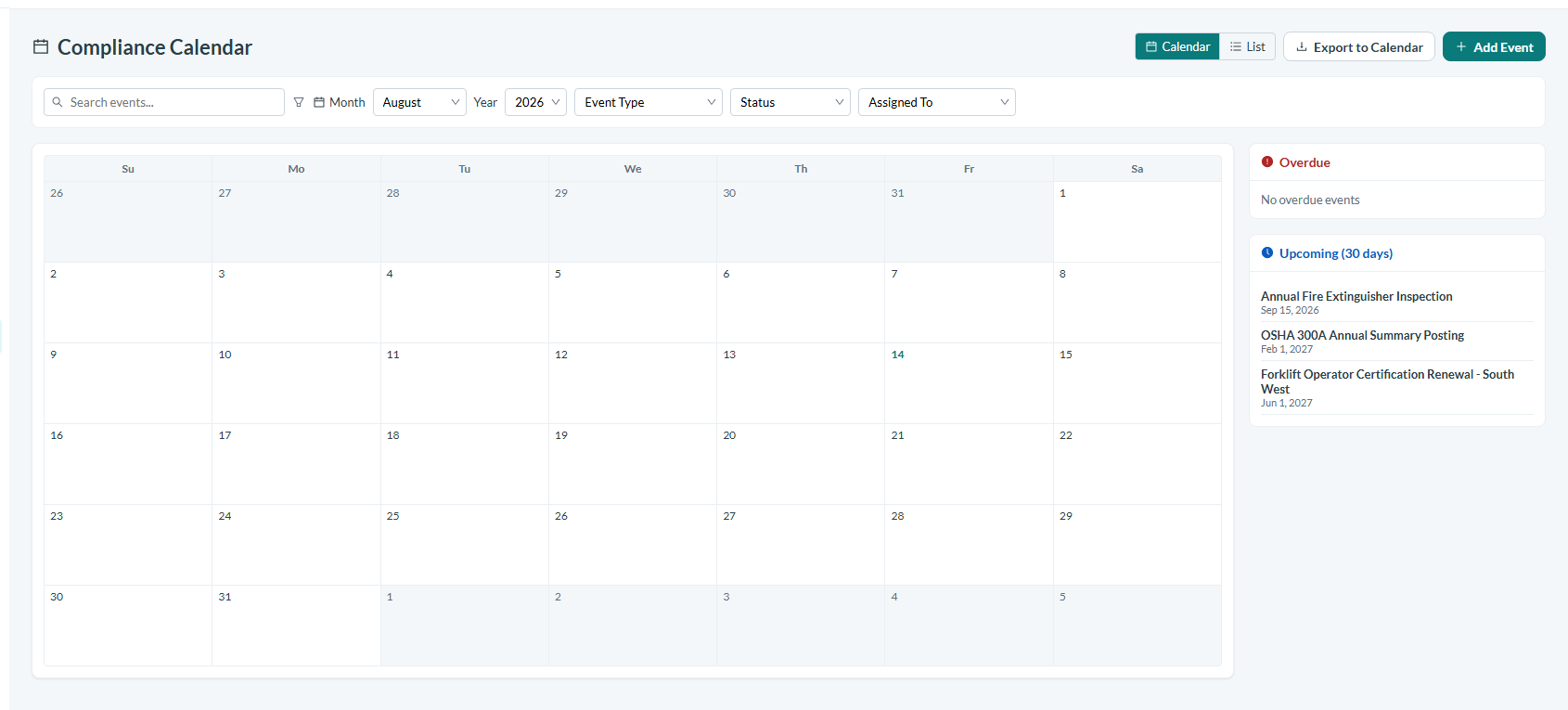
Caption: Open the Compliance Calendar to see the notification as an event-driven deadline.
Filter to the notifications you own
Use the calendar filters to narrow by category, location, or owner so you see only the notifications that are yours to act on. Your role determines the scope: a safety director sees notification windows across all sites, while a site manager sees only their own location's windows.
Open the notification to see what it requires
Click the deadline to open the full obligation. The detail view shows what the notification is, who owns it, what evidence is needed to close it, and the link back to the incident that generated it. Use that link to jump straight to the source incident when you need more context before notifying the authority.
Send the required notification to the regulatory body
Send the required notification to the regulatory body within the window shown on the regulatory clock. Because these obligations are time-sensitive and can open within hours of a serious event, act as soon as the window opens rather than waiting for the final reminder.
Close the notification with its evidence
Once you have met the obligation, close it and attach the evidence the obligation defines. Closing records that the notification was completed and clears it from the list of open deadlines, keeping the calendar an accurate picture of what still needs attention.
Rely on reminders so nothing slips
You do not have to watch each date manually. Every notification sends reminders at 30 days out, 7 days out, and the day it is due, emailing the owner and surfacing the deadline on the executive dashboard so the whole team stays aware until the obligation is closed.
Conclusion
Regulatory notifications let your safety team meet required, time-sensitive notifications without losing track of the clock. By confirming the obligation on the incident's Compliance tab, working the window from the Compliance Calendar, sending the notification on time, and closing it with evidence, you keep your regulatory reporting timely, traceable, and defensible.