





Summary
Saved views in Safety App let you capture a specific combination of filters and column settings on the incident list and store it under a name for quick reuse. Instead of rebuilding the same filter every time, you open a saved view and the incident list appears already configured. This keeps your day-to-day work on incidents fast and consistent.
Introduction
The incident list in Safety App can be filtered and arranged in many ways, but recreating the same arrangement over and over is slow and easy to get wrong. A saved view solves this by remembering the filter and column configuration you set up, so you can return to it in a single step.
Saved views are used by anyone who works with the incident list regularly, such as safety coordinators, managers, and reviewers who monitor a recurring slice of incidents. They are most useful when you return to the same question again and again, for example open incidents in one location or incidents of a particular type, and want that arrangement ready without reconfiguring it each time.
Key Concepts
- Saved view: A named, reusable arrangement of the incident list that stores your chosen filters and column configuration together so you can reopen it later.
- Incident list: The list of incidents in Safety App that a saved view is built on. A saved view does not change which incidents exist, only how they are filtered and displayed.
- Filter configuration: The set of filter criteria applied to the incident list, such as status or type. When you save a view, the current filter criteria are stored as part of it.
- Column configuration: The choice and arrangement of columns shown in the incident list. A saved view remembers this layout alongside the filters.
- Quick access: The main benefit of a saved view, which is being able to reopen a complete configuration in one step rather than rebuilding it manually.
- Reusability: A single saved view can be applied any time the underlying data changes, so the same view always reflects the latest incidents that match its filters.
Steps to Follow
Configure the incident list first
Before you save a view, arrange the incident list the way you want it. Apply the filters that narrow the list to the incidents you care about, and set the columns so the list shows the information you need. This current arrangement is exactly what the saved view will capture, so confirm it looks right before saving.
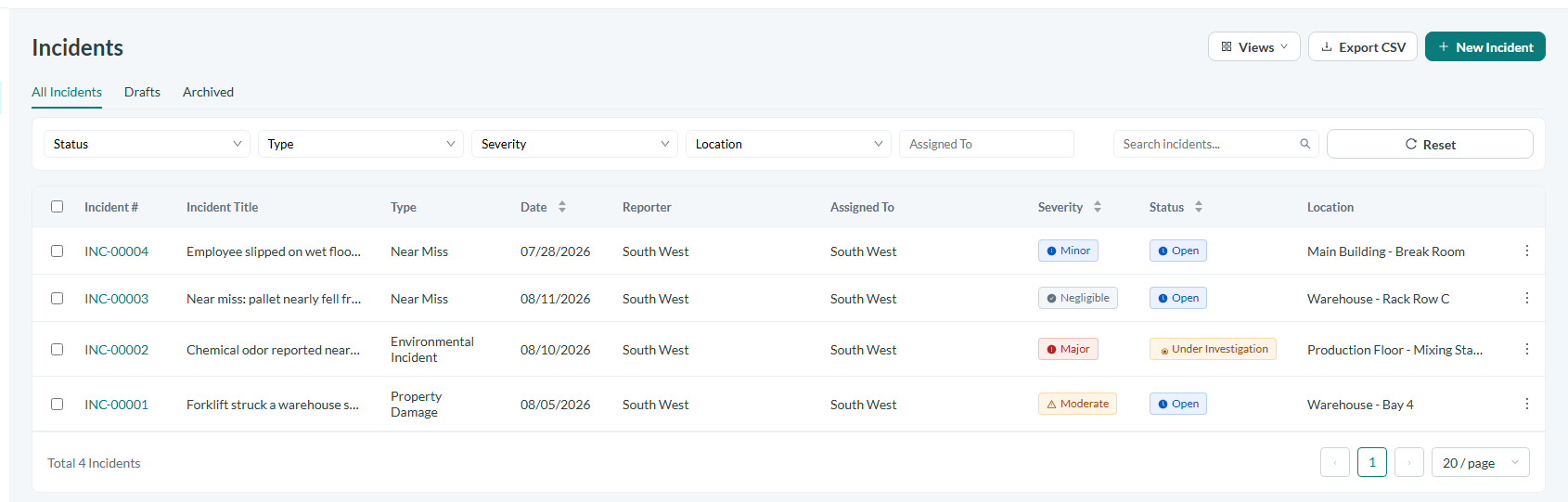
Caption: Before you save a view, arrange the incident list the way you want it.
Save the current arrangement as a view
Once the incident list is filtered and arranged the way you want, save it as a view. Give the view a clear, descriptive name so you can recognize it later, for example a name that reflects the filters it contains. The saved view stores the filter configuration and the column configuration together under that name.
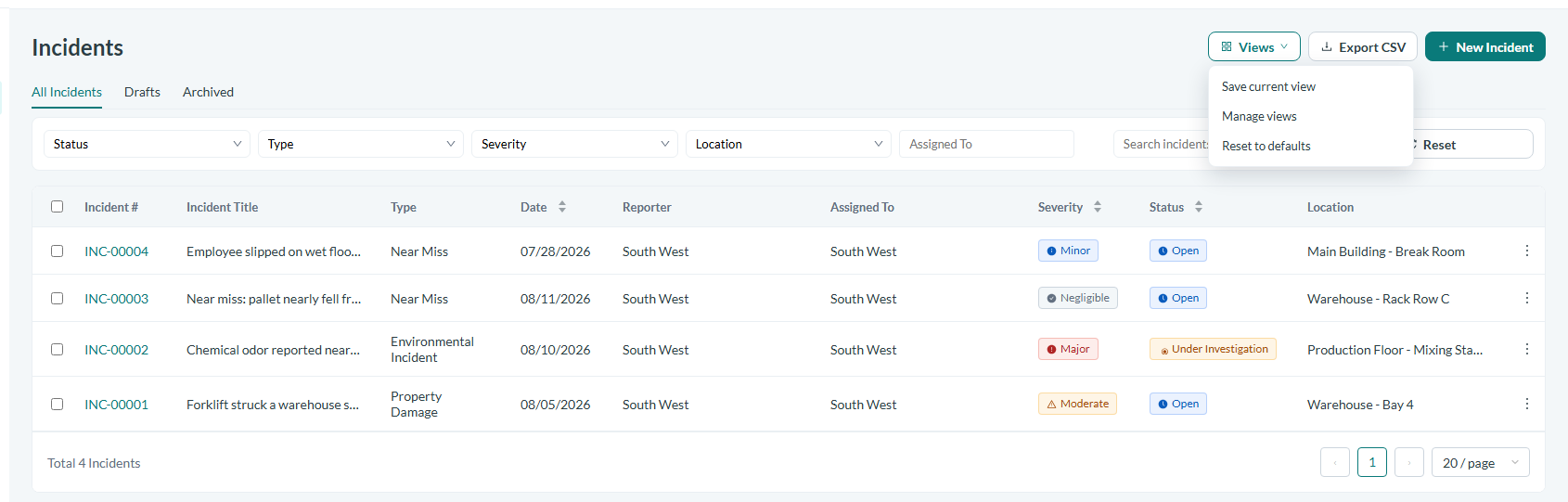
Caption: Once the incident list is filtered and arranged the way you want, save it as a view.
Open a saved view
To reuse an arrangement, open the saved view you created. The incident list is reloaded with the stored filters and columns already applied, so you see the matching incidents without setting anything up again. Because the view reapplies its filters to the current data, it always reflects the latest incidents that match.
Switch between views
If you keep more than one saved view, you can move between them to look at different slices of the incident list. Opening a different saved view swaps in that view's filters and columns, letting you shift focus quickly without losing the arrangement of the other views.
Conclusion
Saved views turn a one-time filter and column setup on the incident list into a reusable tool you can return to in a single step. By configuring the incident list, saving that arrangement under a clear name, and reopening it whenever you need it, you keep your work on incidents in Safety App fast, consistent, and always current.