





Summary
Your user profile in Safety App is the place where you review and maintain your own account information. From the profile page you can keep your personal details current, change your password, and set the preferences that shape your experience. This article explains what the profile page is for and how to update each part of it.
Introduction
The profile page is the personal account area of Safety App. It brings together the details Safety App holds for you, the controls for keeping your sign-in credentials secure, and the preferences that tailor how the product behaves for you.
Any Safety App user can open their own profile to confirm that their information is accurate and to keep it up to date. Maintaining your profile matters because accurate personal details, a current password, and the right preferences help Safety App work the way you expect and keep your account secure.
Key Concepts
- User profile: Your personal account area in Safety App, where your own account information is shown and managed.
- Personal details: The identifying information Safety App holds for you, such as your name and contact information, which you can review and keep current.
- Password: The credential you use to sign in to Safety App. You can change it from your profile to keep your account secure.
- Preferences: The personal settings that adjust how Safety App behaves for you, so your experience matches how you like to work.
- Self-service: The profile page is managed by you for your own account, rather than by an administrator on your behalf.
Steps to Follow
Open your profile
To review your account information, open your profile page in Safety App. The page brings together your personal details, password controls, and preferences in one place so you can manage your account from a single location.
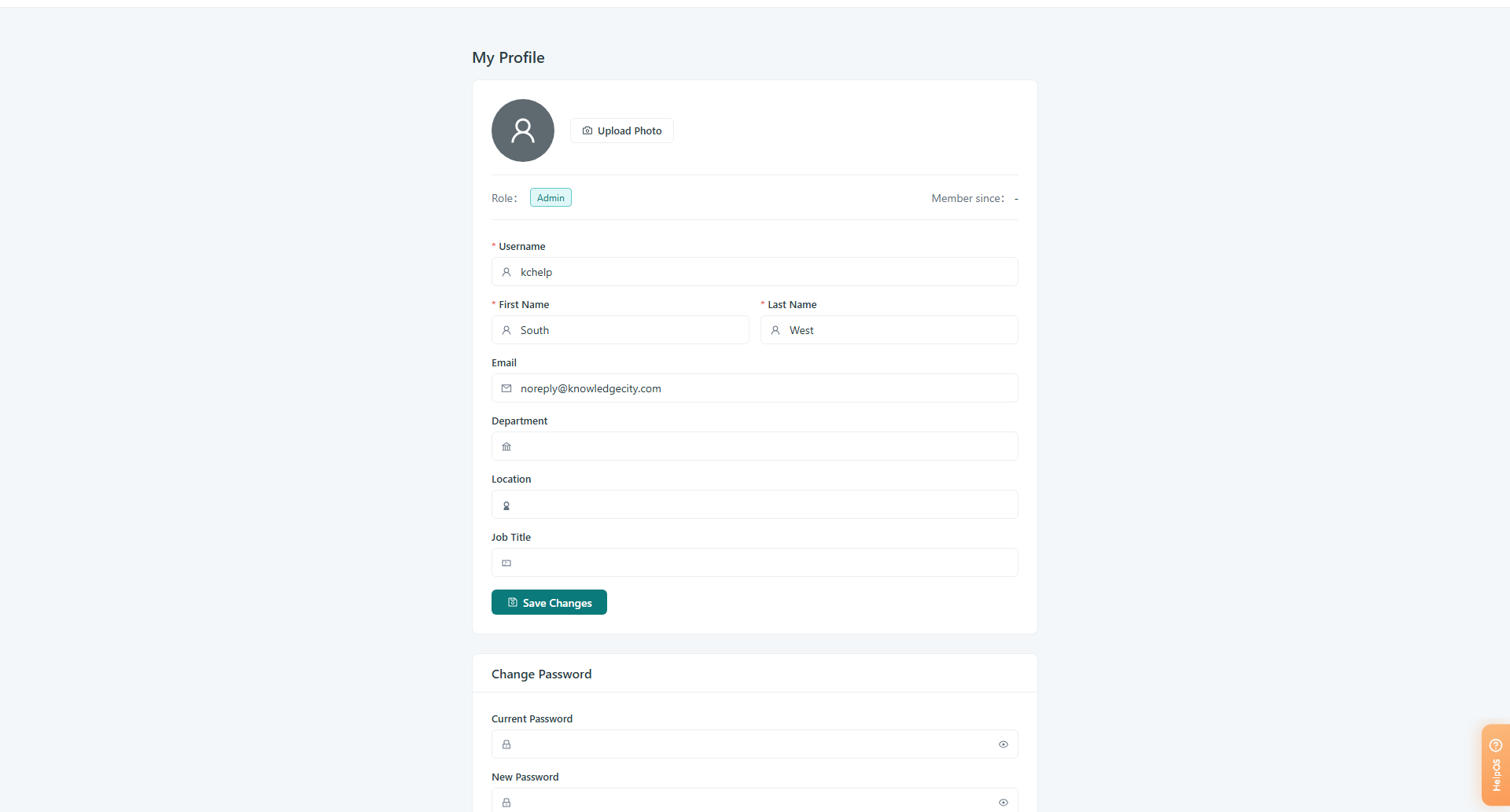
Caption: To review your account information, open your profile page in Safety App.
Update your personal details
On your profile, review the personal details Safety App holds for you and correct anything that is out of date. Edit the fields you need to change, then save your changes so that Safety App stores the updated information for your account.
Change your password
Use the password controls on your profile to set a new password when you want to keep your sign-in credentials current. Enter your new password, confirm it if you are asked to enter it a second time, and save the change so that it applies to your account going forward.
Set your preferences
Adjust the preferences on your profile to match how you want Safety App to behave for you. Update the options you care about, then save so that your chosen preferences take effect.
Save your changes
After you edit any part of your profile, save your changes so that Safety App records them. Once saved, your profile reflects your updated details, password, and preferences.
Conclusion
Your profile page in Safety App gives you a single, self-service place to keep your personal details accurate, your password current, and your preferences set the way you like. Visiting it whenever your information changes helps keep your account secure and your Safety App experience aligned with how you work.