





Summary
Two account-level settings govern how questions are produced. AI Generation Preferences decides whether KC Skills writes questions for you automatically and whether it translates them. Assessment Limits sets the ceiling on how many questions one assessment may generate.
Introduction
Question generation is the step that turns an assessment definition into something a learner can take. These two settings decide how much of that happens on its own, and how large an assessment is allowed to get.
Both are for administrators configuring KC Skills across an account. They apply everywhere rather than per campaign, and the limit in particular acts as a guardrail on everyone building assessments.
Key Concepts
Auto-initiate: Whether AI question generation starts by itself when a campaign is created.
Auto-translate: Whether generated questions are translated into your other languages once generation finishes.
Question capacity: How many questions an assessment's current skills and weightages would produce.
Maximum questions per assessment: The hard ceiling on that number, account-wide.
Steps to Follow
Accessing the settings
Open Settings in the left sidebar. AI Generation Preferences and Assessment Limits are two separate entries in the list. The page describes itself as configuring how KC Skills behaves across your account.
Step 1: Decide whether generation starts automatically
Open AI Generation Preferences and find Auto-initiate AI question generation on campaign creation, under the Generation group.
When it is on, creating a campaign kicks off question generation immediately, and reassessment questions are generated automatically too. When it is off, campaigns are created without questions and you trigger generation yourself from each campaign's Questions tab.
Turning it on suits teams running many campaigns who want a draft waiting for them. Turning it off suits teams who prefer to review the assessment before any questions are written.
Note: Automatic generation does not remove your responsibility to review. Whichever way this is set, read the questions before launching, because generated questions are a first draft.
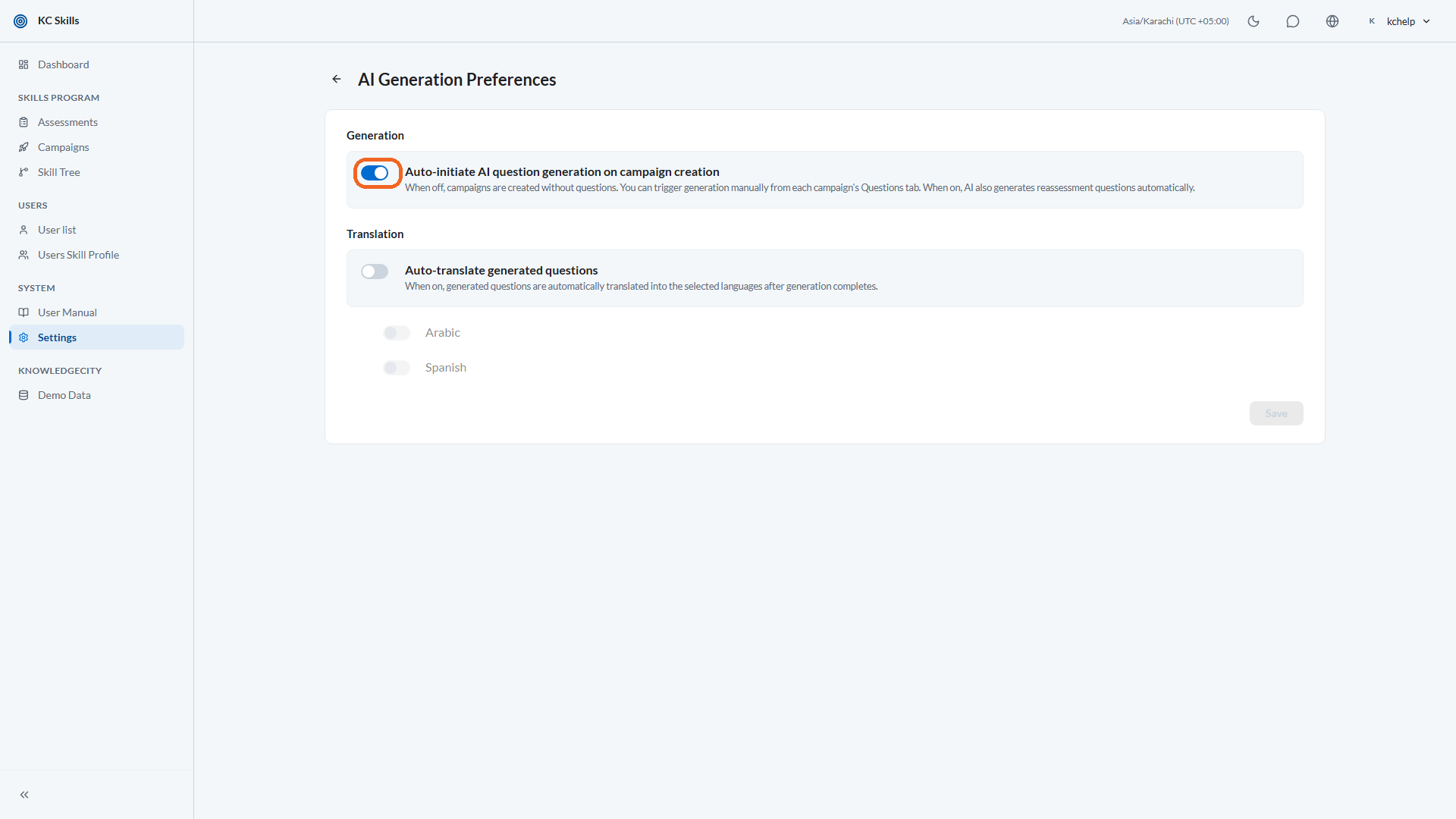
Caption: Open AI Generation Preferences and find Auto-initiate AI question generation on campaign creation, under the Generation group.
Step 2: Decide whether translations happen automatically
Under the Translation group, Auto-translate generated questions controls what happens after generation completes. When it is on, generated questions are translated into the selected languages automatically.
Turn this on if your learners genuinely work in more than one language. If everyone takes assessments in English, leave it off and avoid producing translations nobody reads.
Step 3: Set the maximum questions per assessment
Open Assessment Limits and set Maximum questions per assessment.
This is the hard ceiling on the total questions an assessment can generate across all of its skills. The accepted range is 1 to 1000.
Think of it as a guardrail rather than a target. Its job is to stop someone unintentionally building a 400-question quiz by giving every skill a high weightage.
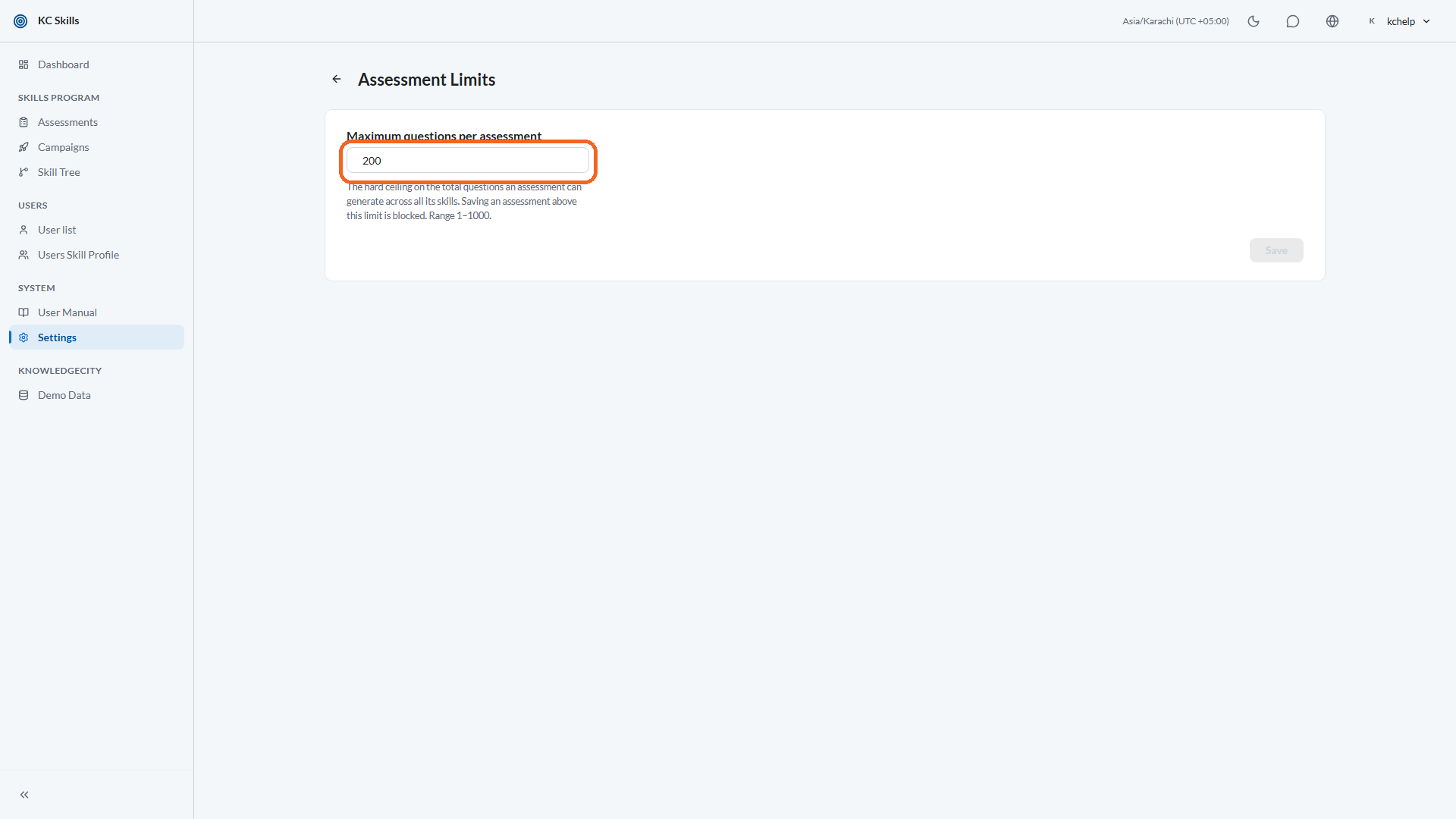
Caption: Open Assessment Limits and set Maximum questions per assessment.
Step 4: Understand what the limit does when it is hit
The limit is enforced when an assessment is saved, not quietly at generation time. Saving an assessment above the ceiling is blocked.
Whoever hits it is told they are over the limit and asked to remove skills or lower their weightage. The assessment builder also shows a Question capacity reading, so the person building it can see where they stand before they try to save.
Note: Lowering this limit does not shrink assessments that already exist. It applies the next time one is saved, so an existing assessment can sit above a newly reduced ceiling until someone edits it.
Step 5: Save
Select Save on either page. KC Skills confirms with Settings saved, and the new behavior applies to work done from that point on.
Conclusion
These two settings decide how much of the question-writing work KC Skills does unprompted, and how big an assessment is allowed to become. Turn auto-generation on if you want drafts waiting, and auto-translation on only if your learners really are multilingual. Set the question ceiling to a number that keeps quizzes a reasonable length.