





Summary
An assessment defines what a campaign measures: which skills are covered, how proficient people are expected to be in each one, and how many questions each skill gets. This article covers building an assessment, choosing between a Role Focused and a Generic assessment, using AI to suggest skills, and setting Target Proficiency and the # of questions.
Introduction
In KC Skills an assessment is a reusable definition, not a one-off event. You build it once, then point as many campaigns at it as you need. That separation lets you run the same measurement across different groups, or repeat it next quarter, without rebuilding the content.
Assessments are built by administrators and program owners. Before you start, make sure your Skill Tree is set up, because an assessment selects its skills from that tree.
Key Concepts
- Role Focused: An assessment that targets the skills needed for a specific role.
- Generic: A general skills assessment that is not tied to one role.
- Target Proficiency: The level you expect people to reach in a skill, from one star for Beginner to five stars for Expert.
- # of questions: How many questions the learner gets on that skill. You pick from a fixed set of choices, and each one shows the count it produces.
- Question bank: The set of questions attached to the assessment's skills, which campaigns draw on.
- Question capacity: The ceiling on how many questions one assessment may hold, set in Settings.
Steps to Follow
Accessing the assessment builder
Open Assessments in the left sidebar to see the assessments already built, with filters for type, industry, and department. Select Build assessment to start a new one.
Step 1: Choose the assessment type
Pick one of two types:
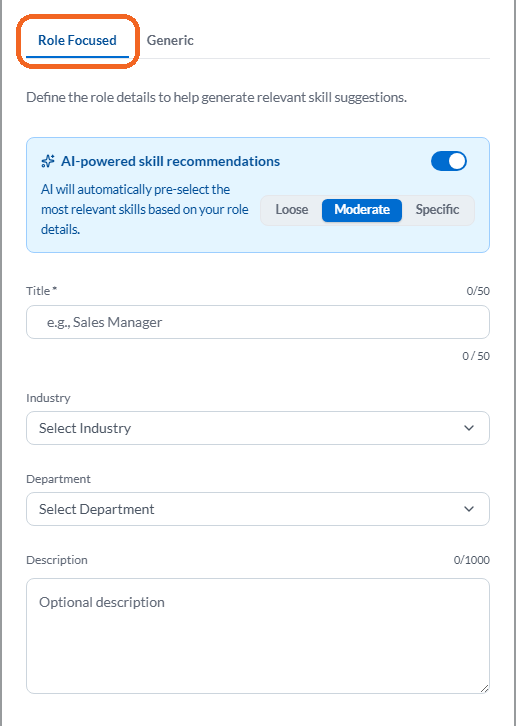
- Role Focused, described as targeting skills for a specific role. Choose this when you are measuring people against what a particular job requires.
- Generic, described as a general skills assessment. Choose this when you want a broad measurement that is not role-specific.
The choice shapes the rest of the builder, so make it before filling in the details.
Caption: Pick one of two types:
Step 2: Describe the assessment
Give the assessment a clear title and a description. For a role-focused assessment, use Select Industry and Select Department to place it in context.
Name it for what it measures rather than for the campaign you have in mind, because you may reuse it for several campaigns later.
Step 3: Let AI suggest the skills, or pick them yourself
Select Suggest Skills to have KC Skills propose skills based on what you have described. Set AI suggestion depth first to control how broad the proposal is:
- Loose returns a wider, more exploratory set.
- Moderate sits in between.
- Specific returns a tighter, closely matched set.
Review every suggestion. Suggestions are a starting point, and you keep full control over what ends up in the assessment. You can also skip the suggestions entirely and choose skills from your Skill Tree by hand, using the search box to find them.
Step 4: Configure each selected skill
With your skills chosen, move to Configure skills. For each skill set two values:
- Target Proficiency: the level employees are expected to achieve, where one star is Beginner and five stars is Expert.
- # of questions: how many questions the learner is asked on that skill.
You choose the # of questions from a row of five buttons rather than typing a number, and each button shows the count it produces. On a standard account those read 5, 10, 15, 20 and 25. The counts can differ from one account to another, so read the buttons in front of you rather than assuming a particular number.
This is the lever that decides quiz length. Give the skills that matter most more questions, and keep the peripheral ones low so the quiz stays a reasonable length.
Note: An assessment cannot exceed the maximum number of questions set under Settings, then Assessment Limits. If your totals push past that ceiling, KC Skills tells you that you are over the limit and asks you to remove skills or pick fewer questions for some.
Step 5: Save the assessment
Select Save Assessment. It now appears in the Assessments list and can be selected when you create a campaign.
Editing and deleting an assessment
Open an assessment from the list to edit it. You can change its details, add or remove skills, and adjust target proficiency and the number of questions.
Note: An assessment already used by a campaign is flagged as in use, and KC Skills warns you before you change or delete it. Editing the skills of an assessment behind a running campaign affects that campaign, so prefer building a new assessment when a live campaign depends on the old one.
Conclusion
An assessment is where you decide what "good" looks like: the skills in scope, the proficiency you expect, and how many questions each skill is worth. Build it once from your Skill Tree, set target proficiency and question counts deliberately, and reuse it across as many campaigns as you need.