





Summary
KC Skills exports assessment results as spreadsheets. You can export a campaign's per-skill scores, a full participant matrix covering every skill against every participant, and an individual learner's profile. This article covers each export, what it contains, and when to use it.
Introduction
Results are easiest to act on inside KC Skills, but they often have to travel. They end up in a report for a manager, a board pack, or a spreadsheet where you combine them with data from elsewhere. Exporting is how you get them out.
This is for administrators and program owners who need results outside the product. Every export is a file download, so what happens to it afterward is up to you.
Key Concepts
- Scores export: A campaign's per-skill results, matching what the Scores tab shows.
- Participant matrix: A wider export covering every skill against every participant in the campaign.
- Profile export: One learner's results, taken from their page in Users Skill Profile.
- Export header: Each file records when it was exported and by whom, so a spreadsheet found later can still be dated and attributed.
Steps to Follow
Exporting a campaign's scores
Open Campaigns, select your campaign, and open the Scores tab. Select Export to Excel.
The file mirrors the table on screen, one row per skill with Skill, Initial, Reassessment, Change, Target, and Status. It also carries Exported on and Exported by at the top.
Use this when you want the headline result: which skills your group is strong or weak in, and whether a reassessment moved them.
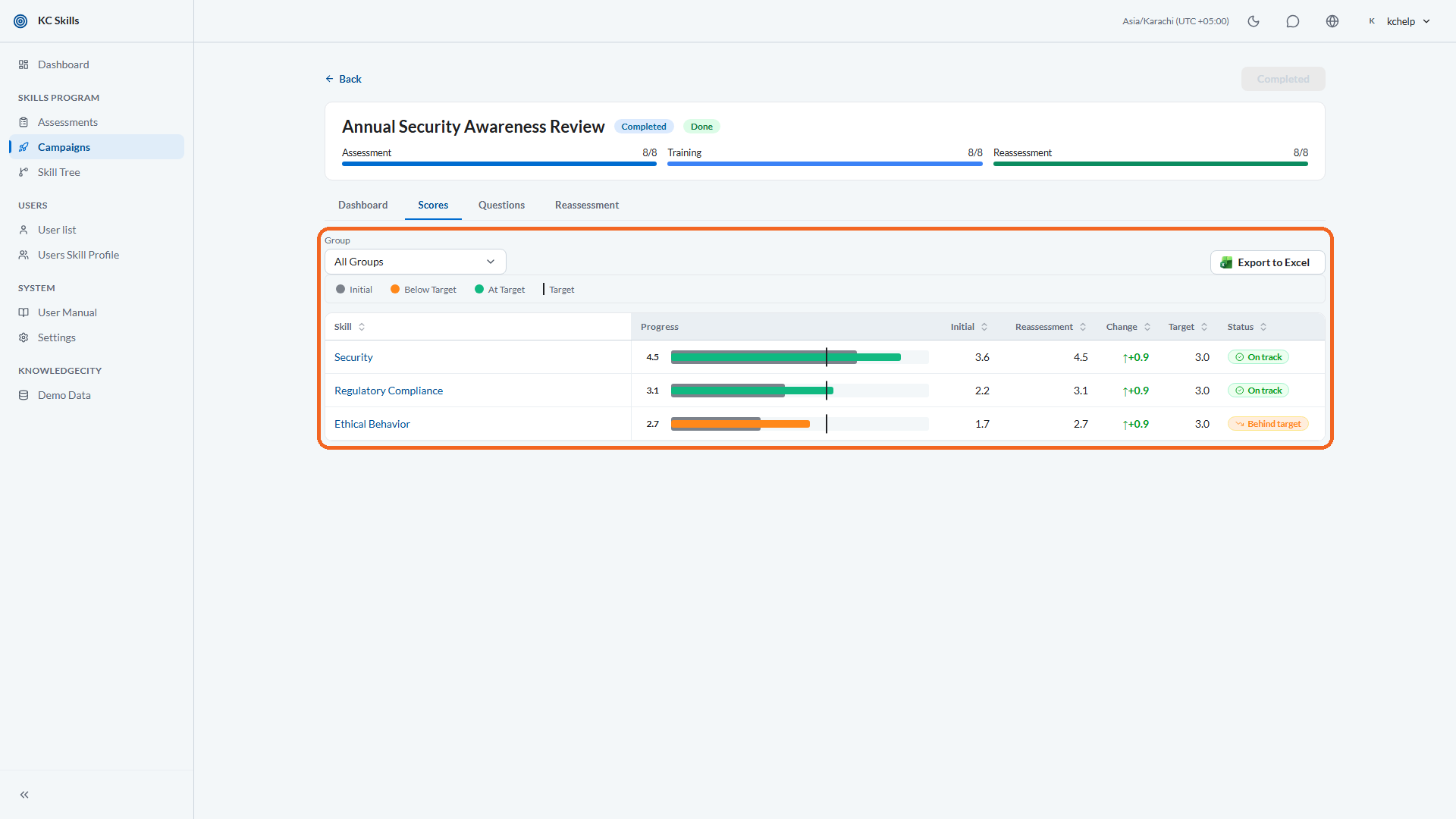
Caption: Open Campaigns, select your campaign, and open the Scores tab.
Exporting the full participant matrix
From the same tab, select Export Participant Matrix (all skills × participants).
This is the wide view: every skill against every participant, rather than the per-skill summary. It is the export to take when you want to do your own analysis, pivot the data, or combine it with information KC Skills does not hold.
Note: The matrix grows with both the number of skills and the number of participants. On a large campaign it produces a big file, which is expected.
Exporting one learner's profile
Open Users Skill Profile, select the learner, and use Export to Excel on their page.
The export reflects the filters and the view mode you have applied, so set those before exporting. If you want one campaign rather than the learner's whole history, switch to By campaign first.
Use this for a conversation about one person: a development plan, a review, or a handover to a manager.
Waiting for the export to finish
While a file is being produced, KC Skills shows Exporting. Larger exports take longer, and the participant matrix is usually the slowest.
If something goes wrong, you get Export failed. Please try again. Retry from the same button. A failed export produces no partial file, so there is nothing to clean up.
Sharing what you exported
KC Skills does not send results to anyone on your behalf. There is no email, link-sharing, or scheduled-delivery feature for these exports.
Once the file has downloaded, distribute it yourself through whatever channel you normally use. Treat it as you would any other file of personal performance data, because that is what it contains: named individuals and their scores.
Note: If a recipient only needs to look at results rather than keep a copy, giving them the appropriate access in KC Skills is usually better than sending a spreadsheet. Live data does not go stale, and it stays inside the product's own permissions.
Conclusion
Three exports cover the common needs. Use the Scores export for the headline per-skill picture, the participant matrix to analyze the raw grid yourself, and the profile export for one person. All of them are file downloads, stamped with who exported them and when, and what happens next is yours to manage.