





Summary
Each campaign carries its own bank of quiz questions, one set per skill in the assessment. You can have KC Skills generate questions with AI, or write and edit them yourself. You can also translate them into Arabic and Spanish, and preview the quiz as a learner sees it before you launch.
Introduction
The assessment decides which skills are measured and how deeply. The questions are what participants actually answer, and they live on the campaign's Questions tab.
Questions are multiple choice. A question can have one correct answer or several. Each question is tied to a specific skill, so results map back to the skill gaps you are trying to find. Getting the bank right before launch matters, because a skill with no questions produces no result.
Key Concepts
- Question bank: The questions attached to one campaign, grouped by the skill each question assesses.
- AI generation: KC Skills writing a first draft of the bank for you, skill by skill.
- Multiple correct answers: A setting that lets a question accept more than one right answer, presented to learners as select all that apply.
- Translation: An AI-generated Arabic or Spanish version of a question. English remains the original.
- Coverage: Whether each skill has enough questions to assess participants properly.
- Quiz preview: A run-through of the quiz as a learner would see it, without saving any answers.
Steps to Follow
Accessing the Questions tab
Open Campaigns, select your campaign, and open the Questions tab. Use the search box and the skill filter to move around a large bank.
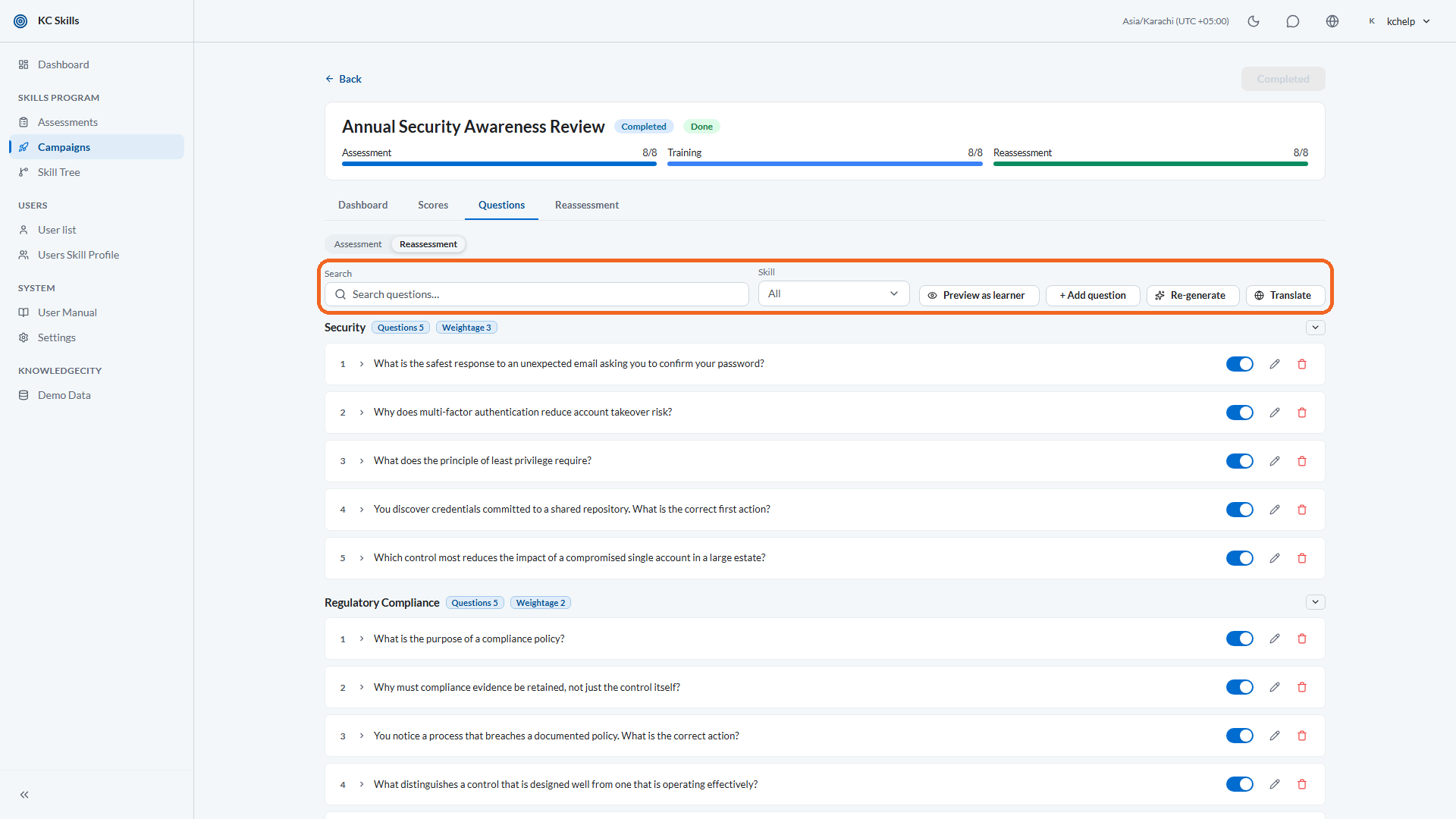
Caption: Open Campaigns, select your campaign, and open the Questions tab.
Step 1: Generate the questions with AI
Select Generate questions to have KC Skills write the bank from your assessment's skills. Generation runs in the background, and questions appear as each skill completes.
KC Skills writes as many questions for a skill as the # of questions you set for that skill in the assessment. The number you set there is the number you get here.
Note: You can have generation start on its own for every new campaign. Open Settings, then AI Generation, and turn on the option to auto-initiate generation.
Step 2: Review what was generated
Read the generated questions before launching. AI-drafted questions are a first draft, and you are responsible for their accuracy against how your organization actually works.
Check that each question sits under the right skill, that the marked answer is genuinely correct, and that the wording suits your audience. Edit anything that misses, and delete questions you do not want.
If you would rather start over for the whole campaign, Regenerate questions replaces the bank. KC Skills asks you to confirm, and warns you separately when the campaign has already launched.
Step 3: Write or edit a question yourself
Select Add question to write one from scratch, or open an existing question to edit it. For each question you set:
- The Question text.
- Whether Multiple correct answers is on. Leave it off for a single correct answer, or turn it on to let learners select all that apply.
- The Answers, with at least two options and at least one marked correct.
Optionally add feedback, which learners see when reviewing their mistakes.
Note: A question must belong to a skill from the assessment. If the assessment has no skills configured, add them there first.
Step 4: Translate the questions
Select Translate and pick the languages you want. English stays the original, and learners see the translation when their language matches, otherwise they see English.
Translation is generated per language and can also be automated: under Settings, then AI Generation, turn on automatic translation of generated questions.
Note: Review translations the same way you review the English. A translated question is still your organization's content.
Step 5: Preview the quiz as a learner
Select Preview as learner to walk through the quiz the way a participant will experience it, including how single-choice and multiple-choice questions are presented. The preview notes that answers are not saved.
This is the cheapest way to catch a confusing question or a wrong answer key, so do it before you launch rather than after.
Step 6: Check coverage before launching
When you launch, KC Skills checks whether every skill has enough questions. Where coverage is complete it confirms that all skills have sufficient question coverage. Where it is not, it lists the skills with too few questions and, separately, the skills with no questions that will not be evaluated.
Add questions to anything on that list before launching, unless you are content for that skill to go unmeasured in this campaign.
Conclusion
The Questions tab is where a campaign becomes something a learner can actually take. Generate a draft, review and correct it, translate it for the languages your people use, and preview it before launch. A few minutes in the preview is what stops a bad answer key reaching your whole audience.