





Summary
The Scores tab is where a campaign's results live. It gives you one row per skill, showing what participants scored initially, what they scored on any reassessment, the change between the two, and how that compares to the target. From any skill you can drill into a per-person breakdown.
Introduction
A campaign produces two kinds of answer. The first is organizational: which skills is this group strong or weak in. The second is individual: who specifically needs help. The Scores tab answers the first, and its Skill Report by User view answers the second.
This is for administrators and program owners reading results after an assessment has run. Scores are aggregated per skill, so you are looking at your group's position rather than at one person's record.
Key Concepts
- Initial: What participants scored on the first assessment.
- Reassessment: What they scored on the second measurement, if the campaign ran one.
- Change: The difference between the two, which is empty until a reassessment has produced results.
- Target: The proficiency level the assessment expects for that skill.
- Status: How the skill sits against its target.
- Skill Report by User: A drill-down from one skill row to every participant's result for that skill.
Steps to Follow
Accessing the Scores tab
Open Campaigns in the left sidebar, select your campaign, and open the Scores tab.
If the campaign has not produced results yet, the tab reads No assessment scores yet, and explains that scores will appear once participants complete the initial assessment. That is a timing state, not a problem to troubleshoot.
Step 1: Read the per-skill table
Each row is one skill, with six columns: Skill, Initial, Reassessment, Change, Target, and Status.
Read Initial against Target first. That comparison is the whole point of the initial assessment, and it tells you which skills your group is short on before any training happens.
Note: Reassessment and Change stay empty until the campaign has run a reassessment and results have come back. An empty Change column on a campaign that has not reached that phase is expected.
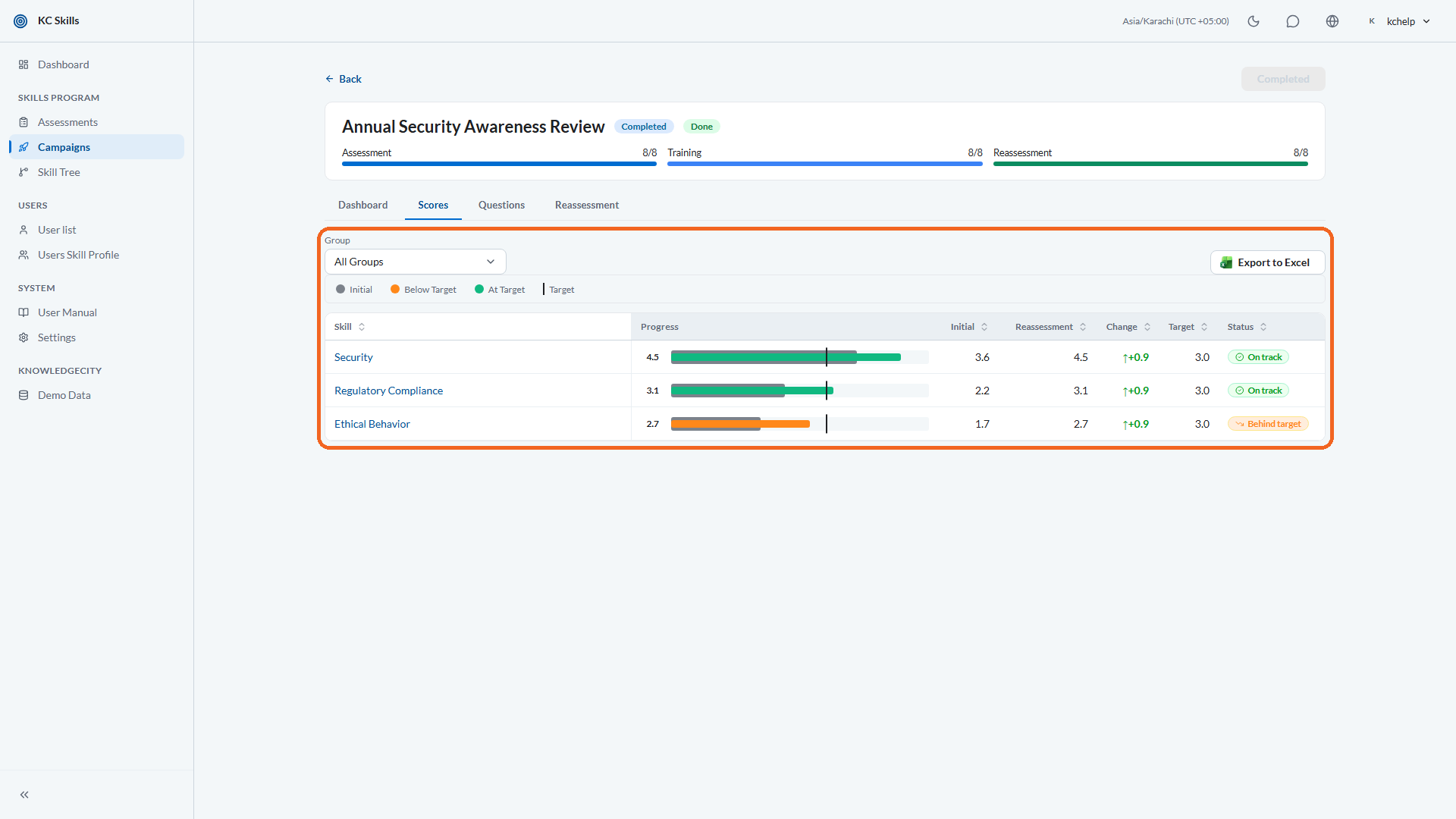
Caption: Each row is one skill, with six columns: Skill, Initial, Reassessment, Change, Target, and Status.
Step 2: Use the status to triage
Status saves you from reading every number. It marks each skill against its target so you can go straight to the ones that need attention rather than scanning the whole table.
Start with the skills furthest from target. Those are where training will produce the most visible improvement, and where a reassessment is most worth running.
Step 3: Drill into one skill
Select a skill to open Skill Report by User. This switches from the aggregate to a list of participants, showing each person's Initial, Reassessment, Change, Target, and Status for that one skill, along with their Progress.
This is the view that turns a weak average into an action. A skill can sit below target because most people are slightly short, or because a handful scored very low, and those two situations call for different responses.
Use Filter by Group to narrow the list to one user group when the campaign covers several. Select Back to Scores to return to the per-skill table.
Note: If a skill has no participant results yet, the drill-down reads No participant data found for this skill. If the report itself has not been built yet, it reads Report data is not yet available. Both mean wait, not fix.
Step 4: Cross-check against a single learner
The Scores tab is scoped to one campaign. When you need someone's history across every campaign they have taken part in, open Users Skill Profile instead and search for them there.
Use the two together: Scores tells you which skill is the problem, and the profile tells you whether a given person has been struggling with it for a while.
Step 5: Check the campaign's other tabs for context
A number on the Scores tab is easier to read with the campaign's own state next to it. The Dashboard tab carries the schedule, the user groups, and where each participant stands.
If scores look thin, check participation there before concluding that your organization has a skill problem. A low average driven by half the group never taking the quiz is a participation issue, not a capability one.
Conclusion
The Scores tab gives you your group's position skill by skill, and the per-user drill-down tells you who sits behind each number. Read Initial against Target to find the gaps, and use Status to triage. Drill in to see whether a weak skill is broad or concentrated, and check participation before you act on an average.