





Summary
The Safety App lets administrators apply their organization's visual identity to both the app and the reporter portal. You upload a logo, choose brand colors, and save your changes so learners and reporters see a consistent, professional experience. This article explains where these settings live and how to apply them.
Introduction
Branding and appearance settings control how the Safety App and its reporter portal look to the people who use them. Administrators use these settings to match the product to their organization's brand, so that employees who submit a report or complete safety training recognize the environment as their own.
Consistent branding builds trust. When a reporter opens the portal to raise an incident, a familiar logo and color scheme signal that they are in the right, official place, which is especially important for sensitive safety reporting.
Key Concepts
- Logo: The image that represents your organization inside the Safety App and on the reporter portal. Uploading a logo replaces the default placeholder with your own brand mark.
- Primary color: The main brand color applied to prominent interface elements such as buttons and links.
- Secondary color: A supporting brand color used for accents and additional interface elements alongside the primary color.
- Reporter portal: The interface where people submit reports and incidents. Branding you apply carries through to this portal so it stays visually aligned with the rest of the Safety App.
- Live preview: A view that shows how your logo and color choices will appear before you commit them, so you can adjust until the result matches your brand.
- Save changes: The action that commits your branding selections. Your updates take effect only after you save.
Steps to Follow
Open the customization settings
Sign in to the Safety App with an administrator account, then open the customization area for branding and appearance. This is where the controls for your logo and brand colors are grouped together.
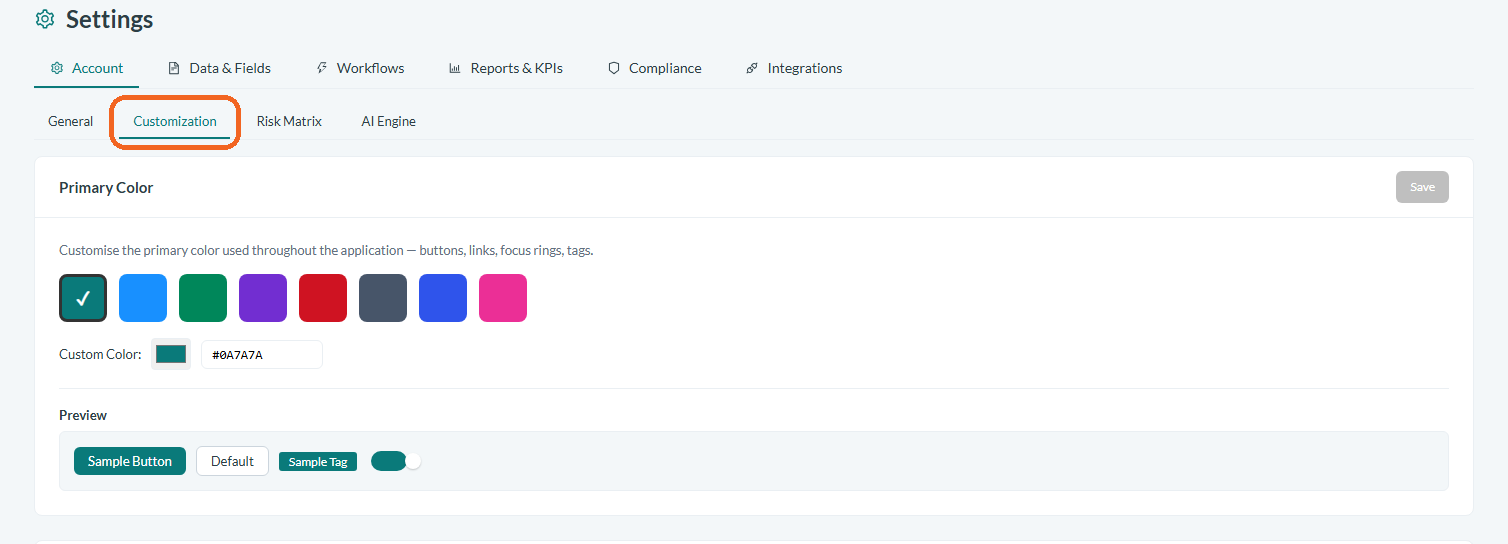
Caption: Sign in to the Safety App with an administrator account, then open the customization area for branding and appearance.
Upload your logo
Select the option to change or upload a logo, then choose an image file from your computer. After the file is selected, the new logo appears in the preview so you can confirm it displays correctly across the Safety App and the reporter portal.
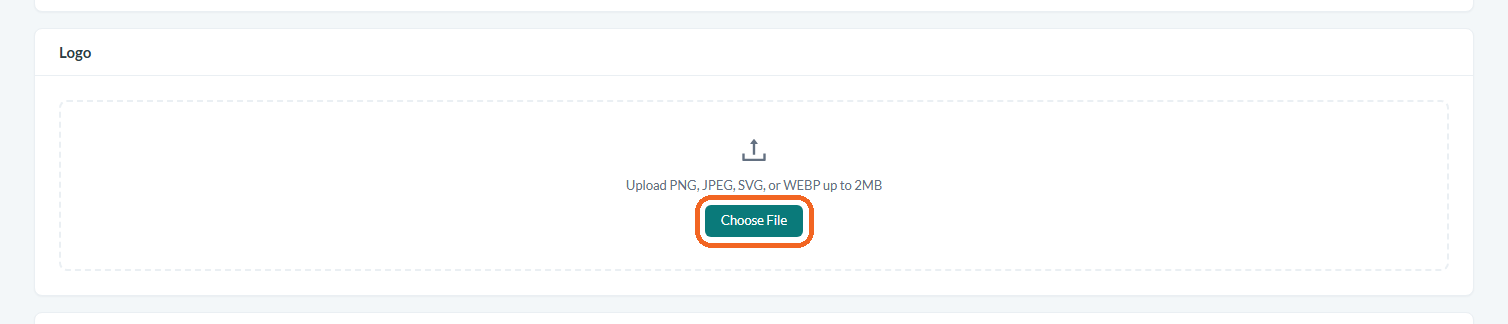
Caption: Select the option to change or upload a logo, then choose an image file from your computer.
Set your brand colors
Use the color picker to choose your primary color, which applies to key elements such as buttons and links. If you want an additional accent color, set a secondary color as well. As you pick each color, watch the preview to confirm the combination reads clearly and matches your brand.
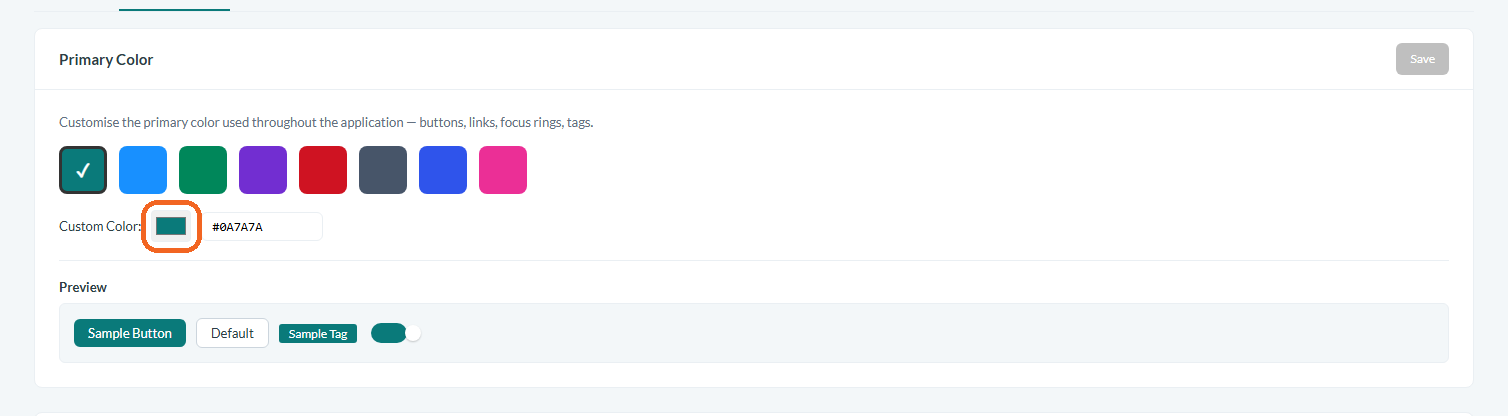
Caption: Use the color picker to choose your primary color, which applies to key elements such as buttons and links.
Review the reporter portal appearance
Confirm that your logo and colors carry through to the reporter portal. Because reporters interact with this portal directly, check that the branding looks correct and legible there before you finish.
Save your changes
When the preview matches what you want, select Save changes. Your branding does not take effect until you save, so complete this step to publish your logo and colors across the Safety App and the reporter portal.
Conclusion
By applying your logo and brand colors in the Safety App, you give administrators, learners, and reporters a consistent and recognizable experience across the app and the reporter portal. Review the live preview before saving so the final result reflects your organization's identity exactly as intended.