





Summary
The Compliance Calendar in Safety App is a shared schedule of regulatory deadlines, OSHA notifications, and recurring safety obligations. It gives the safety team a single place to see every upcoming deadline, who owns it, and when it falls due. This helps organizations stay ahead of compliance dates instead of scrambling to meet them.
Introduction
The Compliance Calendar is a Safety App feature that treats compliance as a clock. Fixed obligations such as the OSHA 300A posting on February 1st, and event-driven windows such as an OSHA notification opening within hours of a serious event, all live on one shared calendar so nothing slips.
It is used by safety directors, safety managers, and site managers. A safety director at headquarters sees every site, while a site manager sees only the deadlines that belong to their own location. The result is a proactive schedule that keeps the whole team aligned on what is due and when.
Key Concepts
- Compliance obligation: A recurring or event-driven requirement tracked on the calendar, such as an annual posting, a monthly training, a quarterly drill, or an OSHA notification window.
- Category color coding: Each deadline is color coded by category so you can read the calendar at a glance.
- Obligation record: Each item on the calendar carries a title, an event type, a due date, a status, an assigned owner, and a description.
- Auto-rolling recurrence: When you close a recurring deadline, the next occurrence opens automatically on the calendar.
- Reminders: Each item carries reminders at 30 days out, 7 days out, and the day of, notifying the owner and surfacing the deadline on the executive dashboard.
Steps to Follow
Open the calendar and choose a view
Open the Compliance Calendar, which starts on a month grid with every deadline visible and color coded by category. Switch to week view to focus on the immediate next seven days, or switch to list view to see every upcoming deadline ranked by date.
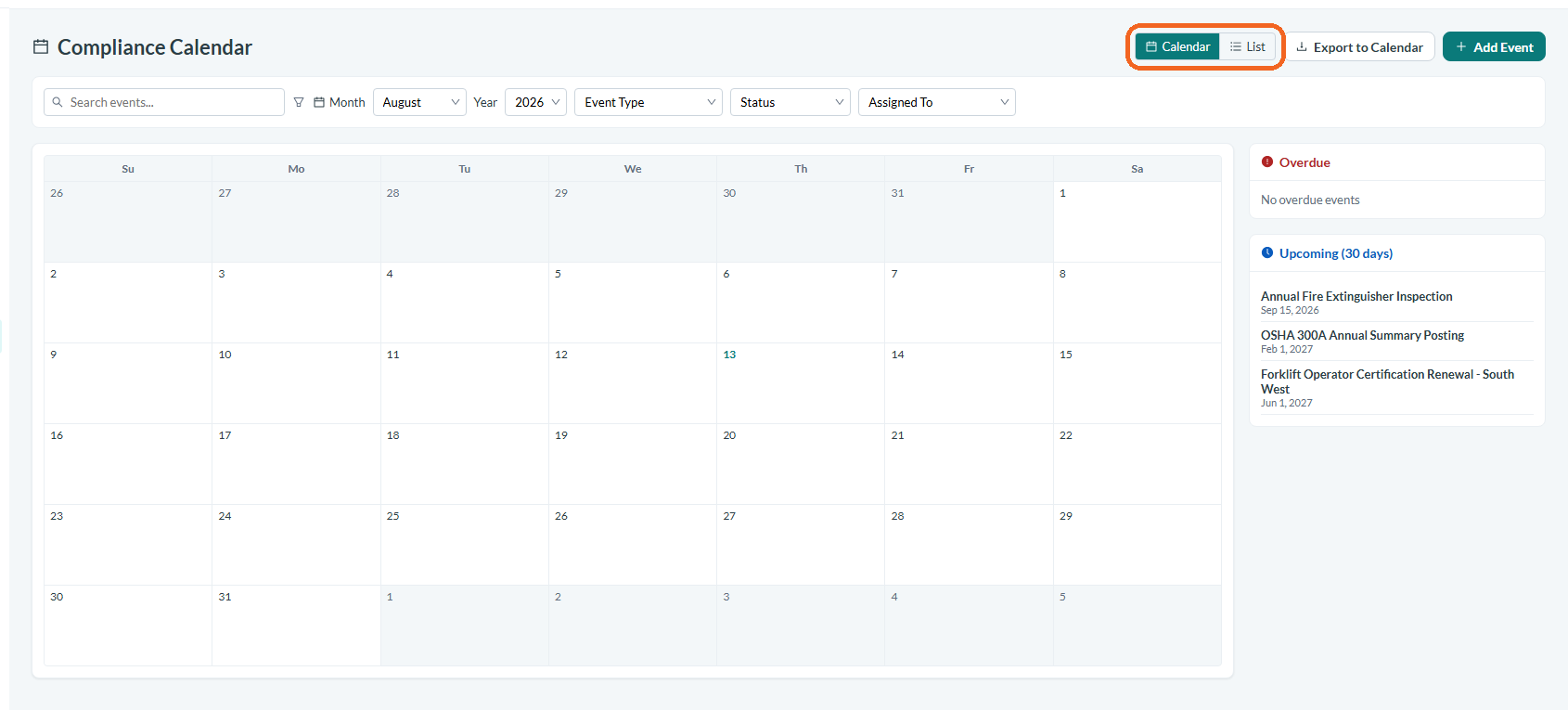
Caption: Open the Compliance Calendar, which starts on a month grid with every deadline visible and color coded by category.
Filter to what you own
Use the filters to narrow the calendar by category, location, or owner. What you can see depends on your role: a safety director at headquarters sees every site, while a site manager sees only their location's deadlines.
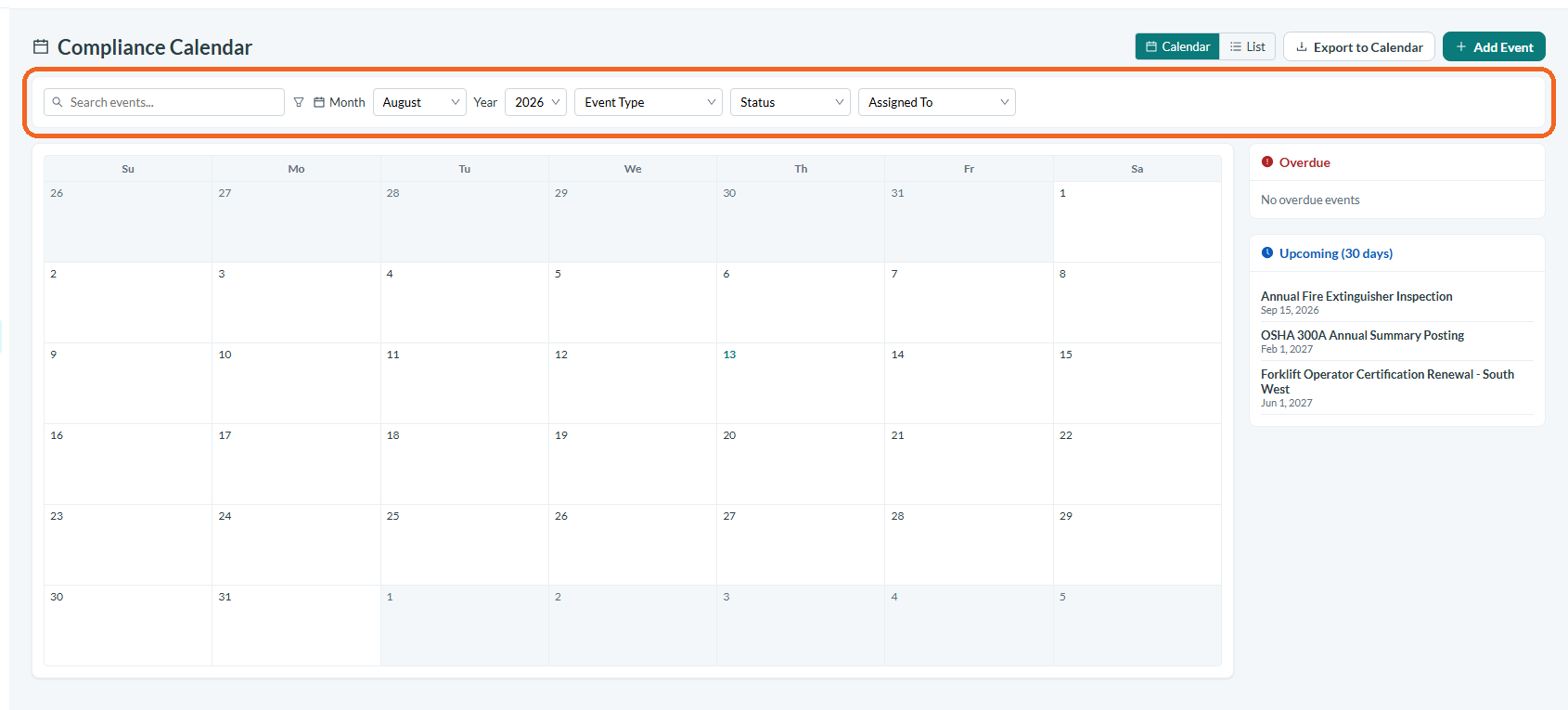
Caption: Use the filters to narrow the calendar by category, location, or owner.
See the full record of every obligation
Switch to list view to read the full record of every obligation in one place. Each row shows the title, the event type, the due date, the status, the assigned owner, and the recurrence, sorted by due date with overdue dates in red.
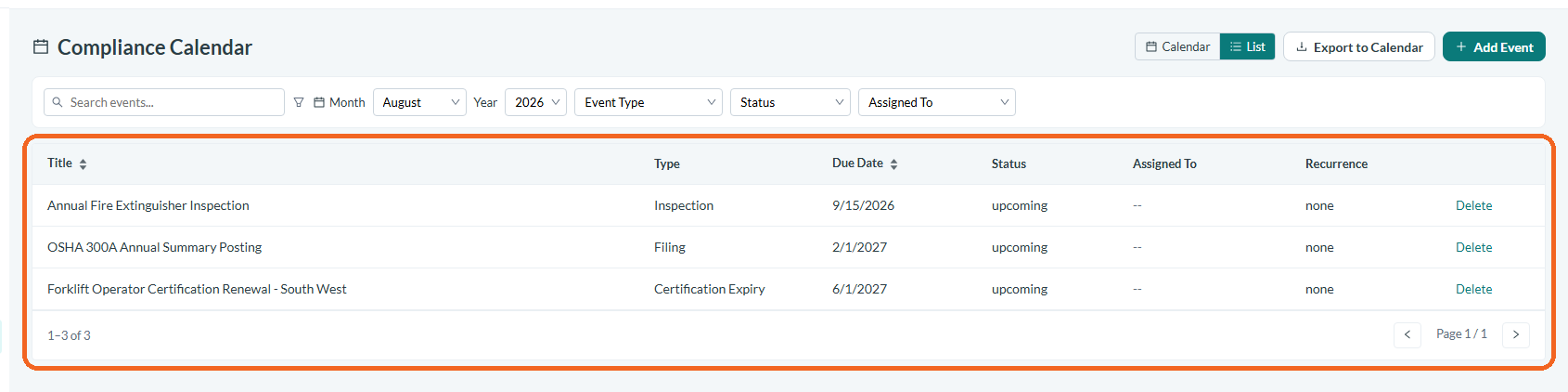
Caption: Switch to list view to read the full record of every obligation in one place.
Close a recurring deadline
When you have met an obligation, close it. For recurring deadlines this auto-rolls: for example, closing this year's OSHA 300A posting automatically opens next year's window on the calendar, so the schedule stays current without manual re-entry.
Track event-driven notification windows
Notification deadlines triggered by serious incidents surface on the calendar as well. When a serious event opens an OSHA notification window, the calendar carries that deadline through to closure alongside your recurring obligations.
Rely on reminders
You do not have to watch each date manually. Every item sends reminders at 30 days out, 7 days out, and the day of, emailing the owner and surfacing the deadline on the executive dashboard so the whole team stays aware.
Conclusion
The Compliance Calendar keeps your safety team ahead of every regulatory and compliance deadline by gathering recurring obligations and event-driven notification windows in one color coded, filterable view. By choosing the right view, filtering to what you own, reading the full record of each obligation, and letting recurrence and reminders do the routine work, you can turn compliance into a scheduled routine rather than a last-minute rush.