





Summary
The Custom Report Builder lets you generate tailored reports across your Safety data by choosing the entity to report on, the columns to include, the filters to apply, and how results are grouped and sorted. It is designed for administrators and managers who need to analyze safety information for their account and share the results.
Introduction
The Custom Report Builder is the reporting tool in the Safety App that turns raw safety records into focused, shareable reports. Instead of scrolling through individual records, you define exactly what you want to see and the builder assembles a report from your account's data.
It is used primarily by administrators and managers who need visibility into safety performance across their organization. It solves the problem of one-size-fits-all reporting by letting each person build the exact view they need, then reuse and export that configuration.
Key Concepts
- Entity type: The category of record a report is built from. Supported entities include incidents, investigations, action items, training assignments, certifications, and lessons learned. Each report is based on a single entity type.
- Columns: The specific fields from the chosen entity that appear in the report. You select which columns to include so the report shows only the data you care about.
- Filters: Conditions that narrow the records included in the report. Available filters include date range, status, incident type, severity, location, and department.
- Group by: An optional setting that organizes the report's results by a chosen field, making it easier to see totals and patterns within categories.
- Sort by and sort order: An optional field to order results, combined with a direction of ascending or descending.
- Account scope: Reports are generated for a specific account, so the data reflects records that belong to your organization.
- Templates: Saved configurations that let you reuse a report setup rather than rebuilding it each time.
- CSV export: The ability to export report results as a
CSVfile for use in spreadsheets or for sharing.
Steps to Follow
Choose the entity type
Start by selecting the entity type your report is based on. This determines which records the report draws from and which fields are available as columns. Choose from options such as incidents, investigations, action items, training assignments, certifications, or lessons learned.
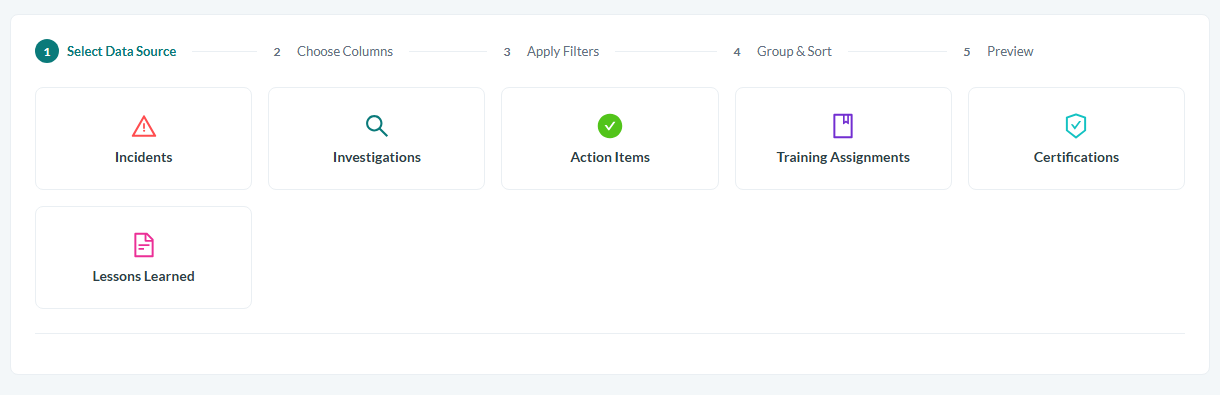
Caption: Start by selecting the entity type your report is based on.
Select the columns
Pick the columns you want to include in the report. Only the fields you select will appear in the output, so choose the ones relevant to the question you are trying to answer.
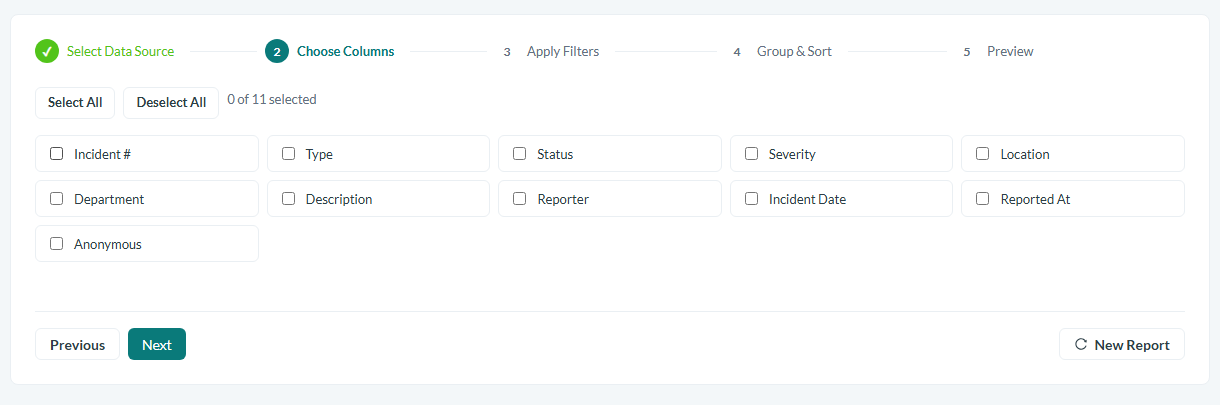
Caption: Pick the columns you want to include in the report.
Apply filters
Use the filters to narrow the records included. Depending on your needs, you can filter by date range, status, incident type, severity, location, and department. Combine filters to focus on a specific time period, area, or type of record.
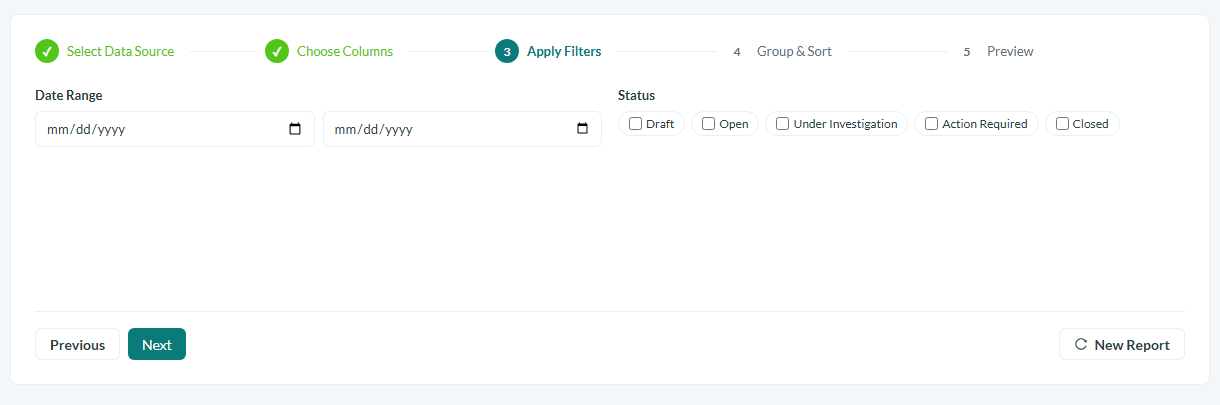
Caption: Use the filters to narrow the records included.
Set grouping and sorting
If you want results organized by a category, set a group by field. To control ordering, choose a sort by field and a sort order of ascending or descending. Both grouping and sorting are optional.
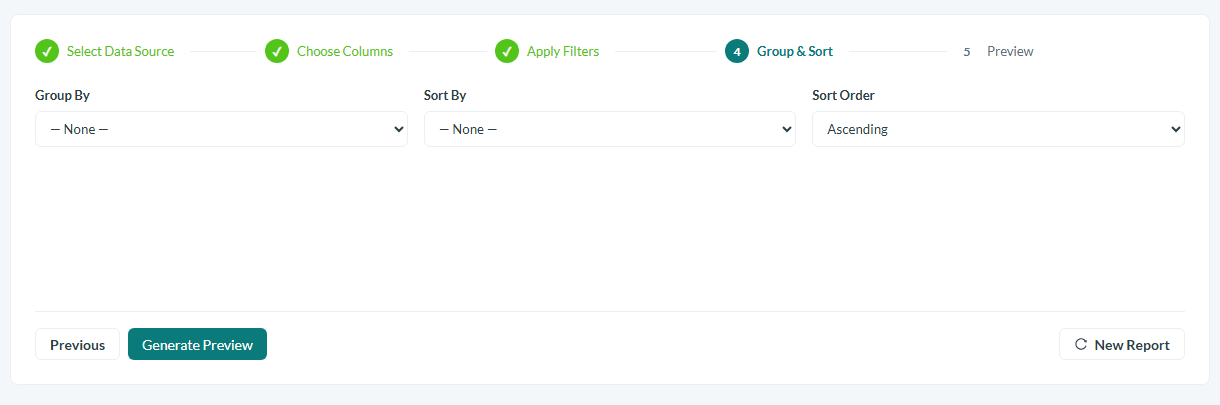
Caption: If you want results organized by a category, set a group by field.
Generate the report
With your configuration in place, generate the report. The builder combines your entity type, columns, filters, and grouping into a single result set scoped to your account.
Export to CSV
When you are satisfied with the results, export the report to a CSV file. This produces a spreadsheet-ready file you can open in other tools or share with colleagues.
Save as a template
To avoid rebuilding the same report later, save your configuration as a template. You can reuse the saved setup to generate the report again on demand.
Conclusion
The Custom Report Builder gives administrators and managers a flexible way to answer specific questions about their safety data. By choosing an entity, selecting columns, applying filters, and setting grouping and sorting, you can produce exactly the report you need, export it to CSV, and save it as a template for repeated use.