





Summary
Safety App includes a bulk actions capability that lets you act on several incidents at once instead of opening each one individually. From the incidents list you can select multiple incidents and then bulk assign them, change their status, or export them in a single operation.
Introduction
Bulk actions is an incidents feature in Safety App built for people who manage a high volume of incidents, such as safety coordinators and administrators who triage and route incoming reports. Rather than reassigning owners or updating status one incident at a time, you select the incidents you care about and apply a single action across all of them.
This saves time during routine cleanup, reassignment when responsibilities shift, and reporting when you need to pull a set of incidents out of Safety App for review.
Key Concepts
- Bulk actions: The Safety App feature that applies one operation across multiple selected incidents in a single step, rather than editing each incident individually.
- Selection: The set of incidents you choose from the incidents list. Every bulk action operates only on the incidents you have selected.
- Bulk assign: Assigns the selected incidents to an owner in one operation, so responsibility for many incidents can be routed at once.
- Change status: Updates the status of all selected incidents together, which is useful for moving a group of incidents through your workflow at the same time.
- Export: Produces an output of the selected incidents so the group can be reviewed or shared outside of Safety App.
- Incidents category: Bulk actions belongs to the incidents area of Safety App, so it works against the incidents you track there.
Steps to Follow
Open the incidents list
Navigate to the incidents area of Safety App where your incidents are listed. This is the list you use to select the incidents you want to act on.
Select the incidents
Choose the incidents you want to include by selecting them in the list. The bulk action you run next applies only to this selection, so confirm that the right incidents are chosen before continuing.
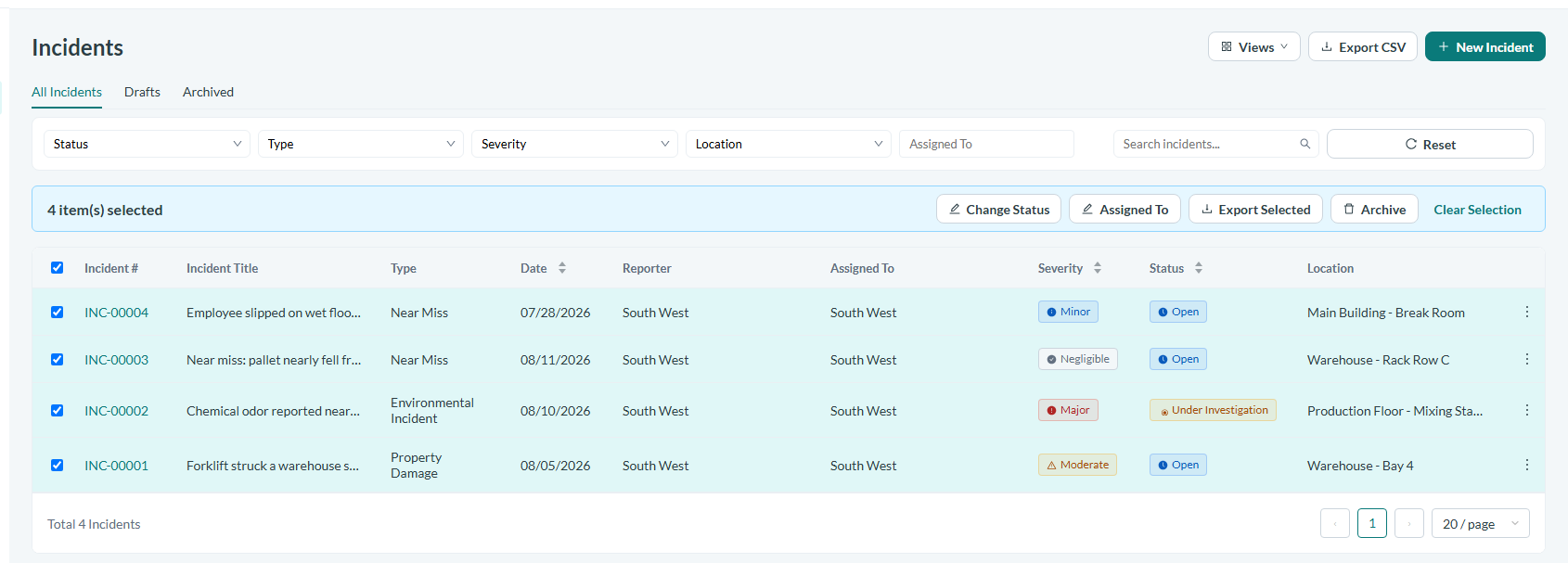
Caption: Choose the incidents you want to include by selecting them in the list.
Choose a bulk action
With your incidents selected, pick the bulk action you want to run. Safety App supports three bulk actions on incidents:
- Bulk assign to route the selected incidents to an owner in one operation.
- Change status to update the status of every selected incident at the same time.
- Export to produce an output of the selected incidents for review or sharing.
Apply and confirm
Apply the chosen action so Safety App runs it across every incident in your selection. After it completes, review the incidents list to confirm the assignment, status change, or export reflects the incidents you selected.
Conclusion
Bulk actions helps you keep large sets of incidents organized in Safety App by letting you assign, update status, or export many incidents at once. Whenever you find yourself repeating the same change across several incidents, select them and use a bulk action to complete the work in a single step.