





Summary
The Incident Detail page is the central workspace for managing a single safety incident from start to finish. It organizes everything about one incident into a set of dedicated tabs, so you can review, update, and follow the incident through investigation and resolution in one place.
Introduction
When a safety incident is recorded, it needs to be tracked, investigated, and resolved over time. The Incident Detail page gives your team a single, structured view of that incident, bringing together the people involved, supporting files, the sequence of events, and the follow-up work required to close it out.
This page is typically used by safety administrators, investigators, and managers responsible for handling incidents. It solves the problem of scattered information by keeping every aspect of an incident, from the initial report to corrective actions and compliance review, together and easy to navigate.
Key Concepts
- Incident Detail page: a focused view for working with one incident at a time, rather than the full list of incidents.
- Tabs: the page is divided into sections, each opened as a separate tab, so related information stays grouped and easy to find.
- Overview: the high-level summary of the incident, giving you the essential context at a glance.
- Persons: the individuals connected to the incident, such as those involved, affected, or responsible for follow-up.
- Corrective Actions: the follow-up tasks and remediation steps taken to address the incident and prevent recurrence.
- Timeline: the chronological record of what happened and the actions taken as the incident progressed.
- Compliance and Investigations: the sections used to review the incident against requirements and to document investigative findings.
- Attachments, Documents, and Training: supporting materials and related records, including files, formal documents, and any associated training.
Steps to Follow
Open an incident
Navigate to the Safety App and select the incident you want to work with. Opening it takes you to the Incident Detail page, which is scoped to that single incident.
Review the Overview
Start on the Overview tab to see the incident's core details and current status. Use this as your starting point before moving into more specific areas.
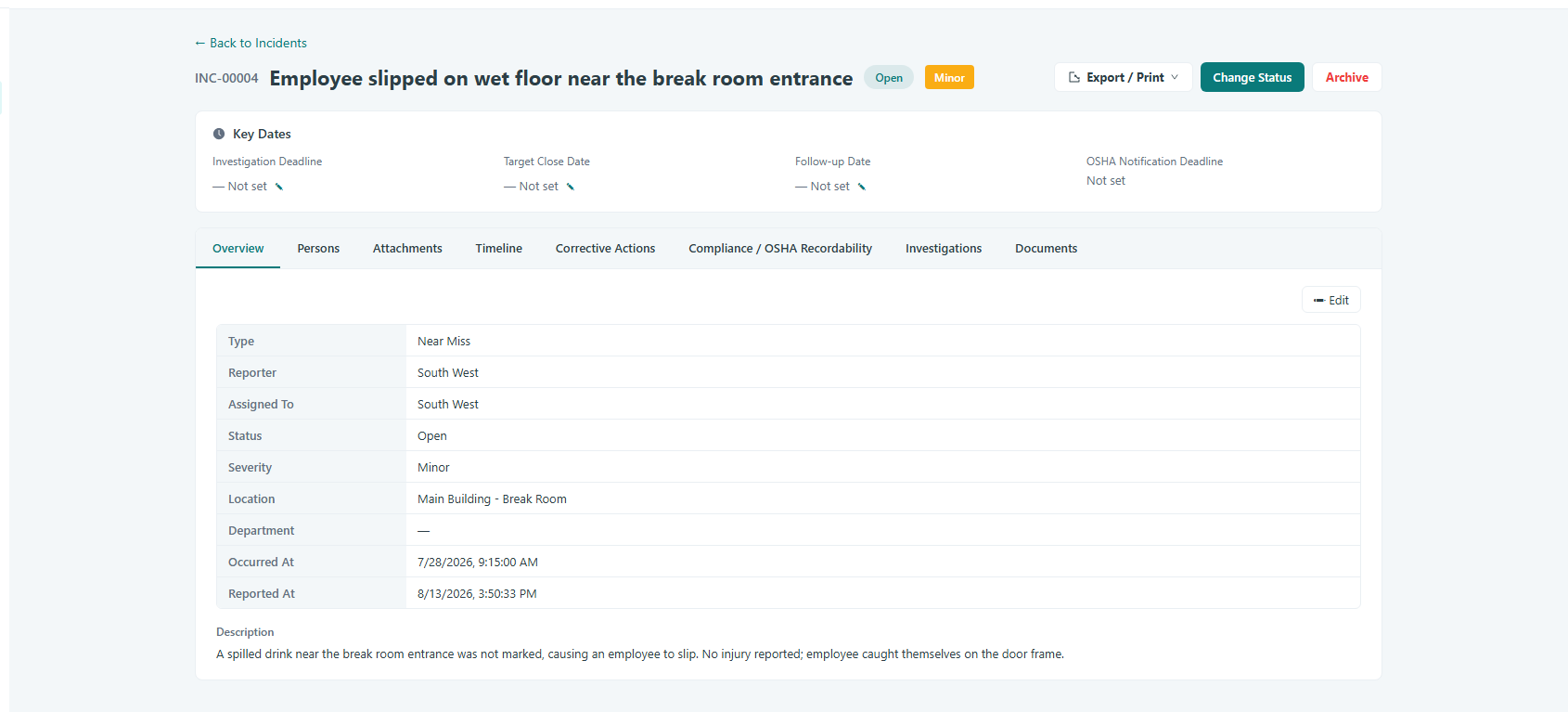
Caption: Start on the Overview tab to see the incident's core details and current status.
Manage the people involved
Switch to the Persons tab to review and manage the individuals connected to the incident. This keeps a clear record of who is involved as the incident is handled.
Track the sequence of events
Open the Timeline tab to follow the chronological progression of the incident and the actions recorded against it over time.
Handle supporting materials
Use the Attachments and Documents tabs to review and manage the files and records that support the incident, and the Training tab for any related training records.
Drive resolution and review
Go to the Corrective Actions tab to manage the follow-up work needed to resolve the incident. Use the Compliance and Investigations tabs to review the incident against requirements and to capture investigative findings.
Work across tabs as needed
Move between tabs freely as you work. Because every section stays tied to the same incident, you can update one area and continue with another without losing your place.
Conclusion
The Incident Detail page brings the full lifecycle of a single incident into one organized view, so your team can review context, manage people and materials, and drive the incident to resolution without switching between disconnected tools. Using its tabs as a workflow keeps incident handling consistent and thorough.