





Summary
The Integrations settings in the Safety App let you connect external systems to your account using three mechanisms: outbound webhooks, scoped API keys, and SAML single sign-on (SSO) with SCIM user and group provisioning. Together these let another application receive event notifications, call the API securely, authenticate your users, and keep accounts and groups in sync automatically.
Introduction
Modern safety programs rarely live in a single tool. You may need your HR system to create and remove accounts, an identity provider to control who can sign in, and downstream applications that react when something changes. The Integrations area brings these connection points into one place so administrators can wire the Safety App into the rest of their technology stack without manual data entry.
This feature is used by administrators and integration owners, the people responsible for provisioning access, maintaining API connections, and configuring single sign-on. It solves the problem of keeping identity, membership, and event data consistent across systems while keeping credentials secure and access controlled.
Key Concepts
- Webhooks: outbound notifications your account sends to an external URL when a defined event occurs, so other systems can react in near real time instead of polling.
- API keys: scoped credentials (a public Client ID and a private Client Secret) that let an external application authenticate to the API and access only the data its permissions allow.
- SAML SSO: single sign-on where an external identity provider authenticates your users, exchanging signed assertions with the Safety App acting as the service provider so people sign in with their existing corporate credentials.
- SCIM provisioning: automatic creation, update, and deactivation of user accounts (and their group membership) driven by your identity provider, so account lifecycle mirrors your directory.
- Attribute mapping: the correspondence between fields in the external system (such as email, first name, last name, and group) and the matching fields in the Safety App, which must be correct for users and their memberships to resolve.
- Metadata exchange: the setup step where each side shares its configuration (entity identifiers, endpoints, and signing certificates) so SAML trust can be established.
Steps to Follow
Opening the Integrations settings
Sign in to the Safety App as an administrator and open the Integrations area from your account settings. From here you can manage webhooks, API keys, and single sign-on configuration for the account.
Creating and managing API keys
In the API keys section, create a new key and give it a descriptive name that identifies its purpose (for example, the name of the external tool and what it does). After you create the key, the system generates a Client ID and a Client Secret:
- The Client ID is a public identifier that tells the API which application is requesting access.
- The Client Secret is a private value that authenticates that application. Treat it like a password.
Copy both values into your external application. Keep the secret out of emails, public forums, and client-side code. If a key is no longer needed or you suspect it has been compromised, remove it to immediately revoke access for anything using it, then generate a replacement. Revoking a key takes effect right away and cannot be undone.
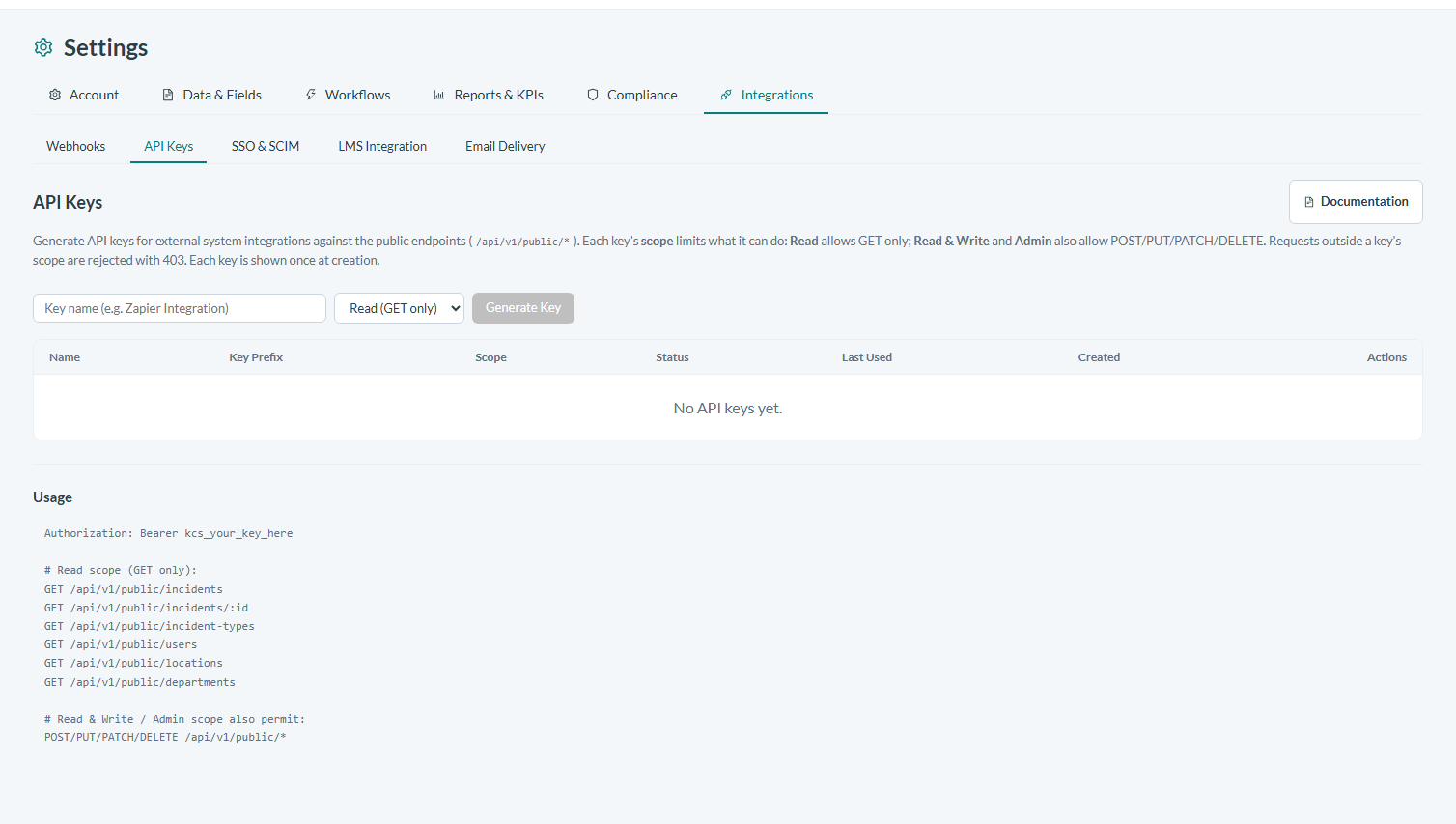
Caption: In the API keys section, create a new key and give it a descriptive name that identifies its purpose (for example, the name of the external tool and what it does).
Configuring webhooks
In the webhooks section, register the external endpoint URL that should receive event notifications and select which events it should be notified about. Once configured, your account sends a request to that URL whenever a matching event occurs, allowing the receiving system to act on the change. Use an endpoint you control and that can accept and verify incoming requests.
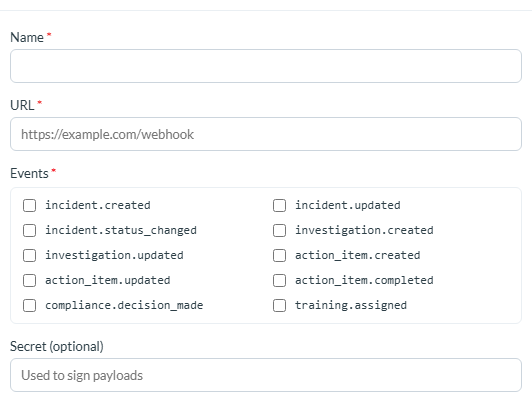
Caption: In the webhooks section, register the external endpoint URL that should receive event notifications and select which events it should be notified about.
Setting up SAML SSO
To let users sign in through your identity provider, configure a SAML connection. Setting up SSO requires exchanging metadata between the Safety App and your identity provider: provide the Safety App's service-provider details to your identity provider, and import your identity provider's details into the Safety App. Depending on your provider, you can enter the connection details manually or import a metadata file to populate them automatically.
As part of the configuration, choose which user attribute identifies the person signing in (the SAML subject name id), such as their email or username. After saving, always run a connection test to confirm the flow works before you communicate the change to users.
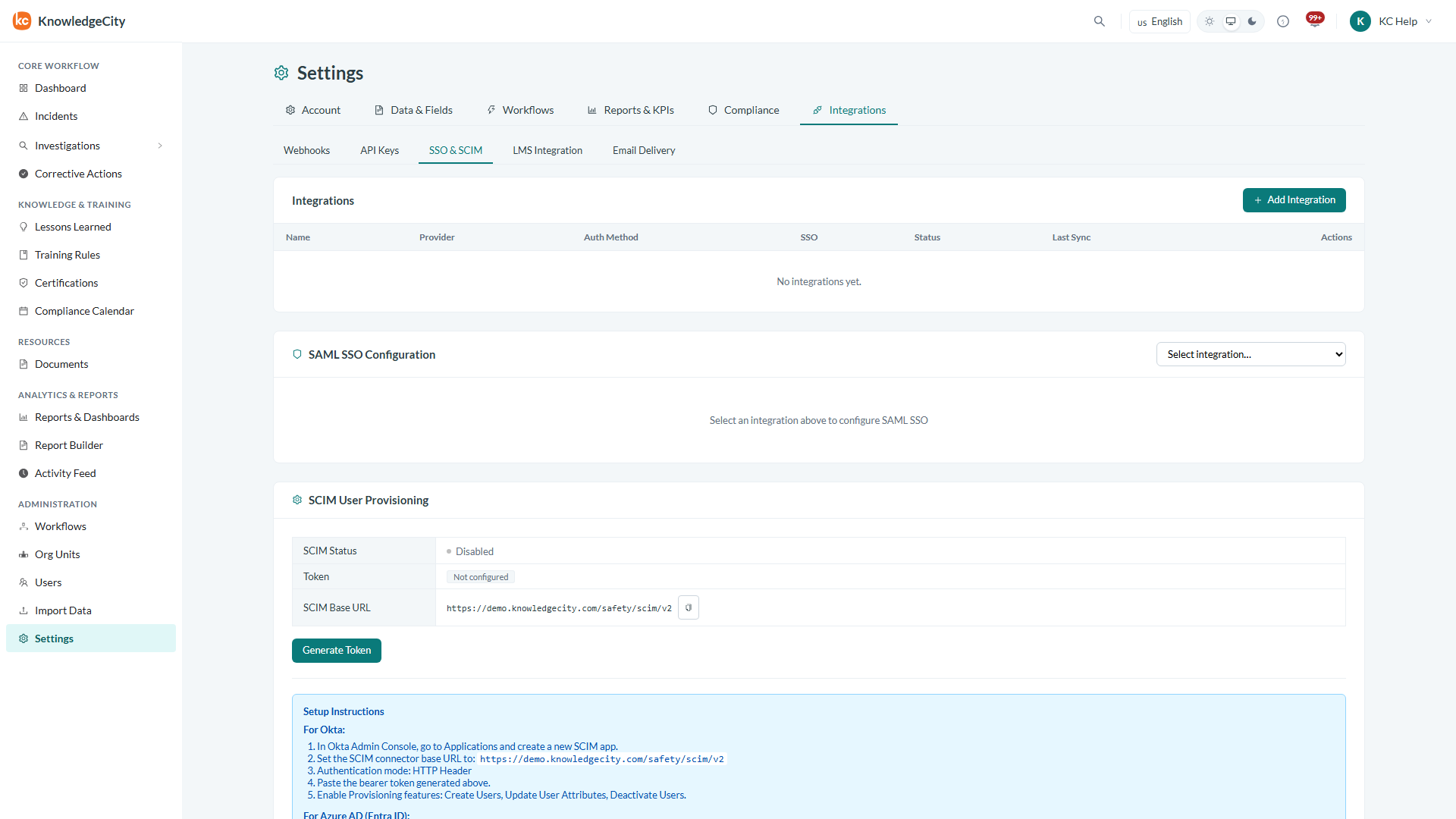
Caption: To let users sign in through your identity provider, configure a SAML connection.
Mapping attributes and provisioning with SCIM
For accounts and memberships to stay accurate, map the incoming attributes, such as email, first name, last name, and group, to the corresponding fields in the Safety App. With SCIM enabled, your identity provider can then create, update, and deactivate user accounts and adjust group membership automatically as your directory changes, removing the need to manage those accounts by hand. Confirm that required attributes are mapped correctly, because without accurate mapping users may not resolve to the right account or gain the access they need.
Conclusion
The Integrations settings give administrators a single place to connect the Safety App to the systems around it: webhooks push events outward, scoped API keys let external tools call the API securely, and SAML SSO with SCIM keeps sign-in and account provisioning aligned with your identity provider. Configure each carefully, protect your credentials, and test SSO before rollout to keep the connection reliable and secure.