





Summary
The Lessons Learned page is your organization's shared library of insights drawn from investigations. Lessons appear as cards you can search, filter by category, department, and date, and open to read in full alongside the investigation that produced them. You can also add a lesson that did not come from one of your own investigations, and export the whole library for use outside the app. This article covers finding what is there and getting it out again.
Introduction
Investigations produce knowledge that is useful well beyond the event that generated it. Left inside individual investigation records, that knowledge reaches only the people who worked on those cases, and the same lesson gets learned again elsewhere at the cost of another incident.
The library exists so it does not have to be. Safety Managers, Admins, and Super Admins use it in two directions: reading it before starting work on something new, and adding to it so that others benefit later. This article is about working with the library itself; capturing a lesson from within an investigation is covered separately.
Key Concepts
- Lesson: a single entry describing something learned and why it matters, stored with a category, an applicability, and, where it came from an investigation, a link back to that investigation.
- Category: what kind of lesson this is, chosen from Process Improvement, Training Gap, Equipment Upgrade, Policy Change, Communication, Environmental, and Other.
- Applicability: how widely the lesson applies, recorded as Site Specific, Department Wide, or Organization Wide.
- Department tags: the departments a lesson is relevant to, used to narrow the library to work like your own.
- Mark as Read: a control on each card that records that you have reviewed the lesson.
- Published date: when the lesson was published, which is also the default sort order for the library.
Steps to Follow
Opening the library
Select Lessons Learned in the left sidebar of the Admin Panel. Lessons are displayed as cards in a two-column grid, newest first.
Each card carries enough to judge relevance without opening it: the title, a category tag, the applicability, the departments it relates to, the opening lines of the description, the number of the investigation it came from where there is one, and the published date. A Mark as Read control sits on the card so you can track what you have already reviewed.
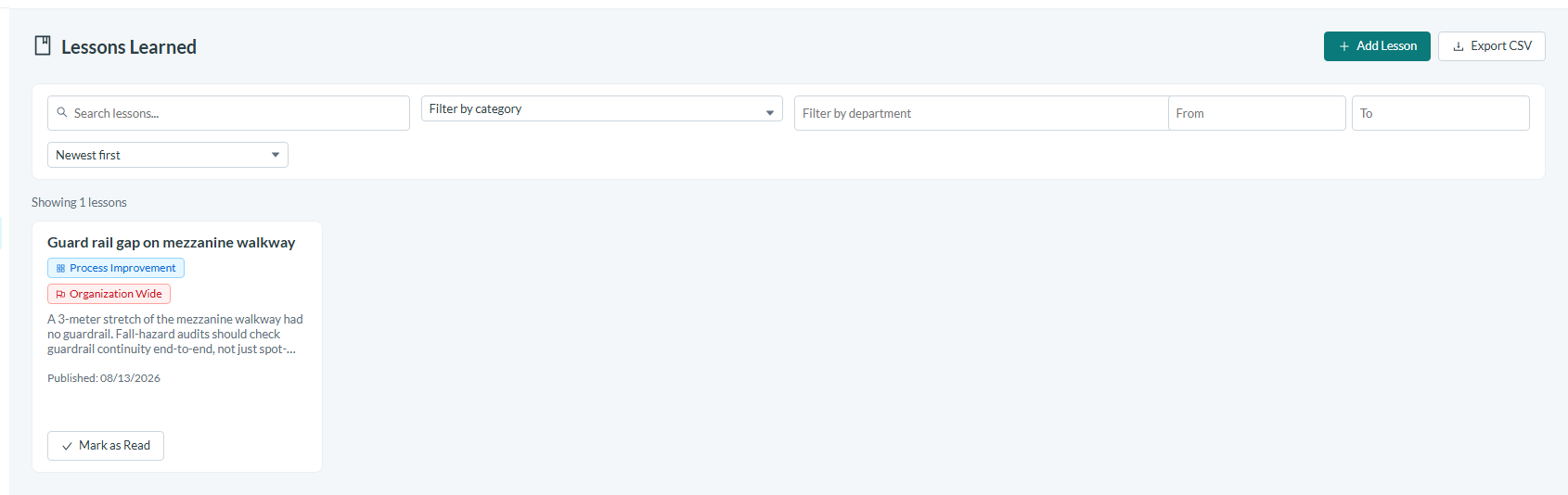
Caption: Select Lessons Learned in the left sidebar of the Admin Panel.
Searching and filtering to find what is relevant
Four controls sit at the top of the page. Search looks across lesson titles and descriptions as you type. Filter by category narrows to one kind of lesson. Filter by department shows only lessons relevant to a particular department. Date range limits results by published date using the From and To pickers.
A sort dropdown controls the ordering, and defaults to published date with the newest first.
Which control to reach for depends on what you are doing. Searching by keyword works when you have a specific event or piece of equipment in mind. Filtering by department is better for a periodic review, where the question is what your own area should know rather than what happened in one case. The date range is what you want when preparing for a meeting that covers a defined period.
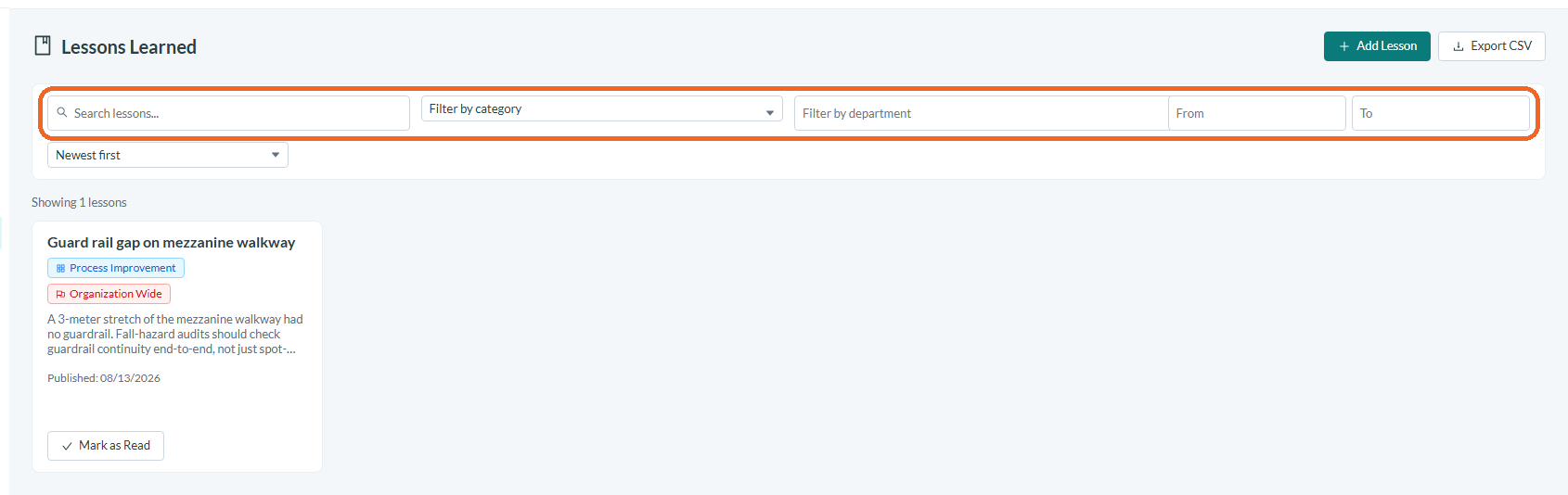
Caption: Four controls sit at the top of the page.
Reading a lesson in full
Select a card to open the full detail view, which shows every field rather than the preview. Where the lesson came from an investigation, a View Investigation control takes you to the source.
Follow that link when the lesson affects a decision you are about to make. A lesson is necessarily a summary, and the investigation behind it holds the specifics: what actually happened, what the analysis found, and which corrective actions followed. Reading both is the difference between knowing a conclusion and understanding it well enough to apply it to a situation that is only partly similar.
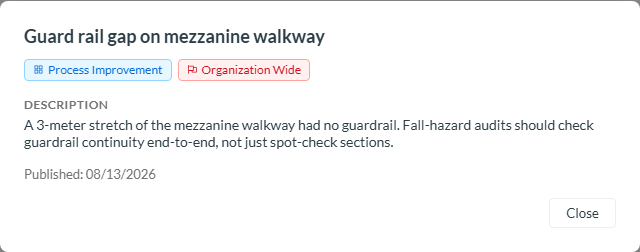
Caption: Select a card to open the full detail view, which shows every field rather than the preview.
Searching the library before starting an investigation
The most valuable time to use this page is at the start of an investigation rather than at the end. Search for the incident type, the equipment involved, or the task being performed before you plan your approach.
A near-identical event may already have been investigated, with the causes established and corrective actions recorded. That tells you where to look, what turned out to matter last time, and whether an action that was supposed to prevent exactly this failed to hold, which is itself a significant finding.
Adding a lesson from outside your own investigations
Most lessons arrive automatically from investigations, published from the investigation's own Lessons tab and linked back to it. For anything else, use Add Lesson at the top right of this page.
This route is for knowledge that did not come from one of your investigations: an industry safety alert, new regulatory guidance, or a near miss reported by a peer organization. The New Lesson Learned form asks for a Title, which is the only required field, then a Category chosen from Safety, Process, Equipment, Training, or Compliance, a Department, a Summary of what was learned, the Recommendations that follow from it, and a Status. Status defaults to Draft, so set it to Published if the lesson should appear in the library straight away. Select Create Lesson to save it.
Write the summary for someone who was not there. The lesson that reads clearly to its author months later reads as a cryptic reference to everyone else, and a lesson nobody can act on takes up space without doing any work.
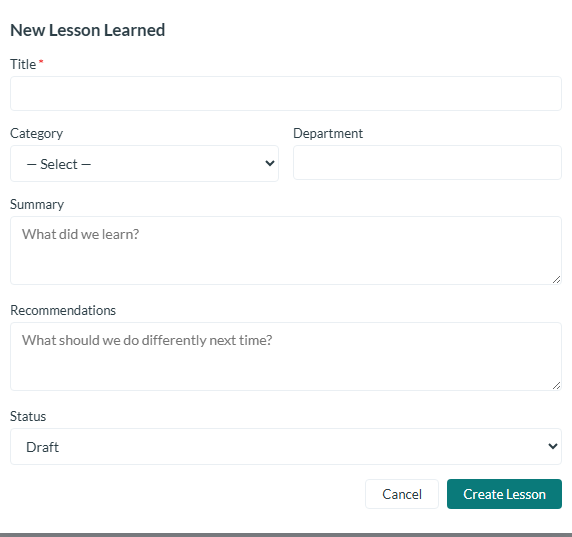
Caption: The New Lesson Learned form asks for a Title, which is the only required field.
Exporting the library
Select Export CSV to download the full list in a spreadsheet-compatible format.
Export is the right tool when the audience is outside the app or the format needs to be something else: circulating a set of lessons to department managers, including them in a safety committee pack, or keeping an offline reference for a site with limited connectivity. It is also useful for review, since reading the whole library in a spreadsheet makes duplicates and gaps easier to spot than scrolling through cards.
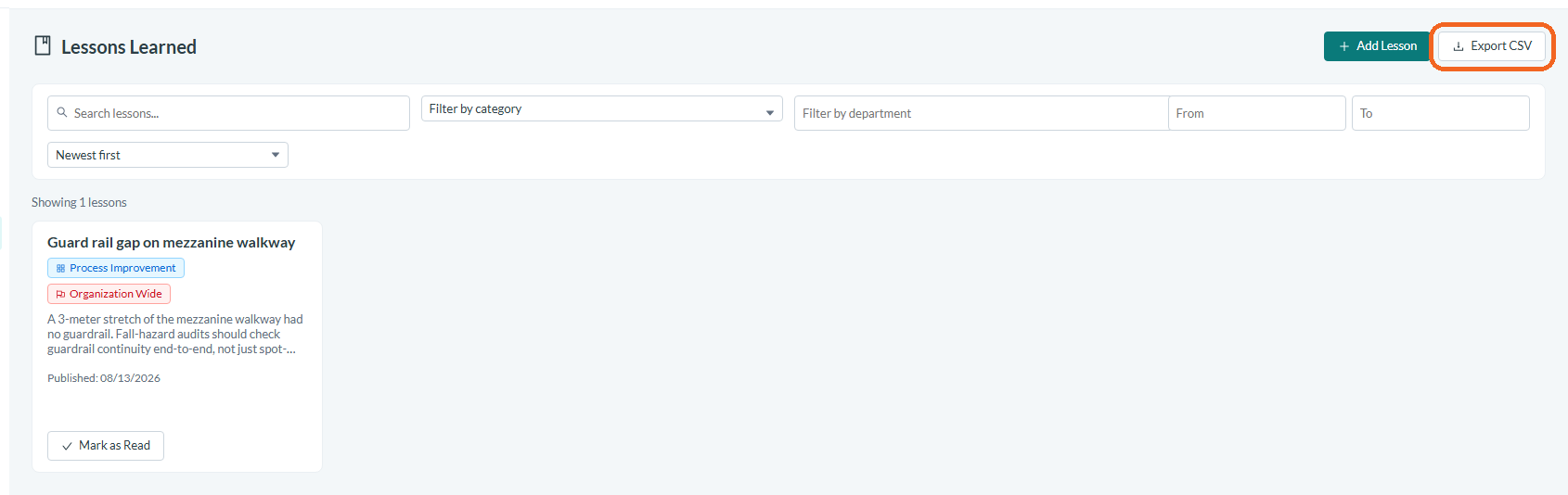
Caption: Select Export CSV to download the full list in a spreadsheet-compatible format.
Conclusion
A lessons library only pays off if people read it. Use search and the department filter to find what applies to your own work, open the source investigation whenever a lesson is going to influence a decision, and make searching the library the first step of a new investigation rather than an afterthought. Add lessons from outside sources so the library reflects everything your organization knows, and export when the knowledge needs to travel somewhere the app does not reach.