





Summary
Near Miss and Safety Observation are two of the incident types you can select when reporting through the Safety App. Logging them captures unsafe conditions and close calls before they cause harm, feeding the same incident record, routing, and analytics used for injuries and other events. This gives your safety team an early, low-friction signal about workplace risk.
Introduction
Near Miss and Safety Observation reports let anyone in your workplace flag an unsafe condition or a close call that did not result in injury or damage. A near miss is an event that almost caused harm, while a safety observation captures a hazard or unsafe behavior someone noticed. Both are logged as incident types through the same guided reporting flow used for every other event in the Safety App.
Field workers submit these reports from a phone, tablet, or kiosk, and safety managers and program owners work them from the admin incidents queue. Capturing near misses and observations solves a core safety problem: unsafe conditions usually reveal themselves as small warnings before they cause a serious incident. Recording those warnings gives your team a clearer picture of real workplace risk and a chance to act early.
Key Concepts
- Near Miss: An incident type for a close call: an event that could have caused injury, illness, or damage but did not. Logging it surfaces the underlying hazard before a repeat event turns serious.
- Safety Observation: An incident type for reporting an unsafe condition, hazard, or behavior that someone noticed, even when nothing has happened yet.
- Incident category: The type you select for the report. Near Miss and Safety Observation are two of the default incident types alongside Injury/Illness, Property Damage, Equipment Failure, and Environmental.
- Category-driven behavior: The category you choose drives downstream handling, including classification, any training assignment, analytics, and routing rules.
- Report mode: At the start of a report you choose whether to submit with your identity attached or anonymously, which is useful when a sensitive observation needs to surface.
- Incidents queue: After submission, the report lands immediately in the admin incidents queue with no approval gate, where it can be filtered by status, type, severity, location, or owner.
- Auto-saved draft: The reporting wizard saves your progress as you advance, so you can step away and finish the report later.
Steps to Follow
Open the reporter portal
Open the reporter portal from a phone, tablet, or kiosk to begin a new report. The portal presents a guided wizard that walks you through a small number of short steps, so no safety background is needed to log a near miss or observation.
Choose your report mode
Decide whether to submit the report with your identity attached or anonymously. Choose the anonymous option when you would prefer the report not be associated with you, which helps sensitive unsafe conditions get reported.
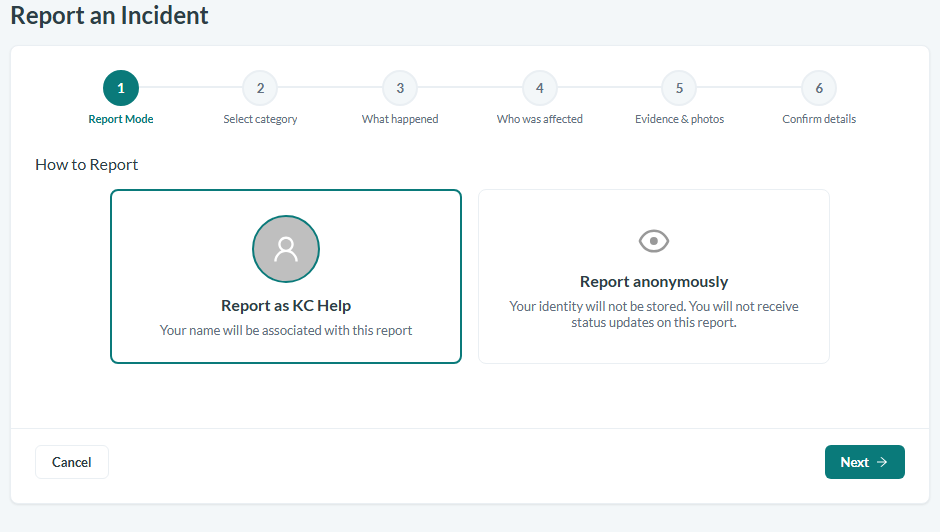
Caption: Report with your identity attached, or choose Report anonymously - useful for sensitive observations.
Select the incident category
Select the category that matches what you are reporting. Choose Near Miss for a close call that almost caused harm, or Safety Observation for an unsafe condition or behavior you noticed. Your choice here drives how the report is classified and routed downstream.
Describe what happened
Provide the core details of the event, including what you observed or the close call that occurred, when and where it happened, and enough context for the safety team to understand the risk. Be specific about the unsafe condition so the record is actionable.
Record who was affected
Add any people involved in or who witnessed the event. For a near miss or observation this often means recording witnesses or others present, so the safety team has the full context.
Attach evidence and photos
Add any supporting files, such as a photo of the unsafe condition, to document what you are reporting. Attaching evidence helps investigators understand the hazard without needing to be on site.
Review and submit
Review the summary of everything you entered, jump back to correct any step if needed, and then submit the report. Once submitted, the report enters the admin incidents queue immediately, where safety managers and program owners can triage and act on it.
Conclusion
Logging near misses and safety observations turns everyday warnings into first-class incident records that your safety team can track, route, and analyze. By capturing unsafe conditions early through the same simple reporting flow used for all incidents, you give your organization the chance to fix hazards before they cause harm.