





Summary
Notification settings in Safety App control how your team is alerted about safety events, deadlines, and obligations. This guide explains how notifications are delivered, when reminders fire, and how what each person sees is scoped to their role. Configuring these settings keeps the right people informed on time without flooding inboxes.
Introduction
Notification settings determine how Safety App communicates time-sensitive safety events to the people responsible for acting on them. When an event opens an obligation, Safety App tracks the deadline and sends alerts to the owner so nothing slips before it is closed.
Safety directors, safety managers, and site managers rely on these settings so that alerts reach the right authority at the right time. A safety director at headquarters sees activity across every site, while a site manager sees only what belongs to their own location, which keeps each person focused on the events they are accountable for.
Key Concepts
- Owner: The person responsible for a given obligation. Notifications and reminders are directed to the owner so accountability is always clear.
- Reminders: Automated alerts that fire at set points before a deadline, so the owner does not have to watch each date manually.
- Reminder cadence: The schedule Safety App uses for reminders, which fires at
30 daysout,7 daysout, and the day an obligation is due. - Email delivery: Reminders and alerts are emailed to the owner so the notification reaches them directly.
- Executive dashboard surfacing: Upcoming deadlines also appear on the executive dashboard, keeping the wider team aware alongside the direct alerts to the owner.
- Role-scoped visibility: What each person is notified about and can see depends on their role, so a safety director sees every site while a site manager sees only their location.
- Filters: Controls that narrow the notifications list. You can filter by category, and use the All / Unread toggle to focus on notifications you have not yet opened.
Steps to Follow
Understand how notifications are delivered
Safety App sends notifications to the owner of each obligation by email, so the person accountable for an event is alerted directly. The same upcoming deadlines are surfaced on the executive dashboard, which means the wider team stays aware without relying on the inbox alone. Confirm who the owner is for the events you manage so that alerts land with the right person.
Set expectations for the reminder cadence
Reminders fire automatically on a fixed cadence: 30 days before a deadline, 7 days before, and again on the day the obligation is due. Because these reminders are automated, you do not need to track each date by hand. Plan your workflow around this cadence so that action begins well before the final reminder, especially for time-sensitive events that can open with little warning.
Scope notifications to the right people by role
What each person is notified about is governed by role-scoped visibility. A safety director is alerted to activity across all sites, while a site manager receives only the notifications tied to their own location. Assign roles so that each user sees the events they own and is not distracted by obligations that belong to another site.
Filter the notifications you see
Use the category filter to narrow the notifications in view to a single type of safety event, and use the All / Unread toggle to switch between every notification and only those you have not yet opened. Combined with role-scoped visibility, which already limits a site manager to their own location, this keeps your list of active alerts relevant and manageable.
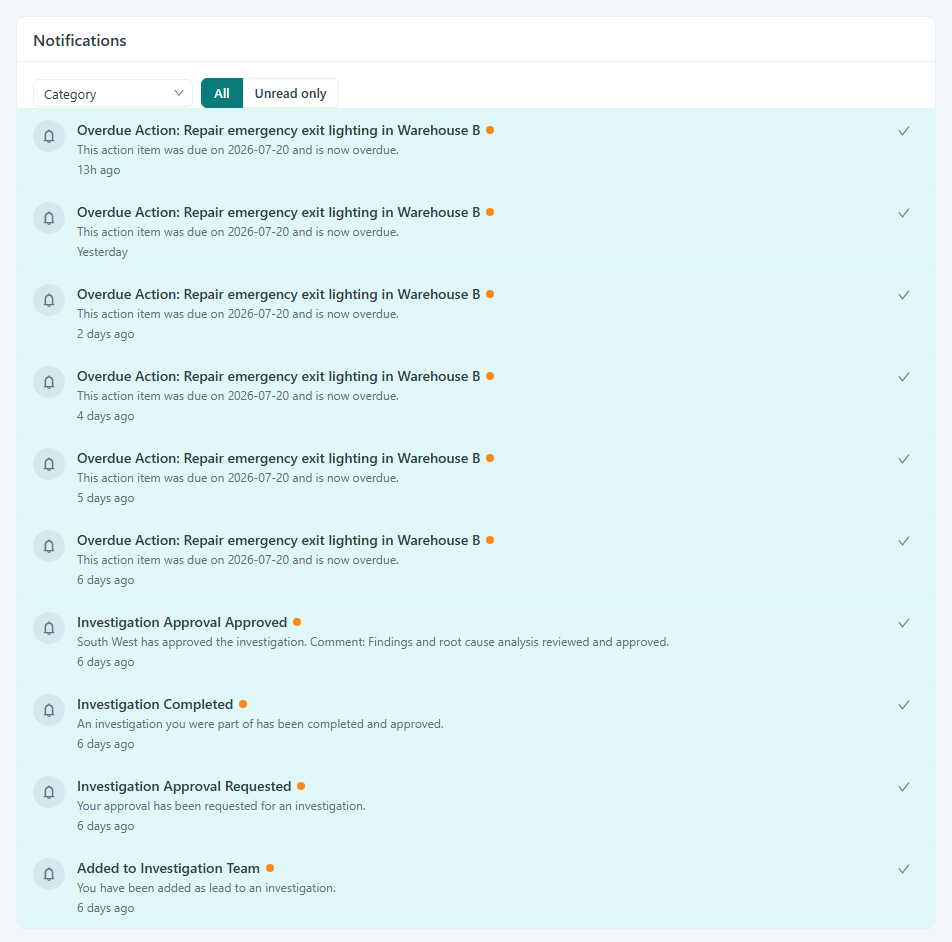
Caption: Use the category filter to narrow the notifications in view to a single type of safety event, and use the All / Unread toggle to switch between every notification and only those you have not yet opened.
Confirm reminders reach the intended recipients
After roles and ownership are set, confirm that reminders are reaching the correct owners. Because each reminder emails the owner and also surfaces the deadline on the executive dashboard, verify that the owner assigned to each event is current, so no alert is sent to someone who is no longer accountable for it.
Conclusion
Configuring notification settings in Safety App comes down to making sure each obligation has the right owner, that roles scope visibility correctly, and that everyone understands the automated reminder cadence. With owners set, roles aligned, and the category filter and All / Unread toggle applied, your team receives timely, relevant alerts and no safety deadline goes unnoticed.