





Summary
Notification Preferences controls which messages KC Skills sends to learners. You get a master switch for the whole account, then a grid of eight events, each of which can send an email, a portal notification, both, or neither.
Introduction
Learners need to know when an assessment has been assigned to them, when it opens, and when it is about to close. They also do not need eight messages if two will do. This setting is where you strike that balance.
It is for administrators configuring KC Skills for their organization. The choices apply account-wide rather than per campaign, so set them once and every campaign follows.
Key Concepts
Master switch: One account-level control that turns learner notifications on or off wholesale.
Event: A moment in the assessment cycle that can trigger a message, such as an assessment being assigned or its access window opening.
Email: A message delivered to the learner's email address.
Portal notifications: A message shown to the learner inside the portal rather than sent by email.
LMS notification setting: A separate switch in your LMS that governs notifications generally, and which affects what KC Skills can send.
Steps to Follow
Accessing Notification Preferences
Open Settings in the left sidebar, then select Notification Preferences. The page is described as managing email and in-app notification settings for your team.
Step 1: Set the master switch
Send notifications to portal users is the master control.
When it is off, no KC Skills emails or portal notifications reach learners, whatever the individual switches below say. When it is on, KC Skills sends the notifications you enable underneath.
Leave it off while you are still setting a campaign up, and turn it on when you are ready for learners to hear from the system.
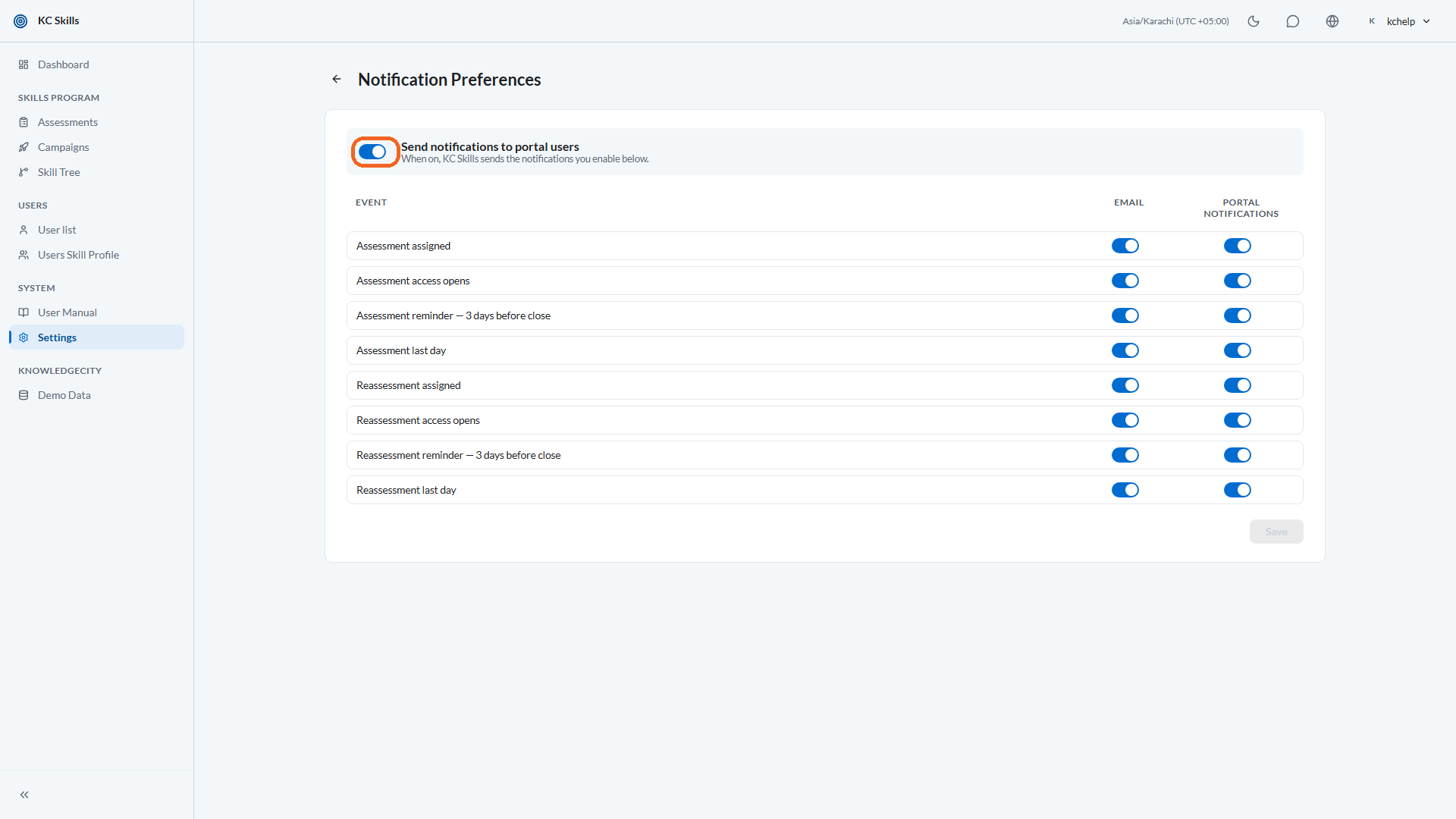
Caption: Send notifications to portal users is the master control.
Step 2: Choose the events and channels
Below the master switch is a grid. Each row is an Event, and each has two switches: Email and Portal notifications.
Eight events are available, four for the initial assessment and four matching ones for the reassessment:
Assessment assigned, and reassessment assigned.
Assessment access opens, and reassessment access opens.
A reminder three days before close, for each.
The last day of the assessment, and of the reassessment.
Turn on the ones your learners genuinely need. The assignment and the last-day warning carry the most value, while the middle two are easy to over-send.
Note: The individual switches are disabled while the master switch is off. Turn the master on first if the grid appears greyed out.
Step 3: Understand how your LMS setting interacts
If your organization has notifications turned off in the LMS, KC Skills tells you so, and will not send emails until they are enabled there.
You can still force-enable KC Skills emails from this page. Be aware of exactly what that does and does not cover: it force-enables only the KC Skills assessment and reassessment messages. Learning-path assignment emails and reminder emails are not sent until notifications are enabled in the LMS itself.
This is the setting most likely to cause confusion. If learners are receiving assessment notifications but nothing about the courses assigned to them, this is almost always why.
Step 4: Save
Select Save. KC Skills confirms with Settings saved.
Changes apply to notifications sent from that point on. They do not resend anything a learner has already missed, so enable what you need before a campaign launches rather than after.
Conclusion
Notification Preferences is one master switch plus an eight-event grid across two channels. Decide whether learners should hear from KC Skills at all, then enable the events that genuinely help them act. If course-related emails are not arriving alongside the assessment ones, check your LMS notification setting.