





Summary
A skills assessment is a multiple-choice quiz you take from My Skills in your learning portal. This article covers finding the assessment assigned to you, what the start screen tells you before you begin, answering the questions, and reading your result afterward.
Introduction
Your organization uses skills assessments to find out where people are strong and where they would benefit from training. Your result decides what learning gets recommended to you, so it is worth taking when you have a clear run at it rather than squeezing it between other things.
This article is for learners taking an assessment. Everything here happens in your normal learning portal, using the account you already sign in with.
Key Concepts
- Attempt: One run at the quiz. Some assessments limit how many attempts you get, and others do not.
- Access window: The period during which you can take the assessment. It has an opening date, a due date, and a closing date.
- Give up: Leaving a quiz session before finishing it. On a limited assessment this counts as a failed attempt.
- Score: How many questions you answered correctly, shown out of the total.
- Skills evaluated: The list of skills the assessment measured, shown with your result.
Steps to Follow
Accessing My Skills
Open My Skills in your learning portal. Assessments are grouped into three tabs:
- Available: assessments you can take now.
- Completed: assessments you have already finished.
- Access Locked: assessments that are not open to you at the moment.
If nothing is listed, you see You Don't Have Any Skill Assessments, which simply means none has been assigned to you yet.
Below the assessments is your skills area, where the skills you have been measured on appear. You can filter it by category, or select All to see everything.
Step 1: Read the start screen before you begin
Open an assessment and read the screen headed You Will Take Skill Assessment Test Now. It tells you what you are about to do, and it is the one place that shows the rules before they apply.
Check three things here:
- How many questions the assessment has, how many minutes on attempt you get, and how many attempts left you have.
- The Access Opens, Due Date, and Access Closes dates, along with how many days are left.
- The list under This assessment evaluates the following key areas, which tells you what is being measured.
Note: Attempts work one of two ways. A limited assessment warns that this session counts as one attempt, and that your progress resets once your attempts are used up. An unlimited one says it has no attempts limit. Read which applies before starting.
Step 2: Start the test
Select Start test. The session begins as soon as you do, and if the assessment has a time limit the clock starts at the same moment.
Give yourself an uninterrupted run at it. Because giving up partway counts against a limited assessment, starting one you cannot finish is the most common way people lose an attempt.
Step 3: Answer the questions
Each question shows your position, such as question three of twenty, with a progress indicator.
Most questions have one correct answer. Where more than one applies, the question tells you You can select several answers, so read that line before answering.
You can work entirely from the keyboard. Press the number keys to select answers, and press the key shown on the button to move on. Previous question takes you back if you want to revisit something.
Select Submit answer to confirm your choice, then Next question to continue. On the last question the button becomes Finish test.
Note: Depending on how your organization set the assessment up, you may be told straight away whether each answer was right. The button reads correct or incorrect as you move on. If you do not see that, feedback is held back until the end.
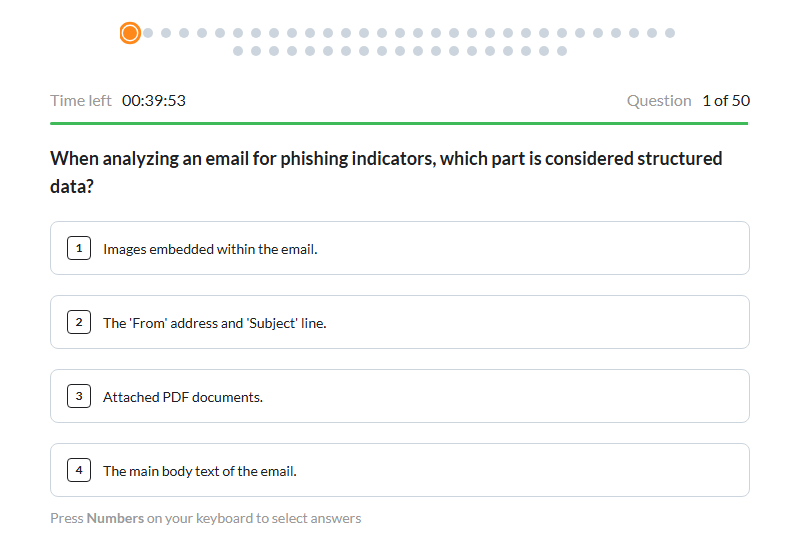
Caption: Each question shows your position, such as question three of twenty, with a progress indicator.
Step 4: Watch the time, if there is one
Where the assessment is timed, a bar shows how much time is left.
If it runs out, the session ends by itself and you see Time is up. Anything you had already submitted still counts, so keep moving rather than lingering on one hard question.
Step 5: Understand what giving up costs
Give up leaves the session early. KC Skills asks you to confirm first, and what it warns depends on the assessment.
On a limited assessment it tells you This will count as an attempt. On an unlimited one it simply confirms you want to abandon the session. If you are only pausing, closing the quiz is not a safe way to take a break on a limited assessment.
Step 6: Read your result
When you finish, you get your outcome and your score, shown as a number out of the total.
If you got some questions wrong, select Show incorrect answers to review them. This is the most useful part of the whole exercise: it shows you what you missed while the questions are still fresh. Skills evaluated lists the skills the assessment covered.
You can reopen your result later from the Completed tab in My Skills, where All Skills shows how you did across everything measured.
Note: If a result reads No result is available for this attempt, the attempt did not produce a score. That usually means the session ended without answers being submitted.
Step 7: Expect training to follow
Your result feeds into what happens next. Depending on how your organization runs its program, courses or a learning path may be assigned to you based on the skills where you fell short.
Later on you may be asked to take a reassessment on the same skills. That is how your organization checks whether the training helped, so treat it as a progress check rather than a repeat of the same test.
Conclusion
A skills assessment is a multiple-choice quiz, taken from My Skills, that measures where you stand on a set of skills. Read the start screen so you know your attempts and time limit, take it when you can finish in one sitting, and use the incorrect-answer review at the end. What you score shapes the training you are offered next.